Get told when someone mentions you
A mention always lands in the bell, but the bell only helps while you have the console open. The Messages group of alerts sends the same news to your channels: a teammate naming you in a comment, someone reacting to your comment, or a message an agent sends you because a task asked it to.
Who can do this: any member, for their own channels. Every channel starts with Messages on Full.
-
Select your initials at the bottom of the sidebar, then My Profile, and select Preferences.
-
Under Channels, select the row (Expand) of the channel you want this news on, such as your email or Slack DM. With only one channel, it is open already. To add one first, see Add chats as alert channels.
-
Find Messages among the groups. Its dropdown sets all three of its alerts at once: Off, Brief (a headline and a link) or Full (the whole message).
-
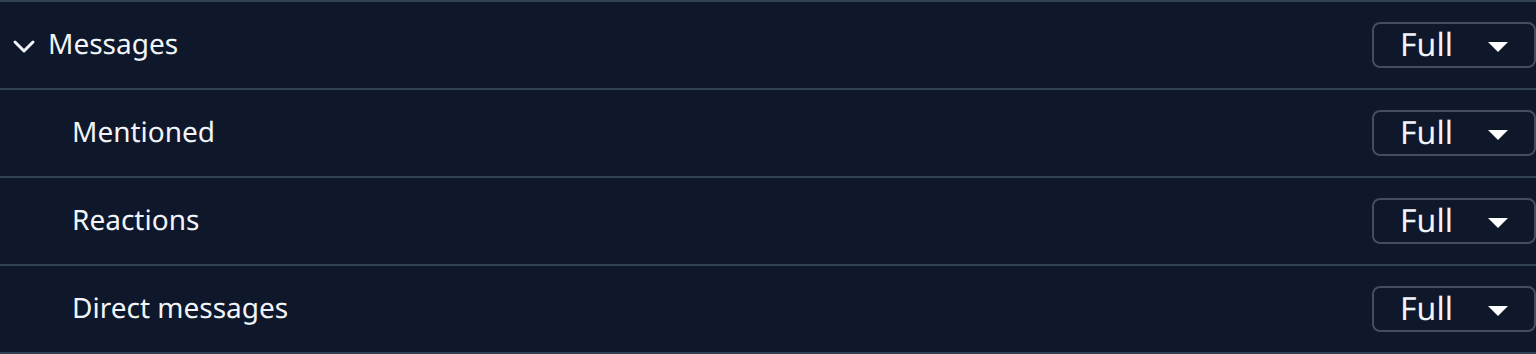
To choose each alert on its own, select the name Messages. It opens Mentioned, Reactions and Direct messages, each with its own dropdown.
-
Set each one. For example, keep Mentioned and Direct messages on Full, and set Reactions to Off if an emoji on your comment needs no message. While the three differ, the group's dropdown reads Mixed.
-
Each choice saves as soon as you pick it. Select the channel's row again (Collapse) to close it, and repeat for your other channels.
-
When a mention arrives, follow its link to the comment and answer there. See Answer someone who mentioned you.
Turning an alert off here stops it on that channel only. The bell still lists every mention and reaction.
Related
- Choose which alerts you get: every group of alerts in the Alerts section.
- Comment on a task: where mentions and reactions come from.
- How notifications work: the bell, and how alerts reach your channels.