Start a task's template again
A task you started from a template remembers it. When the same job comes round again, such as another security review or another dependency update, start it from the task you already have instead of hunting for the template.
Who can do this: Start and Customize appear only if you may create tasks in at least one project.
-
Open the earlier task and select the Details tab.
-
Find From template. It names the template the task came from.
-
Select the template's name. The Templates gallery opens with that name already in Search templates.

-
On the template's row, select Start to run it as it is, or Customize to change it first in the new-task form; see Customize a template before you start it.
-
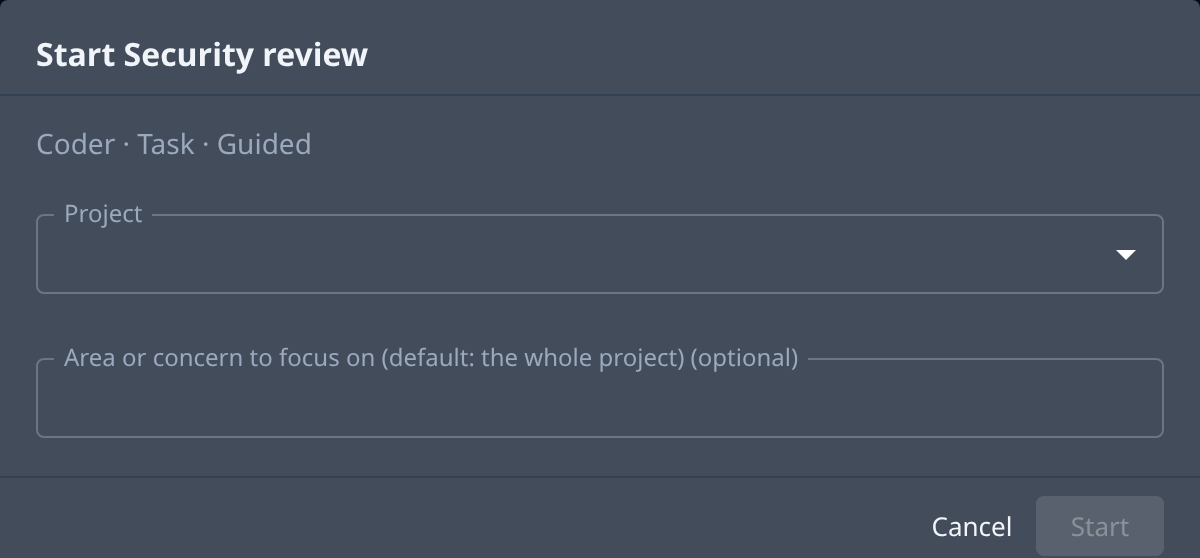
In the Start dialog, pick the Project and fill in any inputs the template asks for.
-
Select Start. The new task opens, filed from the template as it is today.
The new task uses the template's current brief, not the earlier task's: if someone changed the template since, the new task has the change. If From template shows the name as plain text, with no link, the template was deleted; to repeat the work, select Duplicate in the earlier task's ⋯ menu instead.
Related
- Start a task from a template — find a template in the gallery and start it.
- How templates work — inputs, Start and Customize, and where a task came from.
- Run a template on a schedule — have an automation start it for you.