Run a template on a schedule
Some templates are worth running again and again: a Security review every Monday, Update the docs once a month. Instead of starting the template by hand each time, give it to an automation: on each run it files a task from the template in the projects you pick, and a runner works on it like any other task.
Each run uses the template as it is at that moment, so a change to the template changes what the next run files. What a template carries is in How templates work.
Who can do this: Automations are shown only to Owners and Admins of your organization. The list of templates offers the published templates you may start.
Set it up
-
In the sidebar, select Audit, then the Automations tab.
-
Select New automation (+ on a phone). New automation opens on When, with Schedule picked.
-
On the Schedule line, select Edit and set when it runs, for example every Monday at 09:00. Read the line back: it says when the next run is. Select Next.
-
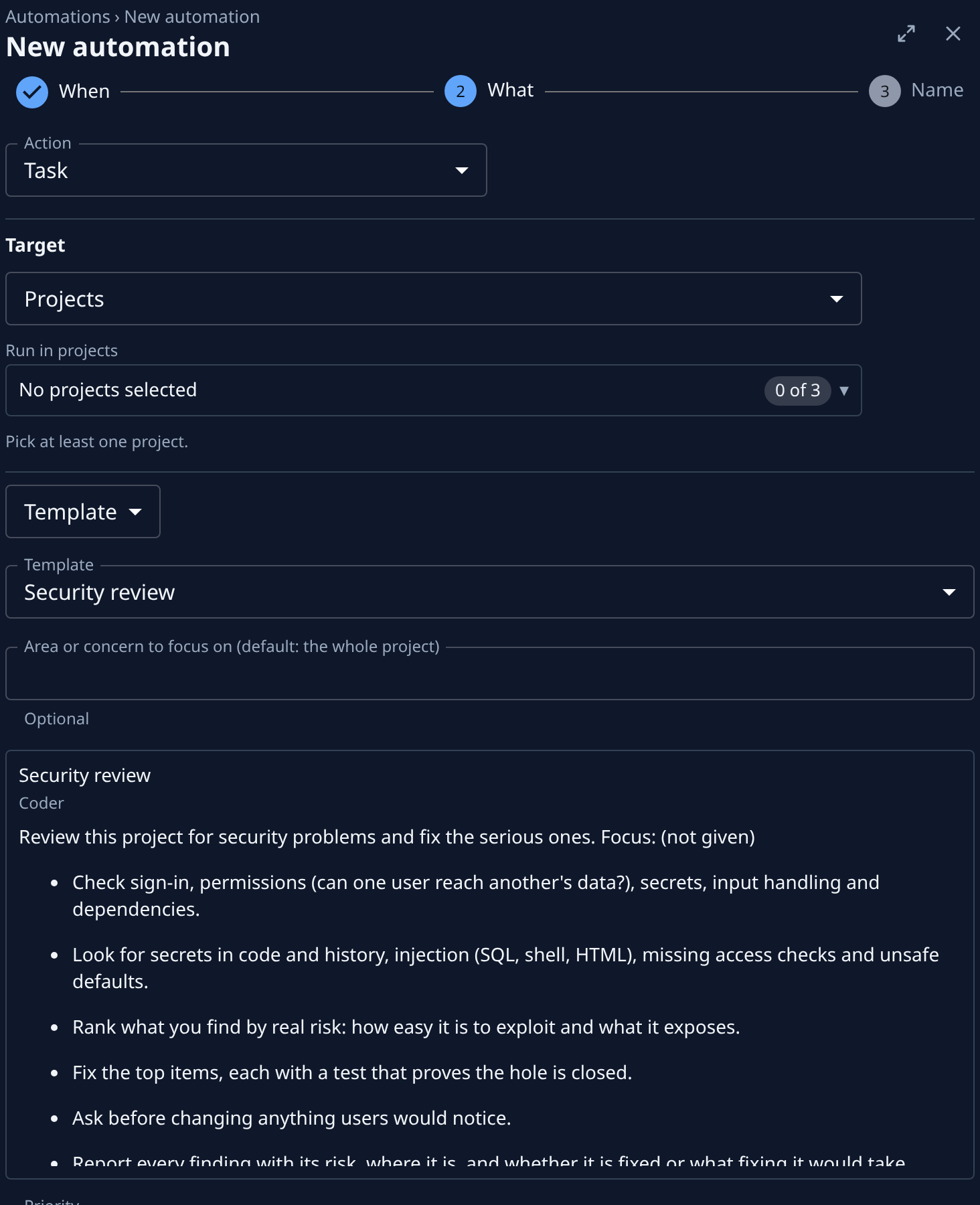
On What, leave Action at Task. Under Target, pick Projects, then choose the projects in Run in projects. Each run files one task per project.
-
Below Target, in the list that reads Body, pick Template.
-
In Template, pick the template, for example Security review. Its name, persona and brief show below it, as each run will file them.
-
Fill in the template's inputs, if it has any. Each run uses these values; a required one must be filled before you can go on. Select Next.
-
On Name, the Name reads Task · Schedule. Change it to one you'll recognize in the list, such as
Weekly security review. -
Select Create. The automation's page opens, and its status says Active.
If Next stays on What, the line beside the buttons says what is missing, such as Pick a template.
Choose whether its tasks start
By default each task starts as soon as it is filed. To check each one before it runs, open the automation's Settings tab, set Start to Leave as draft and select Save. The tasks then wait in the board's Draft section until someone starts them. The template decides the persona, the model and the brief, so a template automation's Settings shows only Start and Run as.
To try it without waiting for the schedule, select Run now; see Run, pause or change an automation.
If the template changes
- Editing the template changes what the next run files. Tasks already filed keep their brief.
- Deleting it, or taking it out of the gallery, stops the automation: its row in the list shows Template deleted or Template unavailable, and it files no task until you pick another template.
- A new required input stops runs too, with Template input missing, until you open the automation, fill in the new input and save it.
Related
- Create an automation — every step of a new automation, and event sources besides a schedule.
- Start a task from a template — start a template once, by hand.
- Change or delete a template — what an edit or a delete does to the automations that use it.