See which templates get started most
Before you write a new template or tidy up old ones, check which templates people actually start. The gallery's Most popular group shows the leaders to everyone; Manage templates gives a count for each template you edit. Both count the tasks started from a template in the last 90 days. A task an automation files from a template isn't counted.
An Official template's count includes starts in every organization that uses Jaah. A Your org template's count is your organization's alone.
-
In the sidebar, select Settings, then Templates under Customize. The gallery opens with Favorites first if you starred any, then Most popular.
-
Read Most popular: up to six templates, the most started first. The number beside the heading is how many it holds. A template nobody started in the last 90 days is never in it, and when no template was started the group doesn't show.
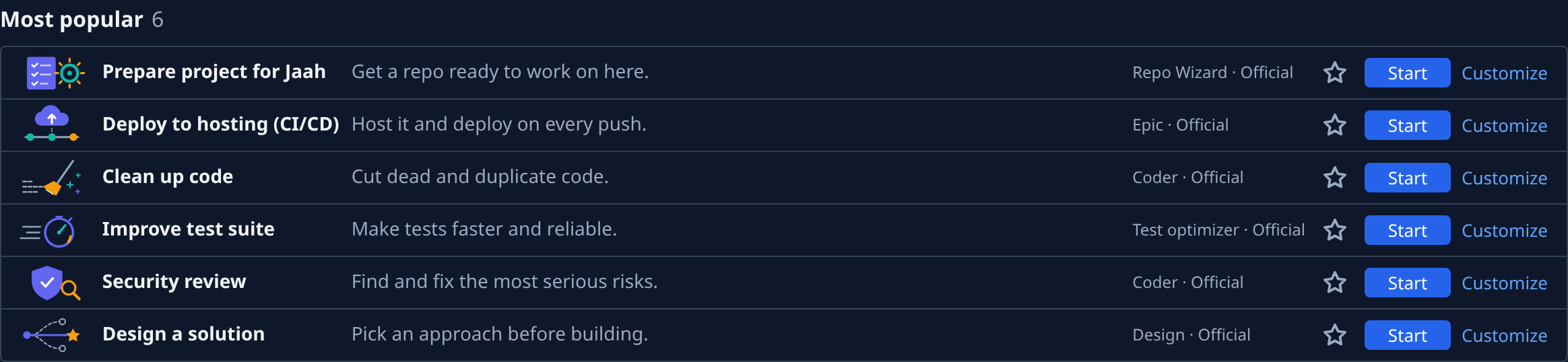
-
Select Manage at the top of the gallery. Manage templates lists every template you edit, with its Purpose, Origin, Status and Starts.
-
Read the Starts column: how many tasks were started from each template in the last 90 days. Hover a number to read it in full, for example "12 starts in the last 90 days".
-
To check one template or a group, type in the search box: it matches the name, summary or purpose.
-
Act on what you find. A template that shows 0 for months may need a clearer name or summary, or no longer be needed: open its row's ⋯ and select Edit or Delete, as in Change or delete a template. A Draft (○) gets no new starts, since nobody can start it.
Who can see Manage: your plan must include the Templates (org) feature, and you need permission to edit templates, which Org Owners and Admins hold (or a custom role that grants it). Without both, the gallery shows no Manage, and only Most popular tells you what gets started. The organization these screenshots come from has no Templates (org) on its plan, so Manage templates isn't pictured.
Related
- How templates work — the gallery's groups, Start and Customize.
- Keep your favorite templates at the top — star the ones you use, so they lead the gallery.
- Templates — every column of Manage templates.