Customize a template before you start it
Start runs a template as it is. When it is close to what you need but not quite, select Customize instead: the template opens in the new-task form, already filled in, and you change what you want before the task runs. The template itself doesn't change, and nothing is saved until you select Save or Go.
Who can do this: anyone who may create tasks in at least one project. Without that, the template rows show no Start or Customize.
-
On the task board, select ▾ beside New Task, then From template. The Templates gallery opens.
-
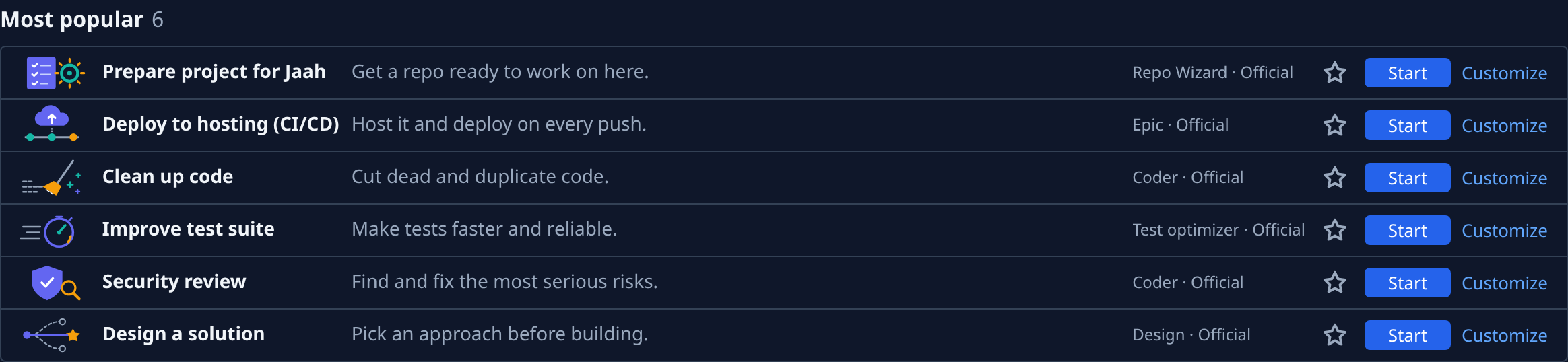
Find the template, by its group or with Search templates, as in Start a task from a template.
-
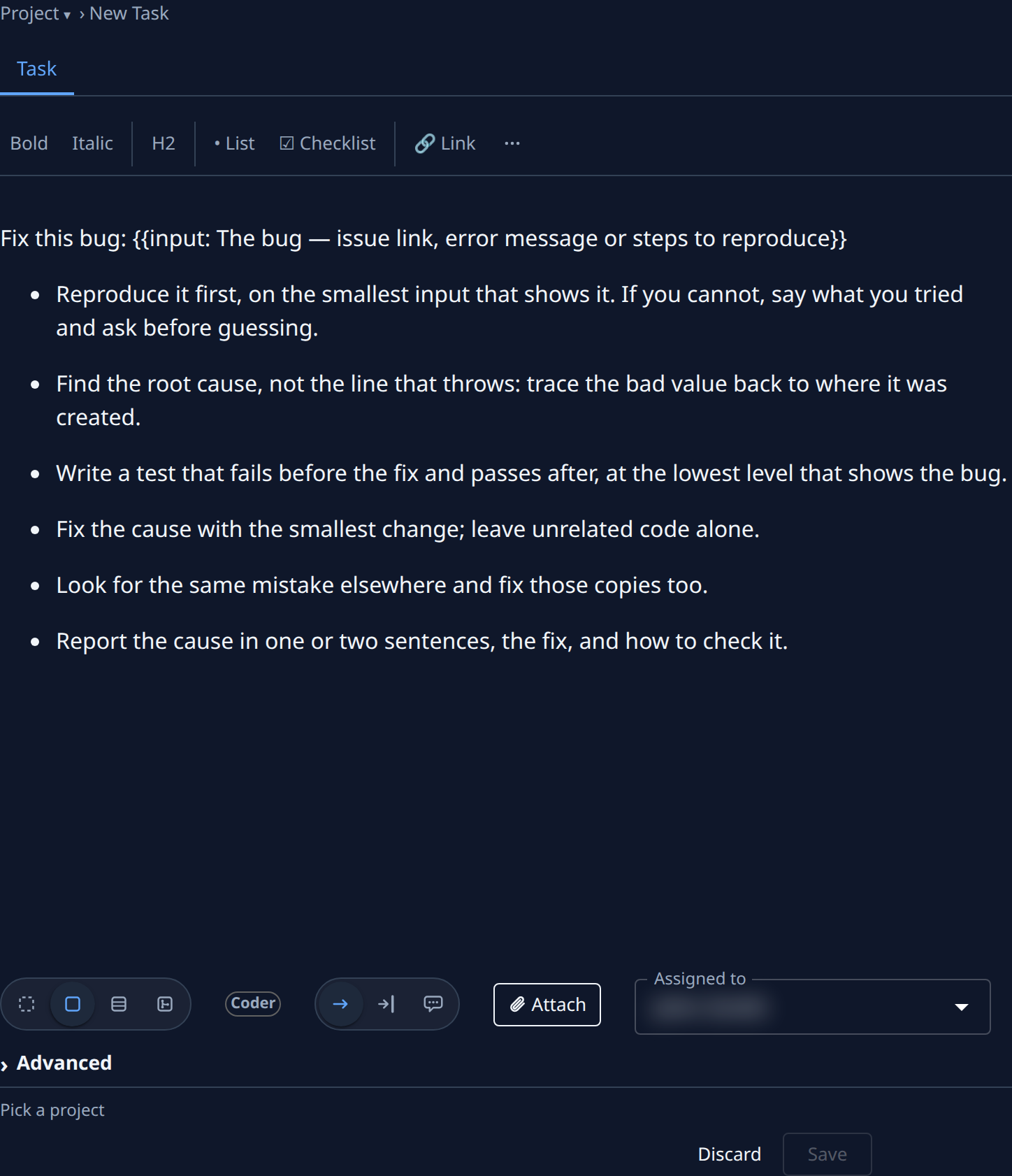
On its row, select Customize. The new-task form opens with the template's brief in the description box and its persona, size and involvement already chosen.
-
Pick the project the task runs in: open Project ▾ at the start of the breadcrumb. A template belongs to no project, so unless the board was showing one, Save stays unavailable until you do.
-
Replace each input mark in the brief with your value. A mark reads
{{input: Label}}, or{{input?: Label}}for one you may leave out: unlike Start, Customize doesn't ask for them, so delete the whole mark, braces included, and type your value in its place. -
Change the rest of the brief as you need: add context, narrow the scope, paste a screenshot.
-
Optional: change the size (for example Epic instead of Task), the involvement (Guided to be asked before key decisions), or, under Advanced, the persona that runs it.
-
Select Go to save the task and start it, or Save to keep it as a draft and start it later.
The task's page shows From template, linking back to the template in the gallery, even though you changed it.
To change the template for everyone instead of for this one task, see Change or delete a template.
Related
- How templates work — the gallery, Start and Customize, and inputs.
- Start a task — every part of the new-task form.
- Write a good task description — what makes a brief work.