Find a template in the gallery
The Templates gallery holds Jaah's Official templates and your organization's own, and the list grows. Rather than scroll through every group, search for the job you have in mind or narrow the gallery to one purpose.
Who can do this: any member. Start and Customize show only if you may create tasks in at least one project.
-
In the sidebar, select Settings, then Templates under Customize. The gallery opens with Favorites (if you starred any), Most popular, then one group per purpose, each with its count.
-
To see one kind of work only, open Purpose and pick it: Build & fix, Quality, Security, Maintenance, Docs & release or Research & planning. Only that group stays.

-
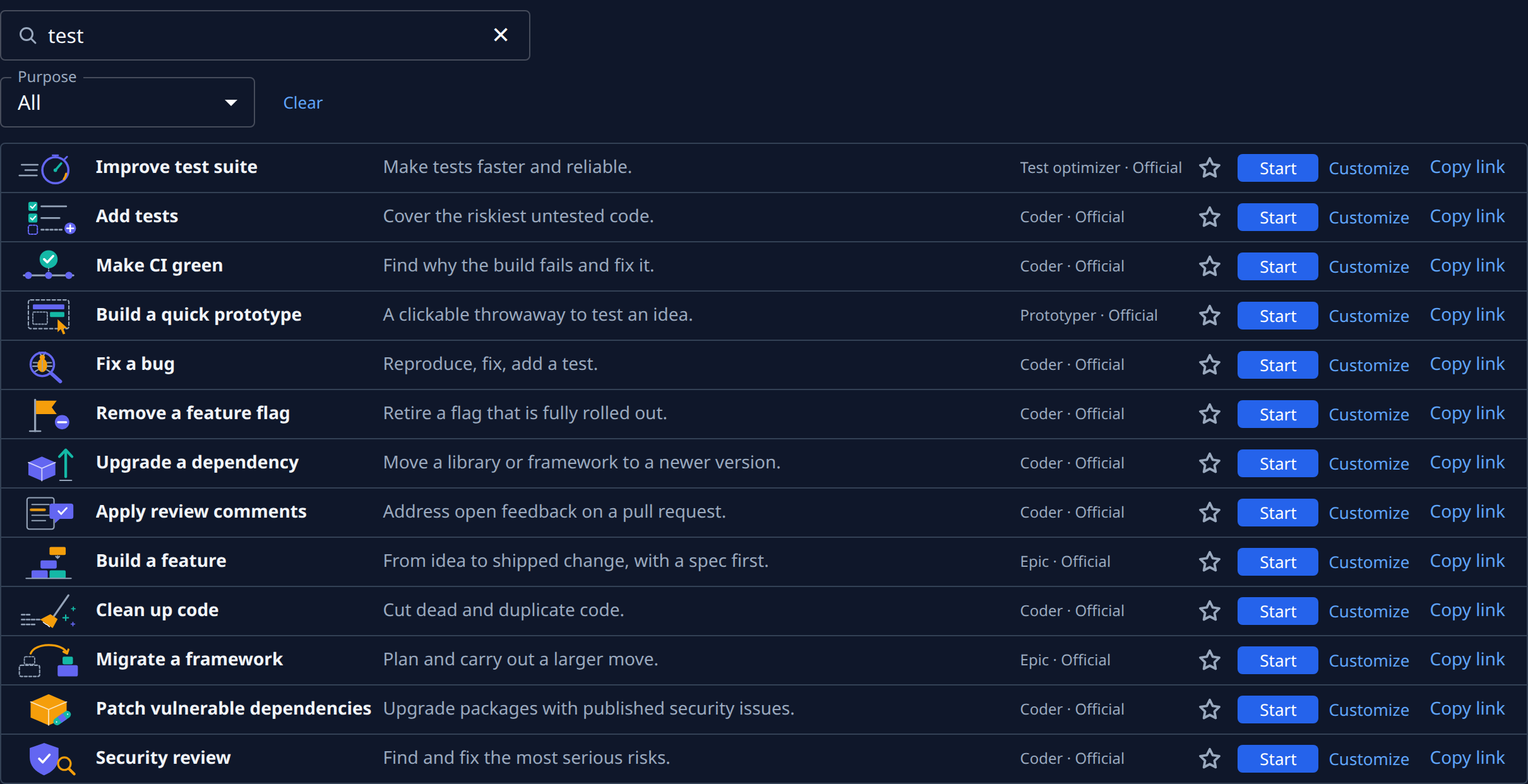
To look for a job by words, type in Search templates, for example test. Search reads each template's name, summary, description and group. The groups give way to one list, best match first. A purpose you picked still applies.
-
Read each row: its name and one-line summary, then the persona that runs it and Official or Your org.
-
If the page says No templates match, try fewer or other words, or pick All under Purpose.
-
When you have found it, select Start to run it now, or Customize to change it first. See Start a task from a template.
-
To see the whole gallery again, select Clear beside Purpose. It resets both the search and the purpose.
The search and the purpose are part of the page's address: send the link and a teammate opens the same list. To keep a template at hand for next time, star it so it leads the gallery under Favorites.
Related
- How templates work: the gallery, its groups, and where templates come from.
- Keep your favorite templates at the top: star the ones you use often.
- Templates: every control on the gallery.