Start a template from your phone
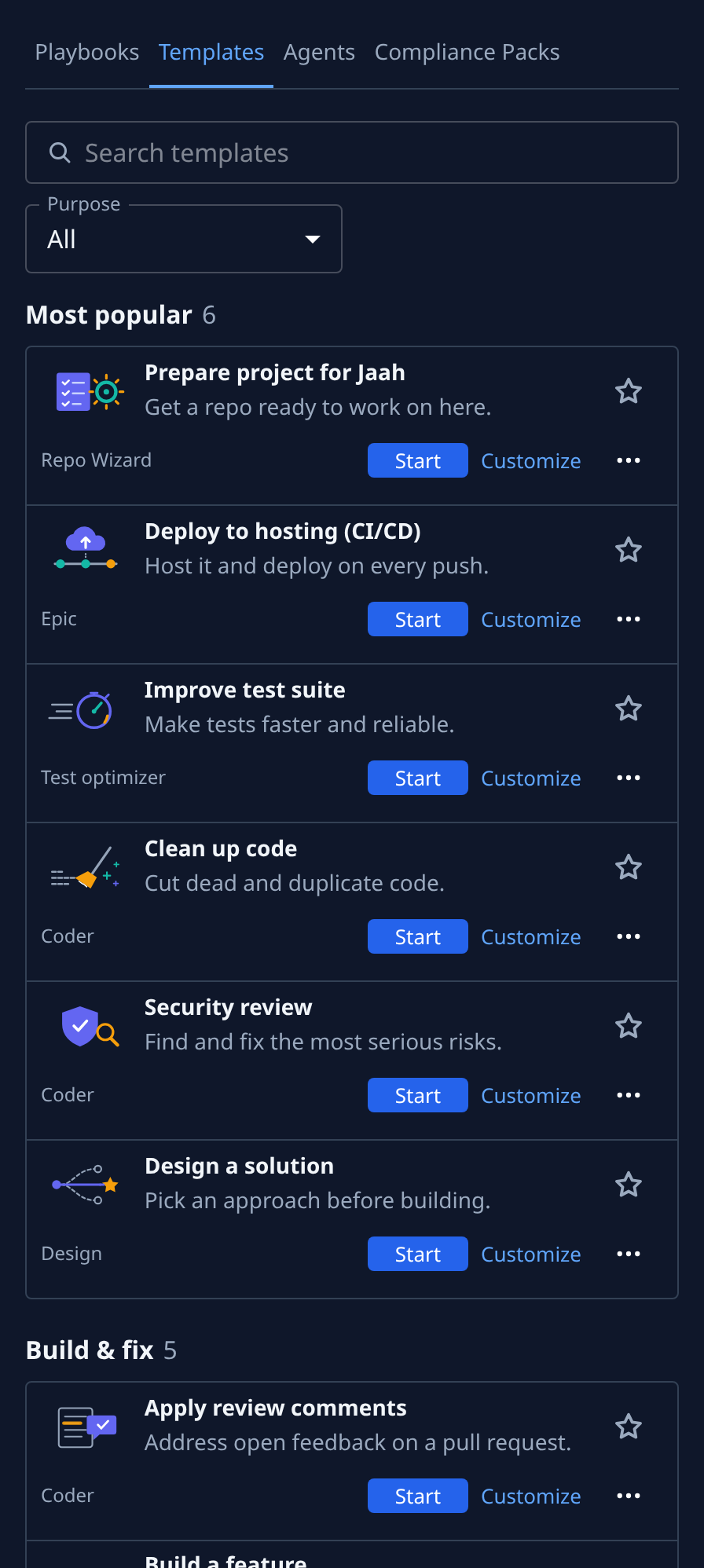
You don't need a laptop to kick off routine work. On a phone the Templates gallery keeps each row to one line: a small Start and Customize sit on the row, and Copy link moves into a ⋯ menu. This guide starts a template from a phone. What templates are is in How templates work.
Who can do this: anyone who may create tasks in at least one project. Without that, the rows show no Start, Customize or ⋯.
-
Open the console on your phone. The sidebar is a bar along the bottom; open Settings, then Templates under Customize.
-
Find the template. Type part of its name in Search templates, or choose a group under Purpose. Select Clear to see every group again.
-
Check the row: its name and summary, then the persona that runs it. The phone hides Official or Your org; Check what a template does before you start it shows how to read the rest.
-
Select Start on the row. The Start dialog fills the screen. Its first line shows the persona, size and involvement the task gets, such as Repo Wizard · Task · Guided. Cancel closes it without filing anything.
-
Choose the Project the task runs in. If you can create tasks in only one project, it is already chosen. Fill in any inputs the template asks for; Start stays unavailable until the required ones are filled.
-
Select Start. The task is filed and started, and its page opens, where you can follow it as on a laptop.
To change the brief, persona or size first, select Customize instead of Start: see Customize a template before you start it.
Send a template to a teammate
On a phone, Copy link is in the row's ⋯ menu. Select ⋯, then Copy link. The row shows Copied ✓ for a moment, then paste the link into a message. The link opens the template in the new-task form, as in Share a link to a template.

Related
- Start a task from a template: the same task on a wider screen.
- Find your way around: the console's phone layout.
- Templates: every control on the gallery.