Choose how a template's tasks run
A template decides more than the brief. It also sets how big each task is, how much it asks of the person who started it, which persona runs it and, for Org Owners and Admins, on which model. Everyone who starts the template gets those settings without choosing them. Set them on the template's Task tab.
Who can do this: writing templates needs the Templates (org) feature on your plan and permission to edit templates, which Org Owners and Admins hold (or a custom role that grants it). Without both, the gallery shows no Manage; on a plan without the feature, a link to the editor opens a Not on your plan page.
-
Open Settings in the sidebar, then Templates under Customize, and select Manage. Select the template's row, or select New template to start one. The editor opens on its Task tab.
-
Open the first setting under Description and pick the size: Sketch for a quick mockup to look at, Task for one runner that ships its work as a merged pull request, or Epic for work that is analysed and split into subtasks first (see Make a template that starts an epic).
-
Open the second setting and pick the Involvement: Unattended decides everything itself, Guided asks the person who started it before key decisions, and Interactive also asks them to Finish or Request changes once the work is done. An epic offers Unattended and Guided only. Picking Sketch sets the involvement to Interactive; you can change it.
-
Select Advanced and pick the Persona that runs the task. Picking Sketch sets it to Prototyper; you can change it. Each persona is described in Choose a persona for a task.
-
Org Owners and Admins also see Model under Advanced. Leave it on Inherit to use the project's usual model, or pick one to pin every task the template starts to it.
-
Select Save (or Create for a new template). Tasks already started keep the settings they were filed with; the next start uses the new ones.
-
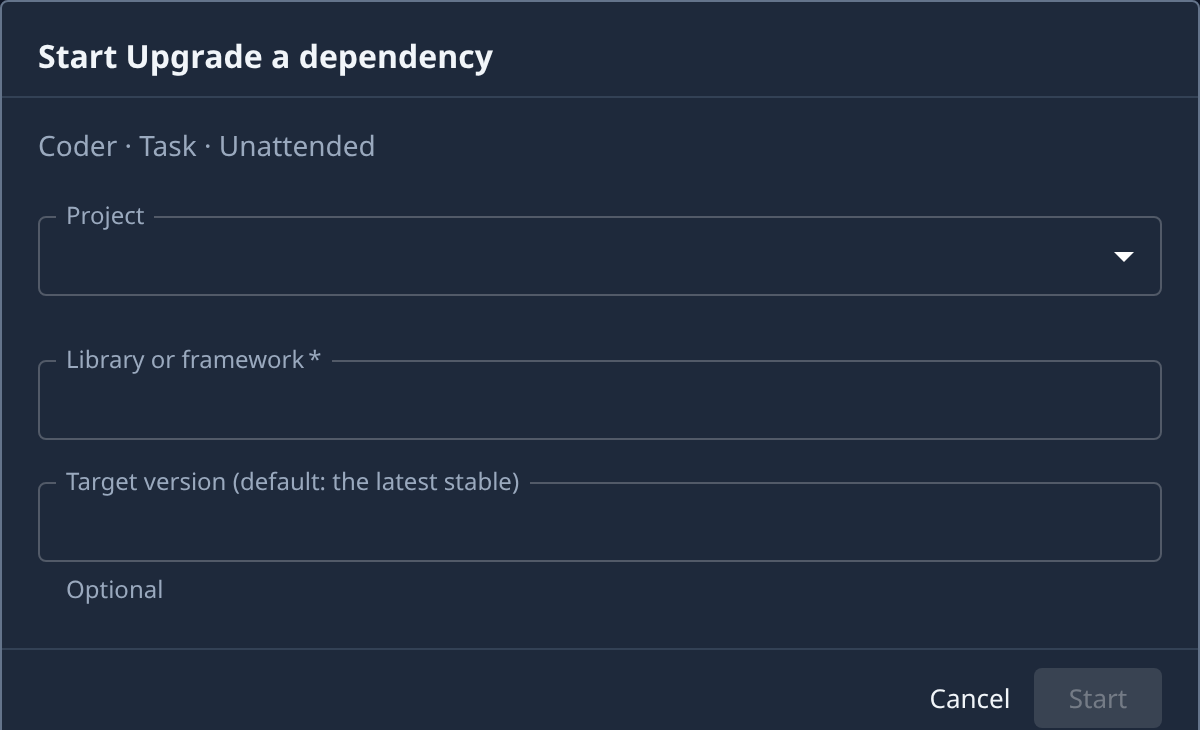
To check, find the template in the gallery and select Start. The line under the title of the dialog names the persona, size and involvement, such as Coder · Task · Unattended. Select Cancel to close it without starting anything.
A person who opens the template with Customize instead of Start sees these settings filled in on the new-task form and can change them for that one task, as in Customize a template before you start it.
Related
- Create a template: every step of writing a template.
- How templates work: the gallery, Start and Customize.
- Templates: every field of the template editor.