Ask for details when a template starts
Most templates need one thing that changes every time: the bug to fix, the library to upgrade, the question to research. Write it as an input in the template's brief and Start asks for it, then puts the answer where the input sits. Nobody has to edit the brief by hand. What a template carries is in How templates work.
Who can do this: your plan must include the Templates (org) feature, and you need permission to edit templates, which Org Owners and Admins hold (or a custom role that grants it). Without both, the gallery shows no Manage. Official templates already carry their inputs; to change them, duplicate the template first, as in Adapt an official template.
-
Open Settings in the sidebar, then Templates under Customize and select Manage. Select your template's row; its editor opens on the Task tab. For a new template, select New template instead, as in Create a template.
-
In Description, type
{{input: Label}}where the value belongs in the brief, for exampleFix this bug: {{input: The bug}}. The label is what Start shows above the field, so name the thing you want: one line, up to 80 characters, no braces. Hover Description to see the syntax. -
For a value people may leave out, add a question mark:
{{input?: Label}}. Left blank, it reads "(not given)" in the task's brief, so say the default in the label, for example{{input?: Target version (default: the latest stable)}}. -
To use the same value in two places, write the same label twice. Start asks for it once and fills both. If either mark is required, the input is required.
-
Select Save. The next task started from the template asks for the new inputs; tasks already started keep the brief they were filed with.
-
Check what members will see. Go back to the Templates tab and select Start on your template's row. The dialog shows one field per input, in the order they first appear in the brief. A required one carries an asterisk, an optional one ends in (optional), and Start stays greyed out until the Project and every required input have a value. Select Cancel; nothing is filed.
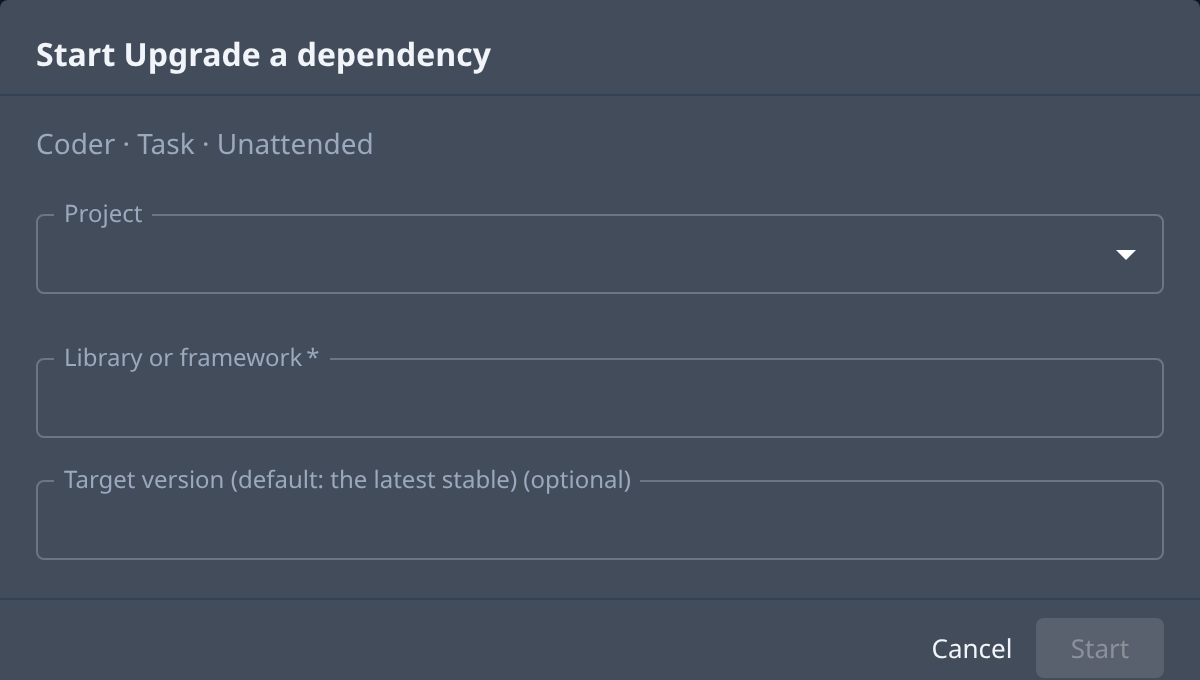
Inputs are asked for only by Start and by an automation that files its task from the template, which stores its answers once. Customize opens the brief with the marks still in it, and the person replaces them by hand. If you add a required input to a template an automation already uses, that automation shows Template input missing until someone saves it with a value.
Related
- Start a task from a template: what members do in the Start dialog.
- Change or delete a template: the rest of the template editor.
- Run a template on a schedule: fill a template's inputs once for every run.
- Templates: every field of the template editor.