Group automations into folders
Once your organization has more than a handful of automations, a flat list gets hard to read. Folders
group them by what they are for, such as Maintenance, Reports or Intake. A folder is part of
the automation's name: everything before a / is the folder, and the part after the last / is the
automation's own name. There is nothing else to create or delete.
Who can do this: Automations are shown only to Owners and Admins of your organization.
Move an automation into a folder
-
In the sidebar, select Audit, then the Automations tab.
-
Select the automation's row. Its page opens on the Setup tab.
-
Under About, change Name to the folder, a
/, then the name, for exampleMaintenance/Dependency updates. Use the same folder spelling for every automation you want together. For a folder inside a folder, add another level:Maintenance/Weekly/Dependency updates.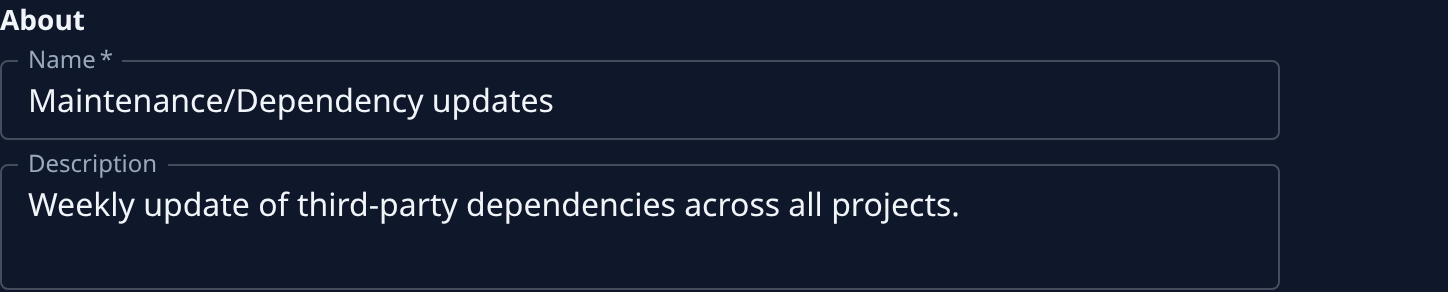
-
Select Save.
-
Check the page's heading. It now shows only the automation's own name, and the folder sits in the breadcrumb between Automations and the name.

-
Go back to the Automations tab. With Tree view on (the folder button beside New automation), the automation sits under its folder, and the folder shows how many automations it holds, such as Maintenance (4).
To take an automation out of a folder, delete the folder and the / from its Name and save it. A
folder with no automations left disappears by itself.
Work with folders in the list
- Open or close a folder: select its row in Tree view. On your first visit every folder is open; after that, the list remembers which ones you left open.
- See one folder only: select the folder's name in an automation's breadcrumb. The list opens with the folder's name in Search, so it shows only the automations whose name contains it.
- See a flat list: select Tree view again. Each row then shows the full name, folder included.
Spaces around a / don't matter: Maintenance / Dependency updates lands in the same folder as
Maintenance/Dependency updates.
Related
- Run, pause or change an automation — everything else you change on an automation's page.
- Find the automation that filed a task — a task's Source names the automation with its folder.
- Automations — every column and control of the list, including Tree view.