Find out why an automation failed
An automation reads Failing when its last run failed, one of its targets failed, or Jaah stopped it. Until you fix the cause it keeps failing, and its tasks are not filed. Your organization's Owners and Admins are told when one keeps failing. This guide takes you from the alert to the cause.
Who can do this: requires the org admin role. Automations are listed under Audit, which only Org Owners and Admins see.
-
In the sidebar, select Audit, then the Automations tab.
-
Set Status to Failing. Each failing automation has a cross before its name. Hover a row to read why it fails.
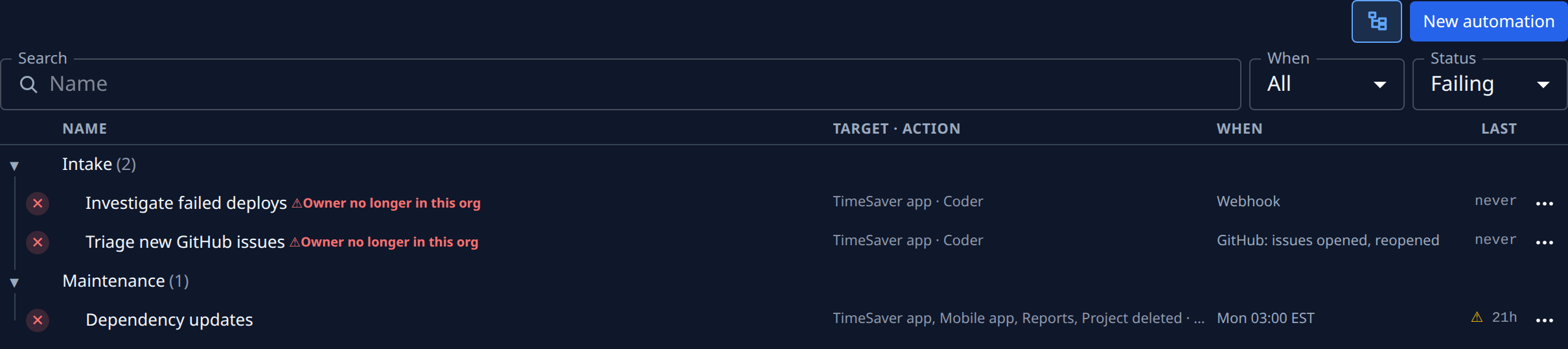
-
Select the automation's name. Its page opens beside the list. Under the name, Failing is followed by the cause in red, and the full text of the last failure under it.
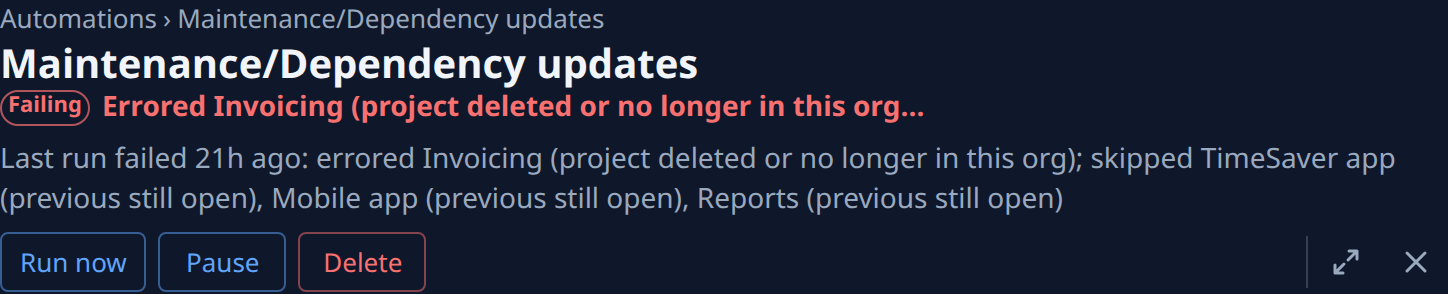
-
Select the Runs tab. Runs are listed newest first; a failed run's line is red and starts with what went wrong. To leave out runs that only skipped, set Status to Hide skips.
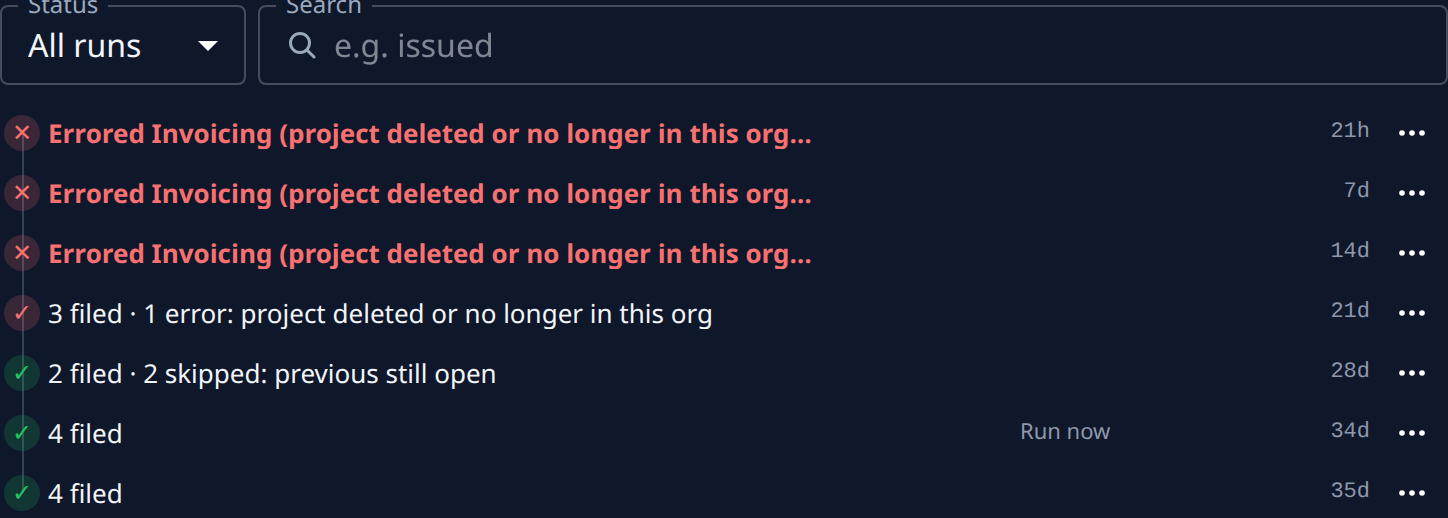
-
Select the failed run, or Open in its ⋯ menu. Under Targets, Error comes first, listing each project or node that failed and why. A run with no targets listed says what happened under This run.
-
Fix the cause the run names. Common ones:
- Owner no longer in this org: see Take over an automation whose owner left.
- A project or node that was deleted or left the organization: on the Setup tab, change the Target. See Choose what an automation runs on.
- Stuck: a run that never finished. See Release a stuck schedule.
-
Select Run now at the top of the page, then open Runs again. A good run clears Failing. If Jaah stopped the automation, select Resume as well.
Related
- How automations work: what each run outcome and status means.
- Get told when an automation or trigger breaks: who is alerted, and where.
- Automations: every part of the Runs tab and a run's page.