Take over an automation whose owner left
An automation runs as the person who owns it. When that person leaves your organization, every run is refused and the automation files nothing, so a schedule or an event you rely on goes quiet.
Who can do this: requires the org admin role. Automations are listed under Audit, which only Org Owners and Admins see.
-
In the sidebar, select Audit, then the Automations tab.
-
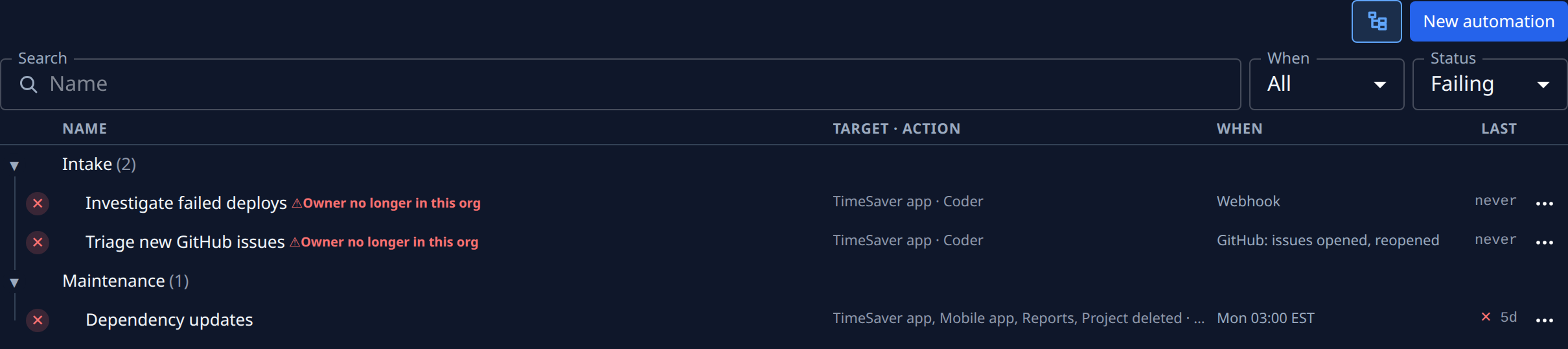
Set Status to Failing. An automation whose owner left shows a cross before its name and ⚠ Owner no longer in this org after it.
-
Select the automation's name to open its page. Read its Setup tab to check that it still files what you want, on the projects or nodes you want, before you take it on.
-
Select ⋯ at the end of its row in the list, or look in the buttons at the top of its page.
-
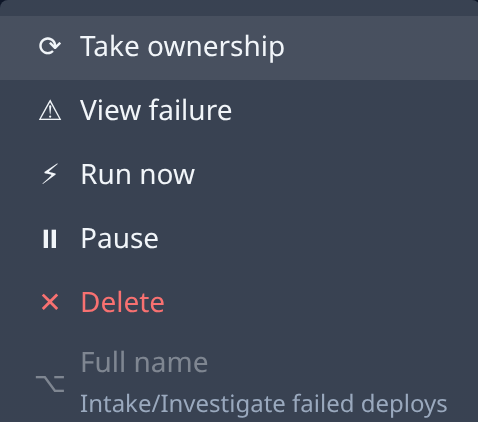
Select Take ownership. It leads the menu while the owner is gone. You become its owner and its runs file tasks again from the next one. The ⚠ Owner no longer in this org mark goes away.
-
Wait for its next run, or select Run now to run it once straight away. Then open its Runs tab and check that the run filed tasks.
-
Set Status back to All.
If you don't want the automation any more, select Pause or Delete in the same menu instead. Delete removes its run history; the tasks it already filed stay.
Related
- How automations work: who an automation runs as, and who is told when one fails.
- Run, pause or change an automation: read its runs, pause it or change what it runs on.
- Automations: every column, menu item and button on these screens.
- Change a person's role or remove them: removing someone leaves the automations they own without an owner.