Start tasks from email
An automation with the Email source files a task each time a message arrives at an address you pick. Use it for mail that should turn into work, such as bug reports sent to a support address or alerts from a tool that can only send email.
Who can do this: requires the org admin role. Automations are listed under Audit, which only Org Owners and Admins see.
Before you start: the automation receives at one of two places. Either a Jaah address, which you can make while you set it up when your plan includes Tenant email, or a Gmail mailbox connected through a service account (see Connect your organization's Gmail). A mailbox connected by signing in with Google only sends, so it is not offered.
-
In the sidebar, select Audit, then the Automations tab.
-
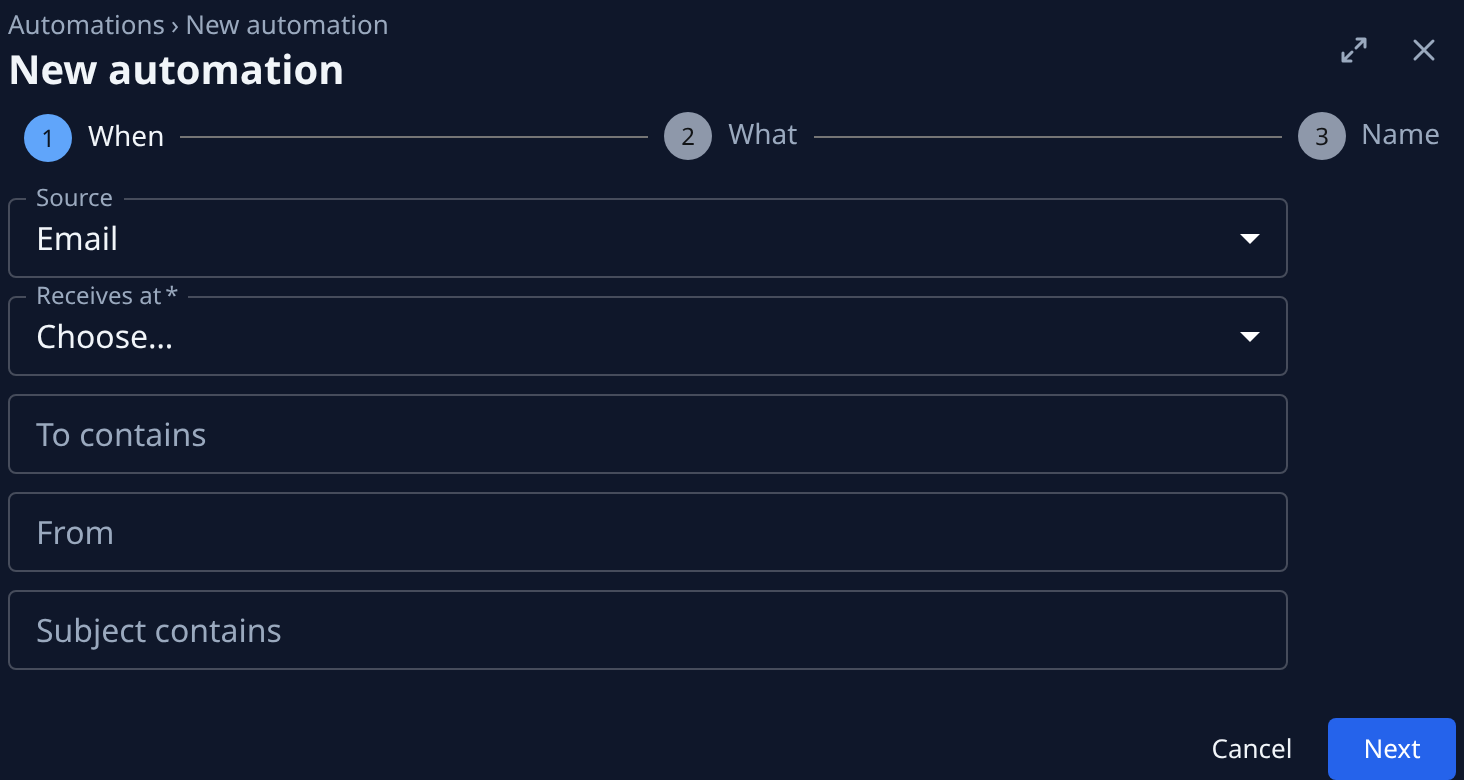
Select New automation. It opens beside the list, on When.
-
Set Source to Email.
-
Open Receives at and pick where the mail arrives: a Jaah address, or a mailbox listed as Gmail · and its address. To make a new address, pick New address…, optionally give it a Label, and select Create. You come back to the automation with the new address picked.
-
Optional: narrow which messages count. To contains and Subject contains match any part of the text. From takes a sender or a domain: an address matches only itself, and a domain such as
@acme.comalso matches its subdomains. Left empty, every message that arrives counts. -
Select Next. On What, leave Action at Task, pick the project under Target, and write what each task should do. To quote the message, use
{{email.subject}},{{email.from}}and{{email.body}}. Hover the Title label to see them. Select Next. -
On Name, give it a name you will recognize, such as
Support inbox, and select Create. -
Send a test message to the address. A Jaah address is listed, with Copy address, on the Addresses tab of your organization's email settings. Once it arrives, the message shows under Runs on the automation's page, titled with its subject and sender, and its task is filed.
Each Jaah address feeds one automation, so an address already in use is not offered again. Mail that reaches an address but no automation is listed on the Inbound tab of the same settings.
Related
- Create an automation: the other sources, and how to test an event before the first real one.
- Connect Gmail: addresses, mailboxes, and mail that is refused before it reaches an automation.
- Find out why an automation failed: when a message files no task.