Find the automation that filed a task
Automations file tasks on their own, on a schedule or when an event arrives. When a task turns up and you want to know why, its Source names the automation behind it. From there you can open the automation, see the run that filed the task, and pause or change it.
Who can do this: everyone can read a task's Source. Opening the automation needs the org admin role: for anyone else the automation's name is plain text, not a link.
-
Open the task: select it on the Tasks page.
-
Select the Details tab. Its Summary opens.
-
Find Source. A task an automation filed reads Automation · and the automation's name, such as Reports/Weekly status report: the folder it sits in, then its name. Any other source, such as Slack or GitHub, means the task didn't come from an automation.
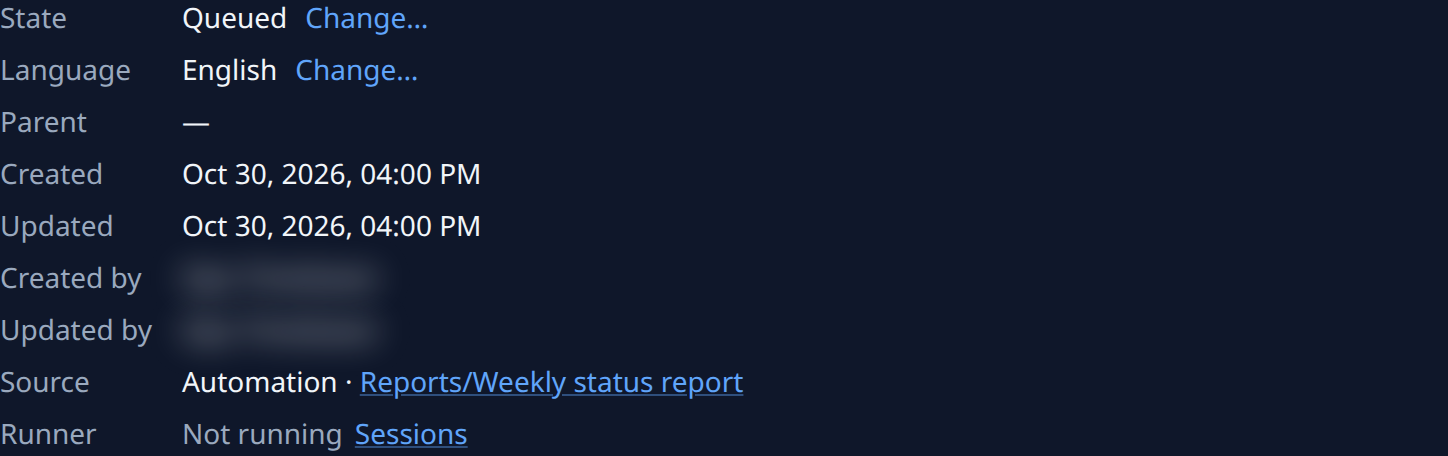
-
Select the automation's name. Its page opens on Setup, where When, Target and Action say when it runs, where, and what task it files.
-
Select the Runs tab and open the run around the time the task was created. Under This run, Detail names the task it created, such as Created task #5510 in Reports.

-
Decide what to do with it. To stop it filing more tasks for a while, select Pause; to change what it files, edit Action and select Save. See Run, pause or change an automation.
If the name isn't a link and you hold the org admin role, the automation has been deleted. The tasks it filed stay.
Related
- How automations work: When, Target and Action, and what a run skips.
- Find a task on the board: filter the board by Source.
- See and add a project's automations: every automation that files into one project.