Limit what an event automation files
An automation that runs on an event, such as a GitHub issue or a webhook call, files a task each time one arrives. A burst of events can file more tasks than you want running. Its Limits cap that, and its Auto-pause stops it by itself when it keeps failing or goes quiet. A schedule has neither: it runs only at its times.
Who can do this: automations are shown only to Owners and Admins of your organization.
-
In the sidebar, select Audit, then the automation's row on the Automations tab.
-
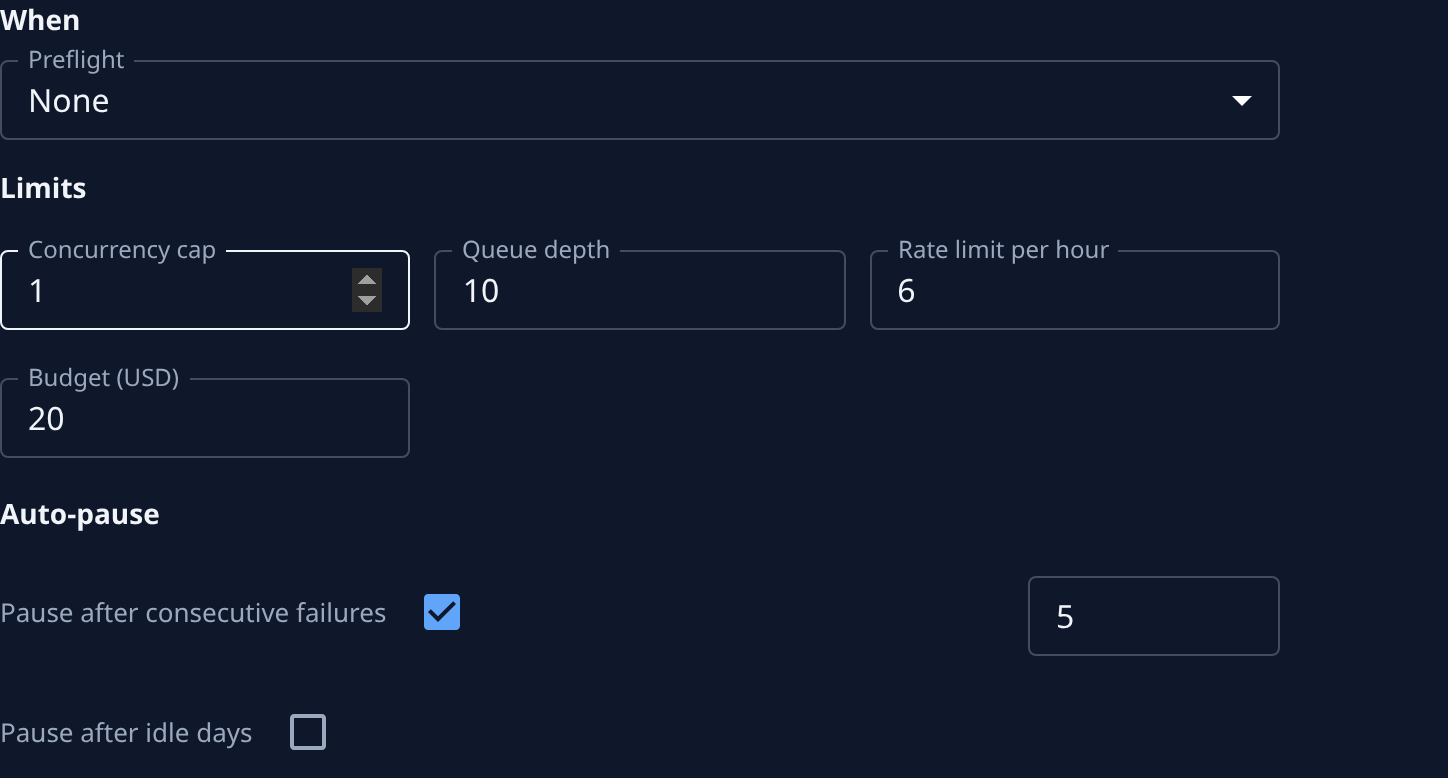
Open the Settings tab. Limits and Auto-pause sit under When.
-
Set Concurrency cap, from 1 to 20: the most open tasks from this automation per target. While a project or node already has that many, the next event waits as Queued and files when one closes.
-
Set Queue depth, from 0 to 100: how many events may wait. Once it is full, later events are skipped.
-
Set Rate limit per hour, from 1 to 1000: the most tasks it files in an hour. Events past it are skipped.
-
Optional: type a Budget (USD), the most one filed task should cost. A task that costs more is not stopped: it marks the automation Degraded and names the task. Leave it blank for no budget.
-
Under Auto-pause, tick Pause after consecutive failures and type how many failed runs in a row stop it. Failed preflight runs, failed filings and filed tasks that fail all count.
-
Optional: tick Pause after idle days and type how many days without a successful run stop it.
-
Select Save.
A new event automation starts with a Concurrency cap of 1, a Queue depth of 10 and a Rate limit per hour of 10. An automation that pauses itself shows as Failing, and your organization's Owners and Admins are told. Select Resume on its page to start it again, once you have fixed what failed.
Related
- How automations work — what Queued, skipped and Degraded mean for a run.
- Let a preflight decide which events file a task — the Preflight above Limits.
- Run, pause or change an automation — pause and resume it by hand.