Start a task when someone joins
An automation with the New user source files a task each time someone joins your organization. Use it for onboarding work that should follow every new member, such as a welcome note, a checklist or access to grant.
Who can do this: Requires the org admin role. Automations are listed under Audit, which only Org Owners and Admins see.
-
In the sidebar, select Audit, then the Automations tab.
-
Select New automation. It opens beside the list, on When.
-
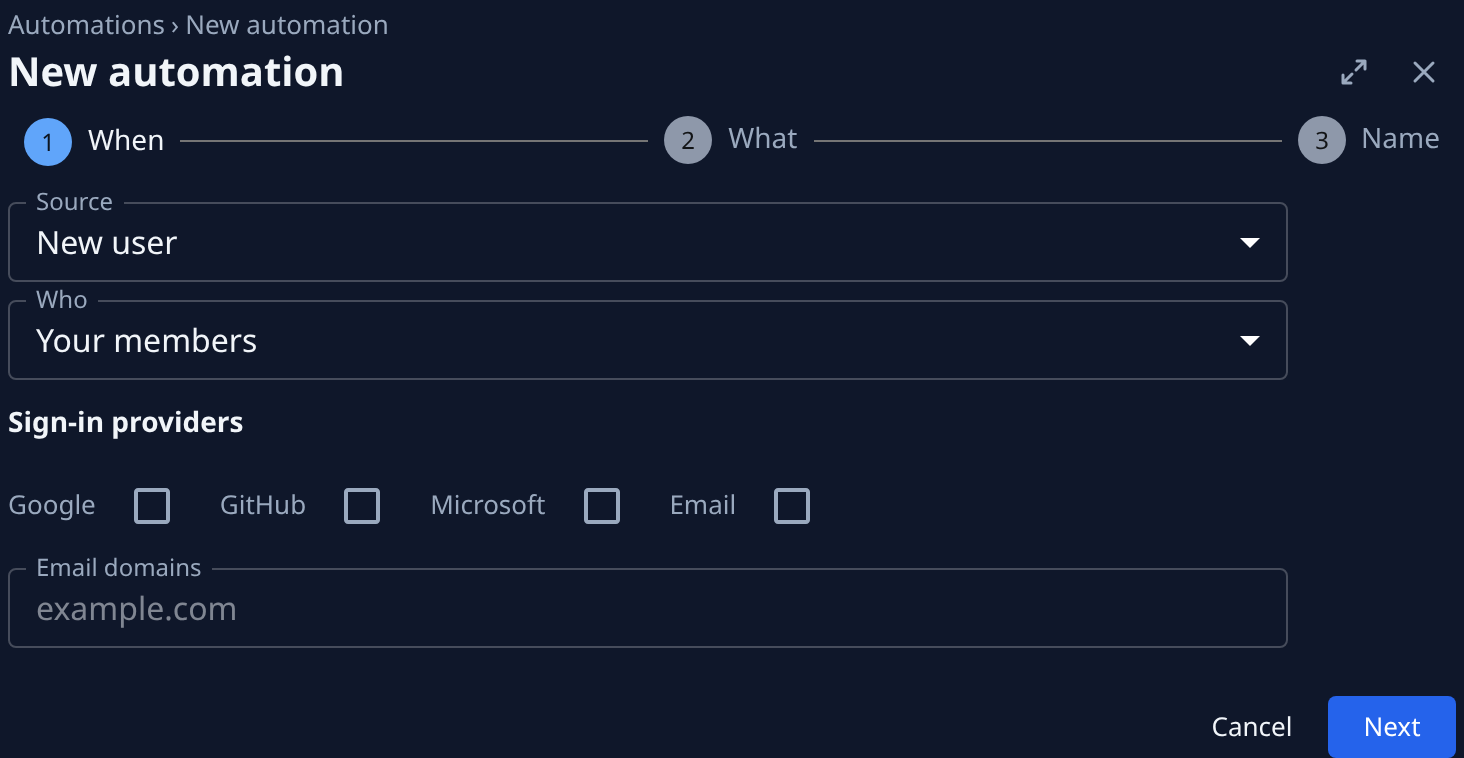
Set Source to New user. Who shows Your members: each new member of your organization.
-
Optional: under Sign-in providers, tick the ways of signing in that count: Google, GitHub, Microsoft or Email. Email also counts members an admin creates. None ticked, any provider counts.
-
Optional: in Email domains, type the domains that count, separated by commas, such as
example.com. A domain matches only itself, not its subdomains. Empty, any domain counts. When you set both filters, a new member must match both. -
Select Next. On What, leave Action at Task, pick the project under Target, and write what each task should do. To name the new member, use
{{user.name}},{{user.email}},{{user.provider}}and{{user.org_name}}. Hover the Title label to see them. Select Next. -
On Name, give it a name you will recognize, such as
Onboard new members, and select Create. -
When the next person joins, the join shows under Runs on the automation's page, and its task is filed. To see it work sooner, invite someone, as in Invite a person and grant access.
Each new member files one task per target. The role the member gets is set apart from this automation; see Choose the role new members get.
Related
- Create an automation: the other sources, and how to test an event before the first real one.
- Invite a person and grant access: add a member by invitation.
- Choose the role new members get: what a new member can do on their first day.