Send an email from an automation
Not every run needs an agent. A weekly reminder to the team, or a note to on-call each time a webhook arrives, only needs an email. Pick Send email as the automation's Action: each run sends one email from your organization's connected Gmail, and files no task.
Who can do this: Automations are shown only to Owners and Admins of your organization. Your organization needs a Gmail mailbox connected first; see Connect Gmail.
-
In the sidebar, select Audit, then the Automations tab.
-
Select New automation (+ on a phone). It opens on When.
-
Pick what makes it run: Schedule, or an event such as Webhook or GitHub, and set it up as in Create an automation. Select Next.
-
On What, set Action to Send email. Target goes away: an email is sent once per run, not once per project.
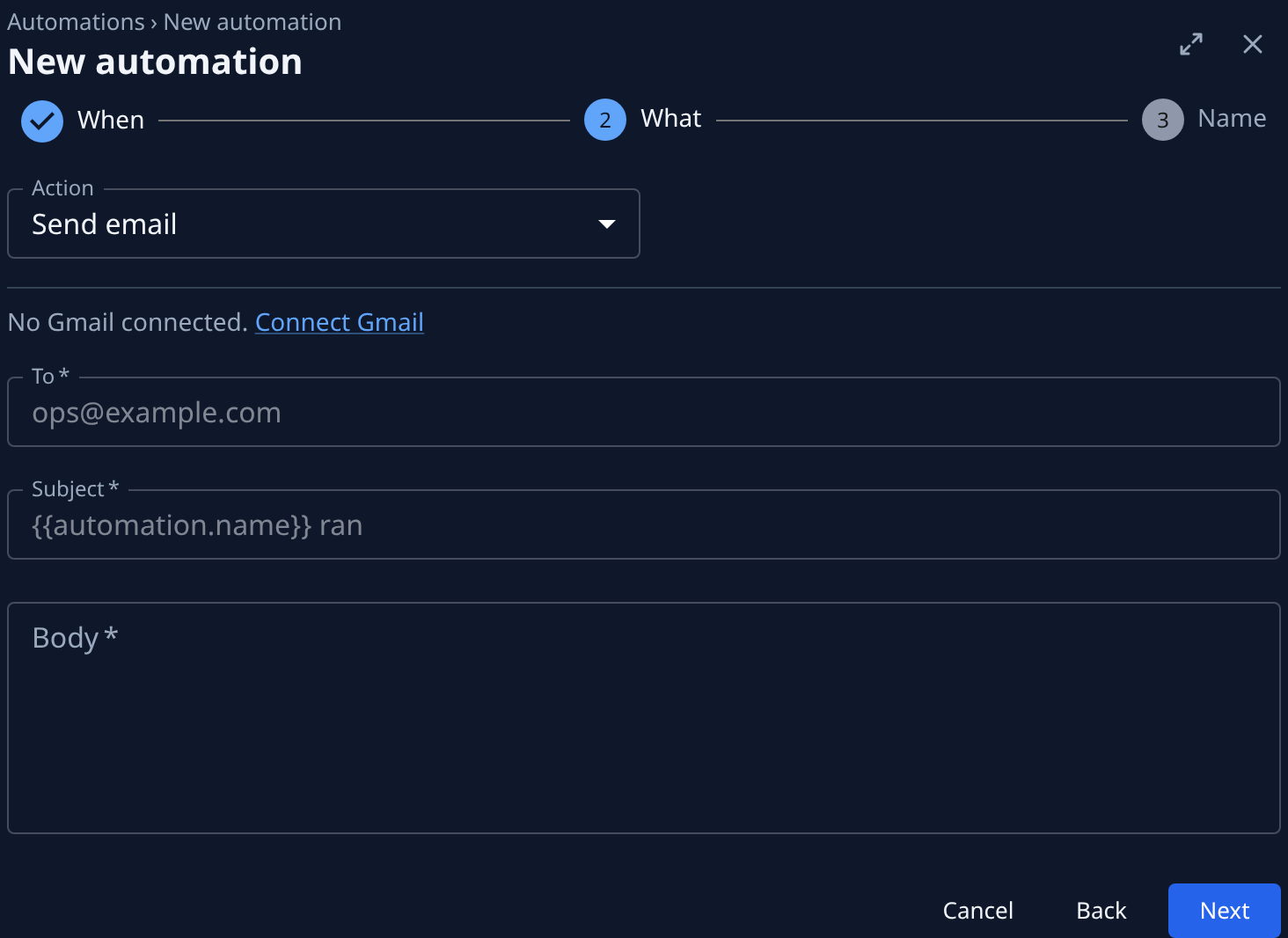
-
In From, pick the mailbox it sends from. With one mailbox connected, it is already picked. If the step reads No Gmail connected., select Connect Gmail and connect one first.
-
In To, type the addresses, comma-separated, such as
ops@example.com. -
Fill in Subject and Body. Both can use placeholders that fill in at each run:
{{automation.name}},{{fired_at}}(the time, in UTC) and{{org.name}}. An event automation can also quote the event, such as{{body.issue.title}}. Select Next. -
On Name, check the Name, change it to one you'll recognize in the list, and select Create.
-
To send a test, open the automation and select Run now; see Run, pause or change an automation.
To copy someone on every email, open the automation's Settings tab, fill in Cc and select Save.
On an event automation, a placeholder in To or Cc lets whoever sends the event pick the recipient. The form warns you when you type one. Use a fixed address unless you trust every sender.
If the mailbox is disconnected later, From reads Disconnected mailbox and says This mailbox was disconnected. Pick another. Runs fail until you pick one and save.
Related
- How automations work: When, Target and Action, and what each run skips.
- Create an automation: every step of a new automation and its event sources.
- Get told when an automation or trigger breaks: hear about a run that failed to send.