Reset an automation's saved state
An event automation's preflight can keep notes between events, such as a cursor or the items it has already seen. They live in the automation's State document: a JSON object the preflight gets with each event and may replace. When those notes go wrong, or you want the preflight to start over, empty the document. You can also write a starting value into it yourself.
Who can do this: Owners and Admins of your organization. Only event automations have the Advanced tab; a schedule keeps no state.
-
Select Audit in the sidebar, then the automation's row on the Automations tab.
-
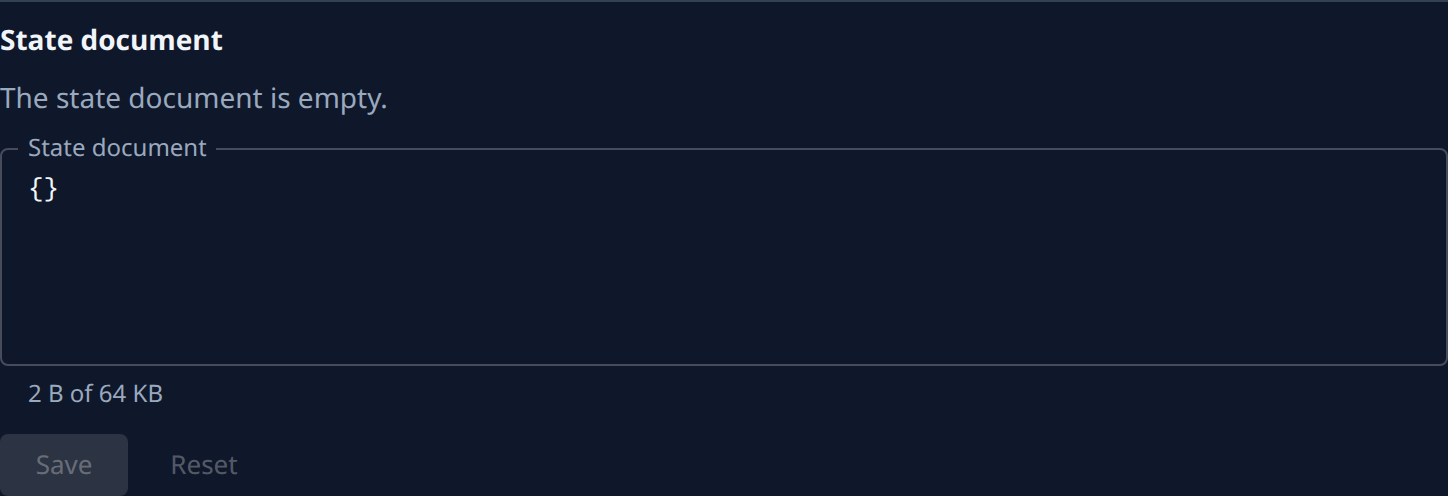
Open the Advanced tab and scroll to State document. Under the box, its size reads against the limit, such as 2 B of 64 KB. An empty one also says The state document is empty.
-
To start over, replace everything in the box with
{}. To seed a value instead, type a JSON object, such as{"cursor": "2026-11-01"}. -
Read the line under the box. It shows the new size, or what is wrong, such as Must be a JSON object ({ … }). Save stays greyed out until the document is valid and under 64 KB.
-
Select Save. To drop your typing instead, select Reset: it puts back the saved document and changes nothing that is stored.
-
Send the next event, or use Test at the top of the same tab, and check under Runs that the preflight behaved as you expected.
If a warning says the document holds whole numbers too large for a browser to keep exactly, Save is off for it: a save here would change those numbers.
Related
- Let a preflight decide which events file a task: add the preflight that reads this document.
- Let an automation act on an event again: clear a dedup entry on the same tab.
- Automations: every part of the Advanced tab.