Hold incident tasks during quiet hours
An automation with the Incident, Release failed or Health breach source files a task as soon as your project records an incident. Turn on Quiet hours when nobody should be working on them at night: incidents that arrive in the window wait, and their tasks file when it ends.
Who can do this: requires the org admin role. Automations are listed under Audit, which only Org Owners and Admins see. These sources are offered only while your organization has Production QA turned on, which needs a plan that includes it.
-
In the sidebar, select Audit, then the Automations tab.
-
Open the automation's row and its Settings tab. For a new one, first create it as in Create an automation, with Source set to Incident, Release failed or Health breach.
-
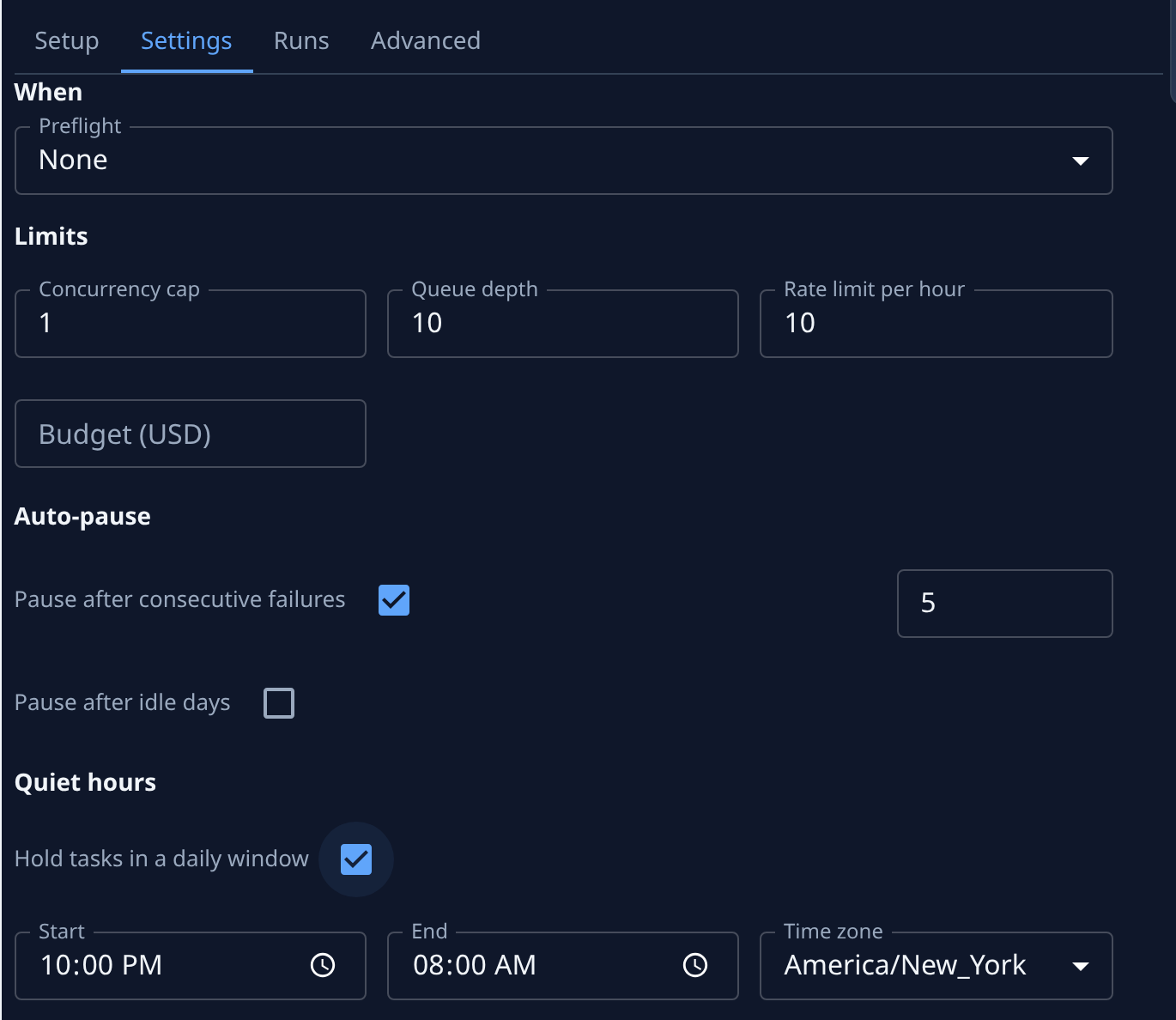
Under Quiet hours, tick Hold tasks in a daily window. Start, End and Time zone appear below it.
-
Set Start, the time each day from which new tasks are held, and End, the time they file. The window may cross midnight, such as 22:00 to 08:00. Start and End can't be the same time.
-
Check Time zone. It starts as Jaah's own time zone, the one the Tasks page uses; pick another, such as
Europe/London, when your team works elsewhere. Start and End are local times in that zone. -
Select Save.
An incident that arrives in the window shows under Runs as held until the window's end, such as Held: quiet hours until 08:00 Europe/London. When the window ends, Jaah checks it again before filing. An incident that was resolved in the meantime files no task, and its run reads Incident already resolved.
Quiet hours apply only to these three sources. To slow down other event automations, use their Limits.
Related
- Respond to a failed release: what to do with the task a Release failed automation files.
- Run, pause or change an automation: pause it by hand instead.
- How automations work: sources, targets and how to read runs.