Add a model account for another agent
Most tasks run on Claude Code accounts. When some work should run on another agent, such as OpenAI Codex, DeepSeek, Google Antigravity or Pi, add a model account for that provider. Each other agent lacks some things Claude Code does, and the form tells you which before you add it. What a model account is and how runs pick one: How model accounts work.
Before you start:
- The agents other than Claude Code are a plan feature: your plan decides which providers the form offers. A provider left out is counted under the form in a line such as 4 more providers are not on your plan. Hover the count for their names. Org Owners and Org Admins see Change plan beside it; anyone else sees Ask an admin to change the plan. See Ask to change your plan.
- Adding accounts needs permission to add them. Without it, Add account doesn't appear.
- In the sidebar, select Directory, then AI Accounts.
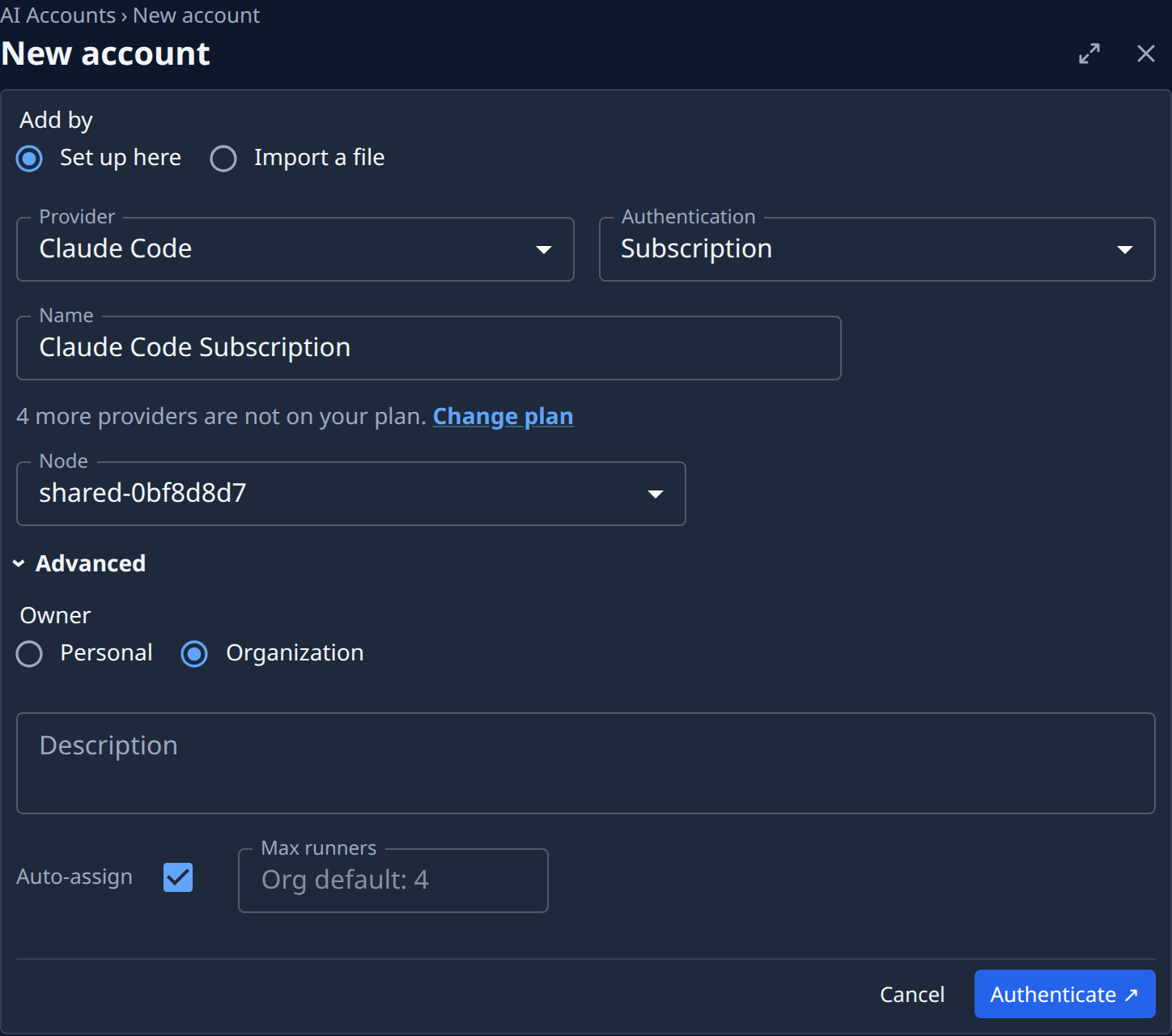
- Select Add account. The New account form opens.
- In Provider, pick the agent. You can't change it once the account is added.
- Read the line under Name, such as 2 limitations vs Claude Code. Hover it to see each one and what it means for your tasks, for example that the agent reports no quota or maps a Claude model pin to its own. If one rules out the work you have in mind, stop here.
- In Authentication, pick API key or Subscription, when the provider offers both. Only the kinds your plan allows are listed.
- For an API key, paste it in API key. For a subscription, pick the Node to sign in on. When your nodes share sign-ins, Node sits under Advanced and is already picked.
- Open Advanced and clear Auto-assign, if the form shows it. The account then runs only tasks that pick its provider, so tasks that allow any provider stay on your Claude Code accounts. Leave it ticked if any task may use it.
- Select Add for an API key, or Authenticate ↗ for a subscription, and finish the sign-in as in Add a model account.
- Check the account's row on AI Accounts: it shows the provider, and explicit only when Auto-assign is off.
To send a task to the new account, open Advanced on the task and pick an Agent that runs on that provider, or the account itself in Account. See Choose the agent and account a task runs on.
Related
- Limit how a model account is used: Auto-assign and Max runners in more detail.
- How model accounts work: how a run picks an account, and what a plan allows.
- Model accounts: every field on the New account form.