Find a task on the board
Once a board holds more tasks than fit on the screen, scrolling is the slow way to find one. Search for it, or narrow the board to the project, people, state or time it belongs to. Each filter shows as a chip under the toolbar, so the reason a task is missing stays in view.
Who can do this: any member who can see the board. You only ever find tasks in projects you can see.
-
In the sidebar, select All projects to open the task board. To look in one project or feature only, select it in the sidebar's project tree instead.
-
Type in Search tasks at the top of the board: the task's number, or words from its title, description or outcome. The words can come in any order. The board narrows as you stop typing, and a Search: “…” chip appears under the toolbar.

-
To see only someone's tasks, select their initials beside the search box. Select more than one person to see all of theirs; select a badge again to drop it. +2 (or however many are left) lists the rest, with Find an assignee to look up a name.
-
Open Filter & view, the button with the sliders, to narrow further:
- Period: Today, Recent (the past 7 days), Wider (the past 30 days) or Exact dates.
- Creator: the people who created the task, or System for tasks no person created.
- State: one state, such as Running, Asking or Failed.
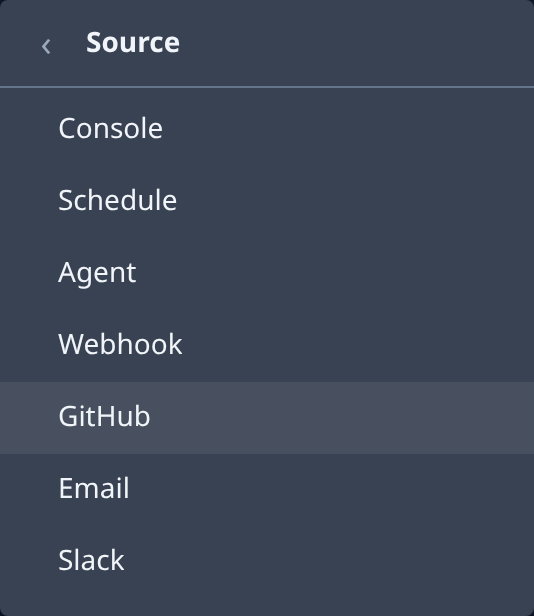
- Source: where the task came from, such as Slack, GitHub or Schedule.
-
Still missing? Turn on Hidden in Filter & view. The board then also lists system and archived tasks. Check that Focus, the first button beside Filter & view, is off too: while it is on, finished tasks and queued subtasks are hidden.
-
When the board says No tasks match these filters., a filter is too narrow. Select × on a chip to drop that one filter.
-
Select the task's title to open it.
-
When you're done, select Clear all in the chips row to show the whole board again.
The filters are kept in the page's address: bookmark a filtered board or send its link to a teammate who can see the same projects.
Related
- Task board — every setting in Filter & view, and Group by and Columns.
- Pin a task — keep a task you come back to at the top of its section.
- Label tasks with tags — group the board by your own tags.
- How tasks work — what each state means.