Change a person's role or remove them
A person's organization role is a line on their Access tab. Changing it means granting the new role and removing the old one. When someone leaves, disable their account to stop them signing in, or delete it.
Who can do this: changing roles and removing people requires the org admin role. Without it, the Access tab is read-only and Grant access, Remove and the ⋯ menus don't appear. Only an Org Owner can grant Org Owner.
Change their organization role
- In the sidebar, select Directory, then the People tab.
- Select the person's row, then the Access tab.
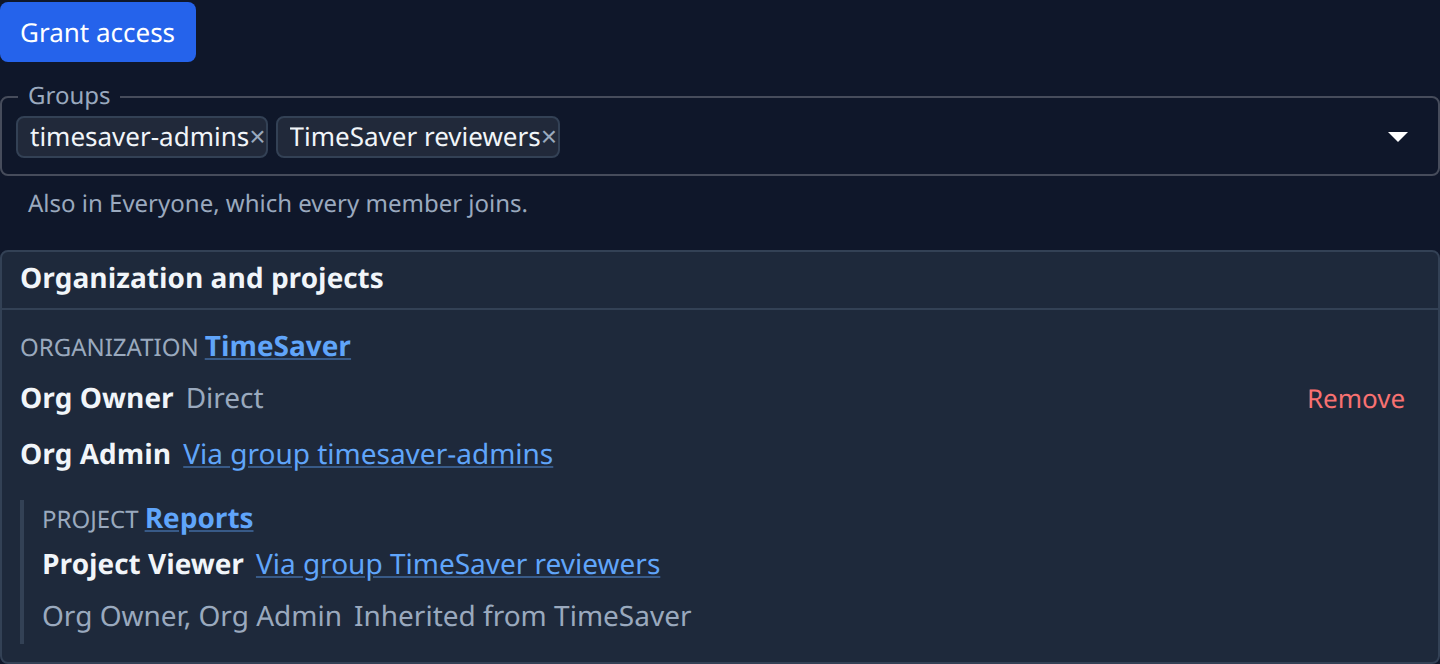
- Under Organization and projects, read the lines under Organization: each role says how it is held, Direct or Via group name.
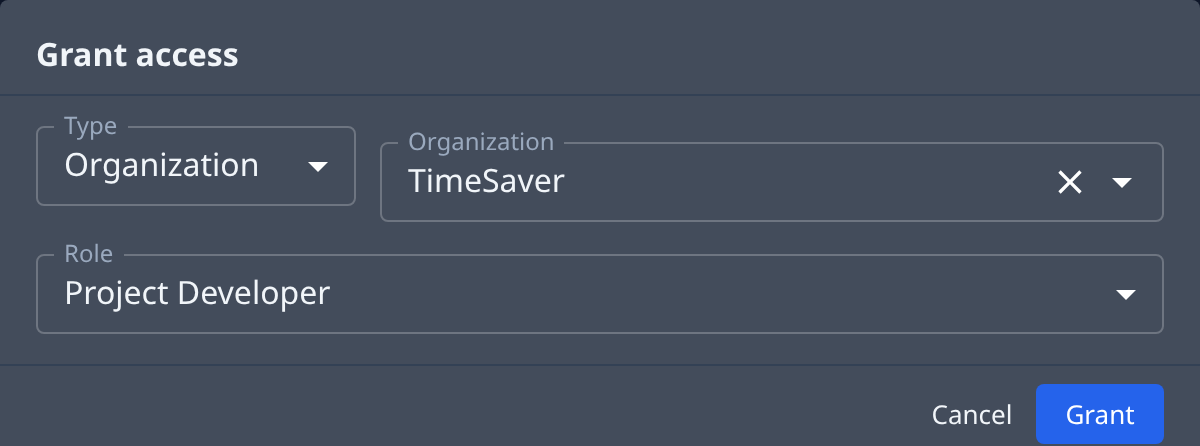
- Select Grant access. The dialog opens with Type set to Organization and your organization picked.
- Pick the Role, for example Org Admin (it starts on Project Developer), and select Grant. The new line shows as Direct.
- To take the old role away, select Remove on its Direct line.
- The Remove access dialog names the role and says the person loses what it grants. Select Remove.
A role held Via group has no Remove here: take the person out of that group instead, with ✕ on the group in Groups at the top of the tab, or change what the group grants. See Create a group.
Your organization always keeps at least one Org Owner: removing the last one is refused.
Remove them from your organization
To stop someone signing in but keep their account, disable it:
- On the People tab, select the person's row.
- On Profile, find the Account section below the profile.
- Select Disable account.
- In the Disable account dialog, select Disable. They are signed out at once, and their row on the People list shows a Disabled tag.
- To let them back in later, open the account and select Enable account.
To remove the account for good, delete it:
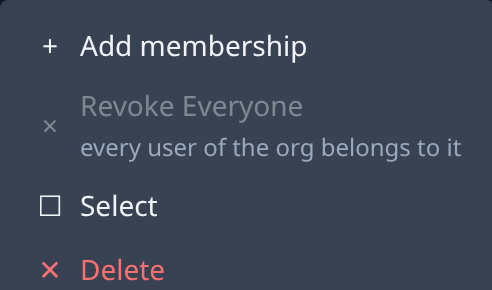
- On the People tab, select ⋯ at the end of the person's row.
- Select Delete.
- The Delete user dialog says the account and every group membership it holds go with it.
- Select Delete.
- Check the People list: the row is gone.
You can't delete or disable your own account, and deleting the last Org Owner is refused with the reason. If Delete is refused for another reason, disable the account instead. To remove several people at once, tick their rows and use Disable or Delete on the bar above the list.
A person who hasn't accepted their invitation yet is removed the same way: deleting the row withdraws the invitation.
Related
- How team and access work: the roles and where each comes from.
- Check what someone can access: confirm the change took effect.
- People: every field on the People list and a person's page.