Group the node list by host, cloud or OS
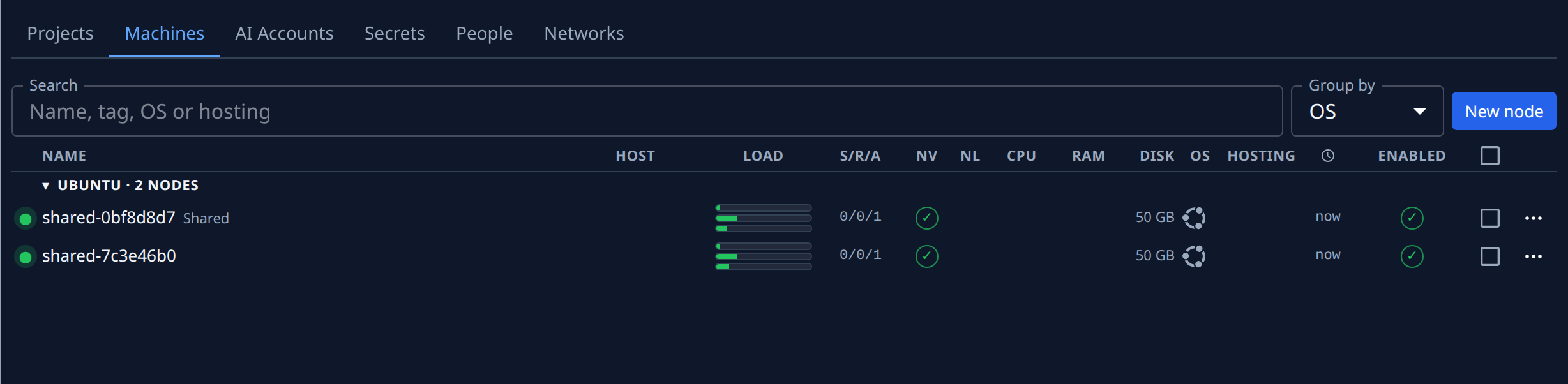
Do this to see how your nodes are spread: how many share one host, how many run in each cloud, or which operating systems you run. Group by on the Machines tab puts the nodes into sections, each headed with its name and how many nodes it holds.
Who can do this: anyone who can see the Machines tab. Grouping changes nothing on the nodes.
-
In the sidebar, select Directory, then the Machines tab.
-
Open Group by, beside Search. On a phone it sits behind the sliders button beside Search.
-
Pick how to group:
- Host: the machine each node runs on. Nodes on no shared host come last, under No host.
- Hosting: the cloud, AWS, Google Cloud, Azure or On-prem.
- OS: the operating system, such as Ubuntu.
- Node group: each node group your organization made, with a node in two groups listed under both, and Not in a group last. It is offered only when your plan includes node groups.
-
Read each section's heading for its count, such as Ubuntu · 2 nodes. Nodes Jaah has no value for come last, under Not reported, and nodes still being added sit under Preparing.
-
Select a section's heading to fold it, and again to open it.
-
Select a column's heading to sort. The sort applies inside each section.
-
To go back to one list, pick None in Group by.
The page remembers your pick the next time you open it, and the page's address carries it, so a copied link opens with the same sections. To narrow the list as well, add a chip in Search; see Find nodes by operating system or cloud.
Related
- Run a project on some nodes only: make the node groups that Node group sorts by.
- How nodes work: hosts, node groups and where a node comes from.
- Machines: every column and control on the list.