Split your alerts between email and chat
Each of your channels has its own alert choices, so you can send what needs you now to a chat and keep what can wait in email, instead of getting every alert in both places.
Who can do this: every member, for their own channels. You need two channels: your email and a Slack DM or Telegram chat. To add a chat first, see Add chats as alert channels.
Decide what goes where
A split that works for most people:
| Alert | Chat | |
|---|---|---|
| Assigned to you, with Question waiting and Compliance nudge | Ticked | Unticked |
| Messages: Mentioned, Reactions, Direct messages | Ticked | Unticked |
| Task progress: Blocked, Failed | Ticked | Unticked |
| Task progress: Finished, Merge fix filed | Unticked | Ticked |
| Releases: Approval needed, Approval reminder | Ticked | Unticked |
| Releases: Live, Release failed, Approval timed out, Rejected | Unticked | Ticked |
| API & automation: Trigger stopped | Ticked | Unticked |
| Support | Unticked | Ticked |
A ticked box sends the whole message; an empty one sends nothing.
Set your boxes
-
Select your initials at the bottom of the sidebar, then My Profile.
-
Select Preferences. The Notifications card lists your Channels, then your Alerts. Each type of alert has a box for your chat, such as Slack, and one for Email.
-
On Assigned to you, Messages and API & automation, tick the chat's box and untick Email.
-
On Support, untick the chat's box and tick Email.
-
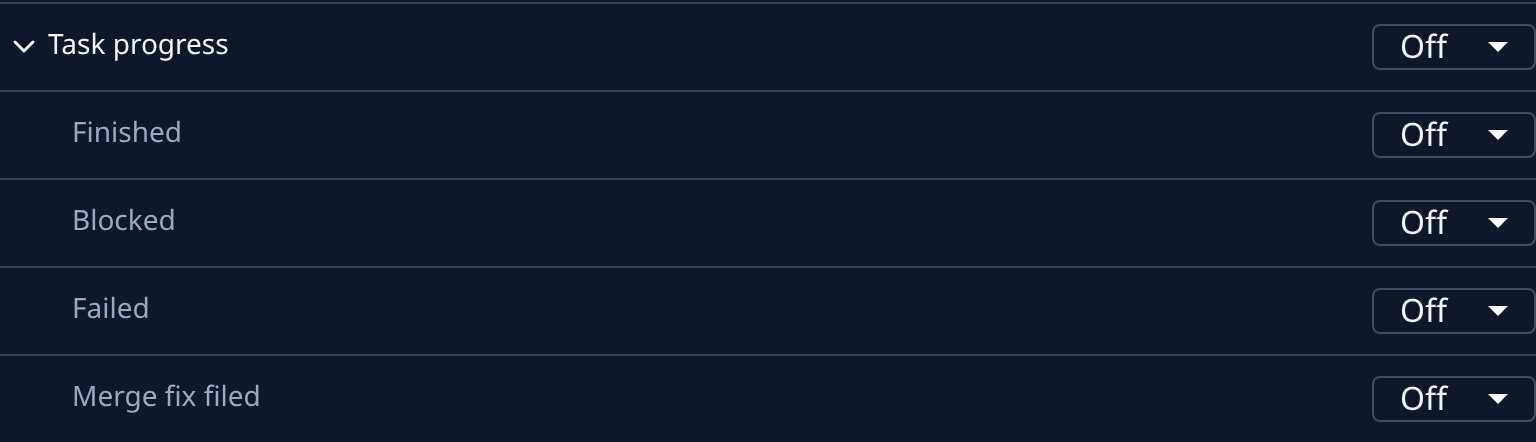
Select Task progress to open its grid. Tick Blocked and Failed under the chat and untick them under Email. Do the opposite for Finished and Merge fix filed. Task progress starts unticked by email, so nothing arrives there until you tick it. The type's own boxes now show partly ticked.
-
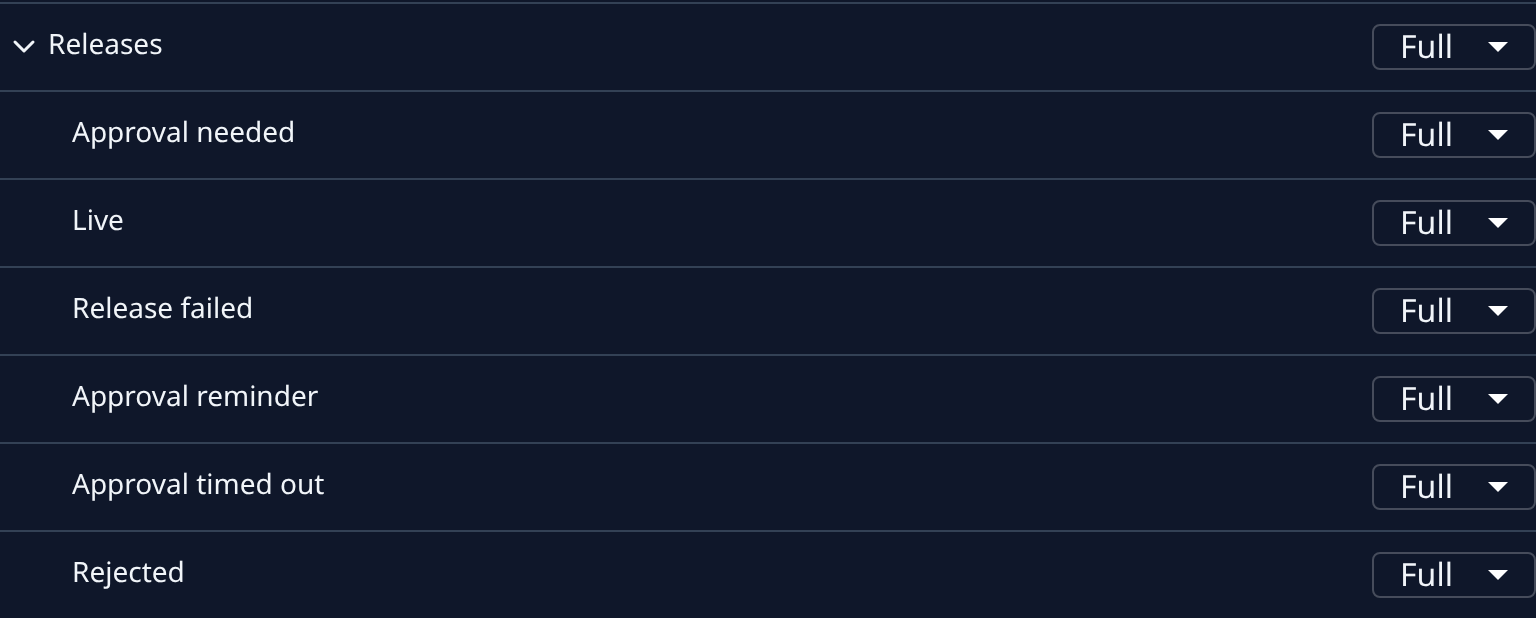
Select Releases to open its grid. Tick Approval needed and Approval reminder under the chat and untick them under Email. Do the opposite for the others.
Each box saves as you select it. If a save fails, the box goes back and the reason shows above the lists. Org Owners and Org Admins also see Billing, AI account login and Node failures, plus API key expiry and Automation failures under API & automation: send those to whichever channel you watch most.
The Bell has its own box on each type too. To read about the bell itself, see Catch up on your notifications.
Related
- How notifications work: what each type of alert holds, and its defaults per channel.
- Choose which alerts you get: the boxes, step by step.
- Pause alerts to a channel: go quiet on one channel for a while.