Remove an alert channel
Remove a channel when you no longer want alerts there at all: an old team mailbox, a Slack channel your team stopped using, a Telegram group you left. Alerts stop going to that one place; your other channels keep their own choices. To go quiet for a while instead, keep the channel and pause it.
Who can do this: every member, for their own channels. An Org Owner or Org Admin can also remove a teammate's channel, as in Change a teammate's alerts.
-
Select your initials at the bottom of the sidebar, then My Profile.
-
Select Preferences. Channels, in the Notifications card, lists every place your alerts go, each row with its type and destination.

-
Find the row of the channel to remove and check its destination, so you remove the right one when you have several of the same type.
-
Select ⋯ at the end of the row, then Remove. The Bell row (In Jaah) has no ⋯: it can't be removed.
-
Remove channel? names the destination that will stop getting alerts. Select Remove, or Cancel to keep it.
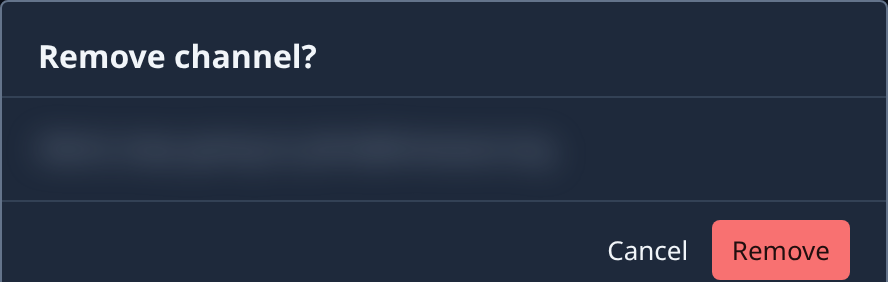
-
Check Channels: the row is gone, and its boxes are gone from Alerts.
The bell and the Notifications page in the console keep listing new items either way.
Changed your mind? Add the channel again with Add channel, then set its alerts again: your earlier choices went with the removed row. A Telegram chat needs linking again. See Send alerts to another email address and Add chats as alert channels.
Related
- Choose which alerts you get: keep the channel and turn off only the alerts you don't need.
- Your profile: every chip and control on a channel row.