Add instructions to a playbook stage
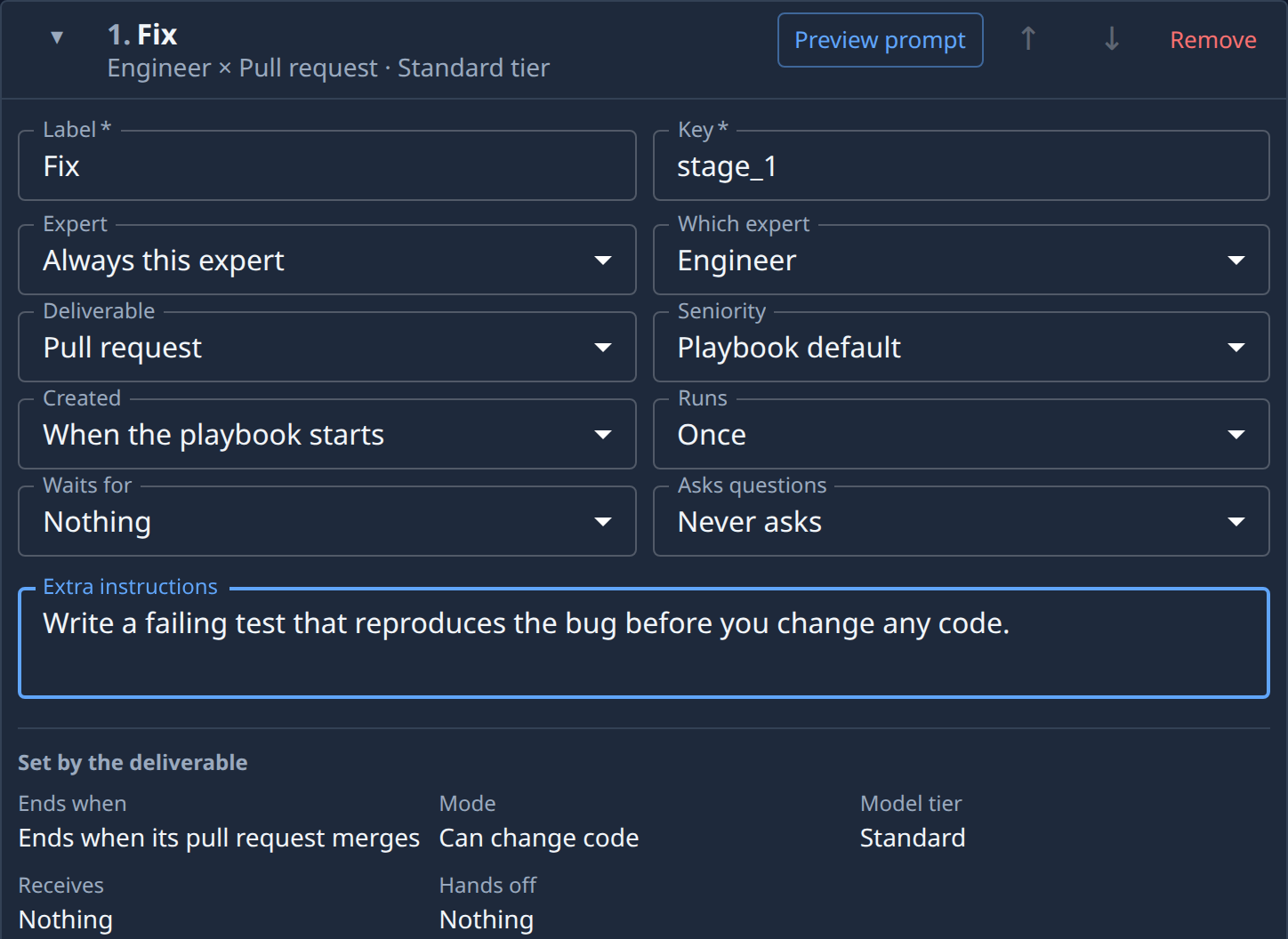
Each stage's expert already follows its persona's own instructions and your project's Agent instructions. Extra instructions adds your team's rules for that one stage, every time the playbook runs: for example, a Fix stage that must write a failing test first, or a Review stage that must check the changelog. The text is added after your project's instructions, so it applies to that stage only.
Who can do this: changing a playbook needs the Owner or Admin role in your organization. Built-in playbooks are read-only; duplicate one first, as in Create a playbook.
-
In the sidebar, select Settings, then Playbooks under Customize.
-
Under Your playbooks, select the playbook's ⋯, then Edit. For a new playbook, select New playbook instead.
-
Select the Stages tab, then ▸ at the start of the stage you want to change to open its card.
-
In Extra instructions, at the bottom of the card, type what this stage must always do. Write it as you would brief a colleague: one rule per line is easiest to read. Up to 8,000 characters.
-
Select Preview prompt (👁 on a narrow card). On the System tab, your text is near the end of the expert's standing instructions. Select Close.
-
Repeat steps 3 to 5 for each stage that needs its own rules.
-
Select Save (Create for a new playbook). Save stays unavailable while a stage has an error, such as instructions that are too long.
Opened read-only, a stage with instructions shows them under Extra instructions; a stage without any doesn't show the field. To remove a stage's instructions, clear the field and select Save.
A rule every runner on the project should follow belongs in the project's Agent instructions instead, so you don't repeat it on each stage: see How projects work.
Related
- Create a playbook — previewing a stage's prompt.
- Choose when a stage asks questions — the other per-stage setting that changes its prompt.
- Playbooks — every stage field.