Change what a playbook stage hands back
A stage's Deliverable is what it hands back when it's done. It also decides the rest: when the stage ends, whether it may change code, and what it may file. Change it when a stage should, for example, write up a root cause as a Document instead of fixing it in a Pull request.
Who can do this: the Owner or Admin role in your organization, on one of your own playbooks. The built-in playbooks are read-only; duplicate one first, as in Create a playbook.
-
In the sidebar, select Settings, then Playbooks under Customize.
-
Under Your playbooks, select ⋯ at the end of the playbook's row, then Edit.
-
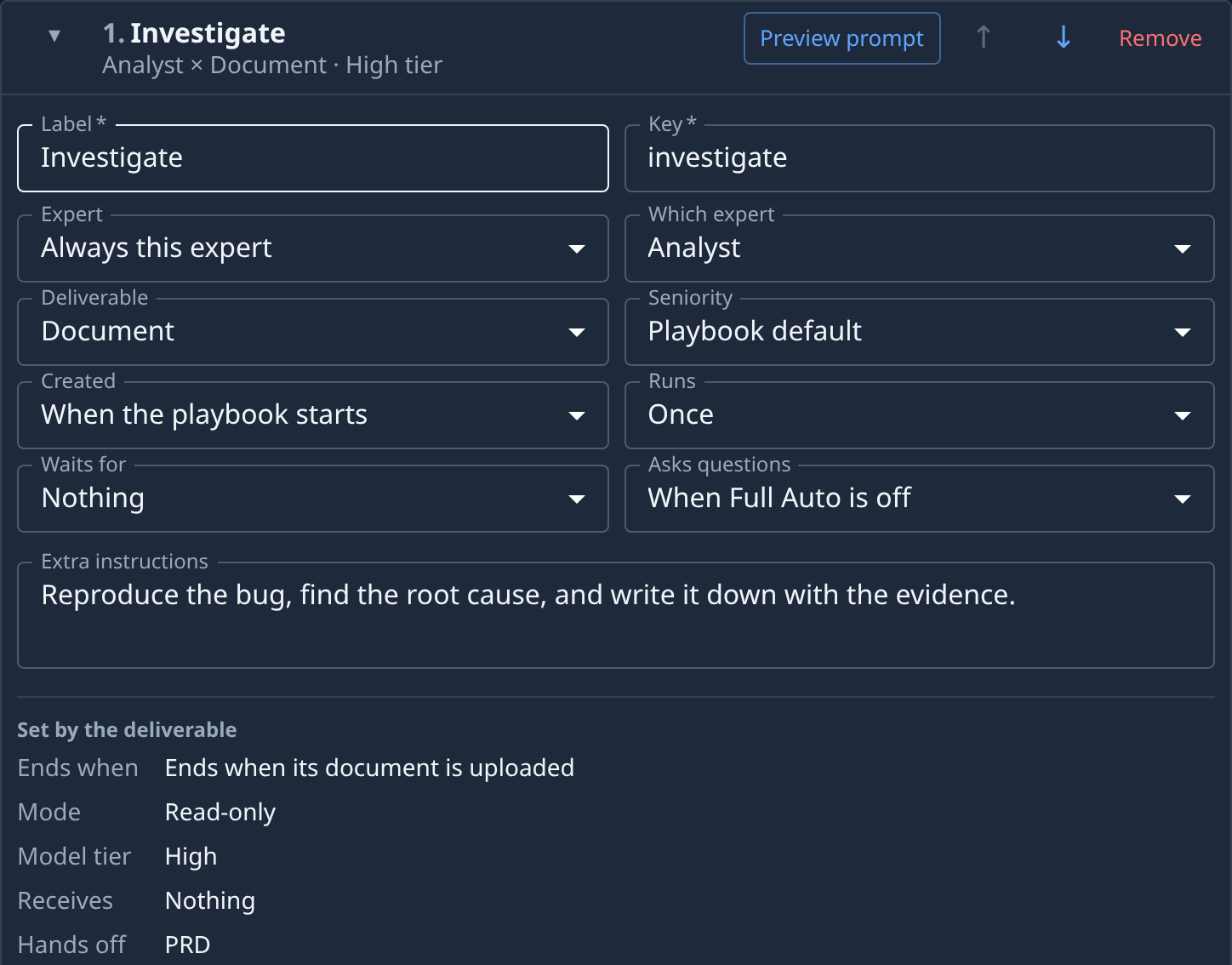
Select the Stages tab, for example Stages (3), and select ▸ at the start of the stage's card to open it. The line under its name, such as Analyst × Document · High tier, shows its expert and deliverable.
-
Check Expert. Deliverable can be set only when it reads Always this expert; with User selects it reads Follows the expert, and each expert hands back its own.
-
Open Deliverable and pick one:
- Pull request: can change code; ends when its pull request merges.
- Document: read-only; ends when its document is uploaded.
- Mockup: read-only; ends when its HTML report is uploaded.
- Plan: read-only; files the per-item and finish stages.
- Review: read-only; may file follow-ups into the implement stage.
- Conversation: ends only when it is completed by hand.
-
If the card now shows May file, tick what the stage may create. Changing the deliverable clears these ticks.
-
Read Set by the deliverable at the bottom of the card: Ends when, Mode, Model tier, Receives and Hands off now follow your pick. Only an Analyst or Architect stage that delivers a Document hands off a PRD or Architecture document to the stages that wait for it.
-
Select Preview prompt to read the instructions the stage now gets, then Close.
-
Select Save. If Save stays unavailable, the new deliverable doesn't fit the rest of the playbook; the card names the problem, as in Fix a playbook's errors.
Related
- Playbooks — every stage field and what it means.
- Add a review stage to a playbook — a stage that delivers a Review.
- Repeat a stage for each planned item — what a Plan stage files.
- How personas and playbooks work — personas, stages and tasks.