Set how senior a playbook stage is
Seniority decides which model tier a stage's runner gets: Junior runs on the Low tier, Mid on Standard and Senior on High. A higher tier costs more and handles harder judgement. Set one default for the whole playbook, then raise or lower single stages: a Plan or Architect stage shapes everything after it and is worth Mid or Senior, while a routine stage may do well on Junior.
Who can do this: changing a playbook needs the Owner or Admin role in your organization, and Playbooks must be included in your plan. Built-in playbooks are read-only; duplicate one first, as in Create a playbook.
-
In the sidebar, select Settings, then Playbooks under Customize.
-
Under Your playbooks, select the playbook's ⋯, then Edit. For a new playbook, select New playbook instead.
-
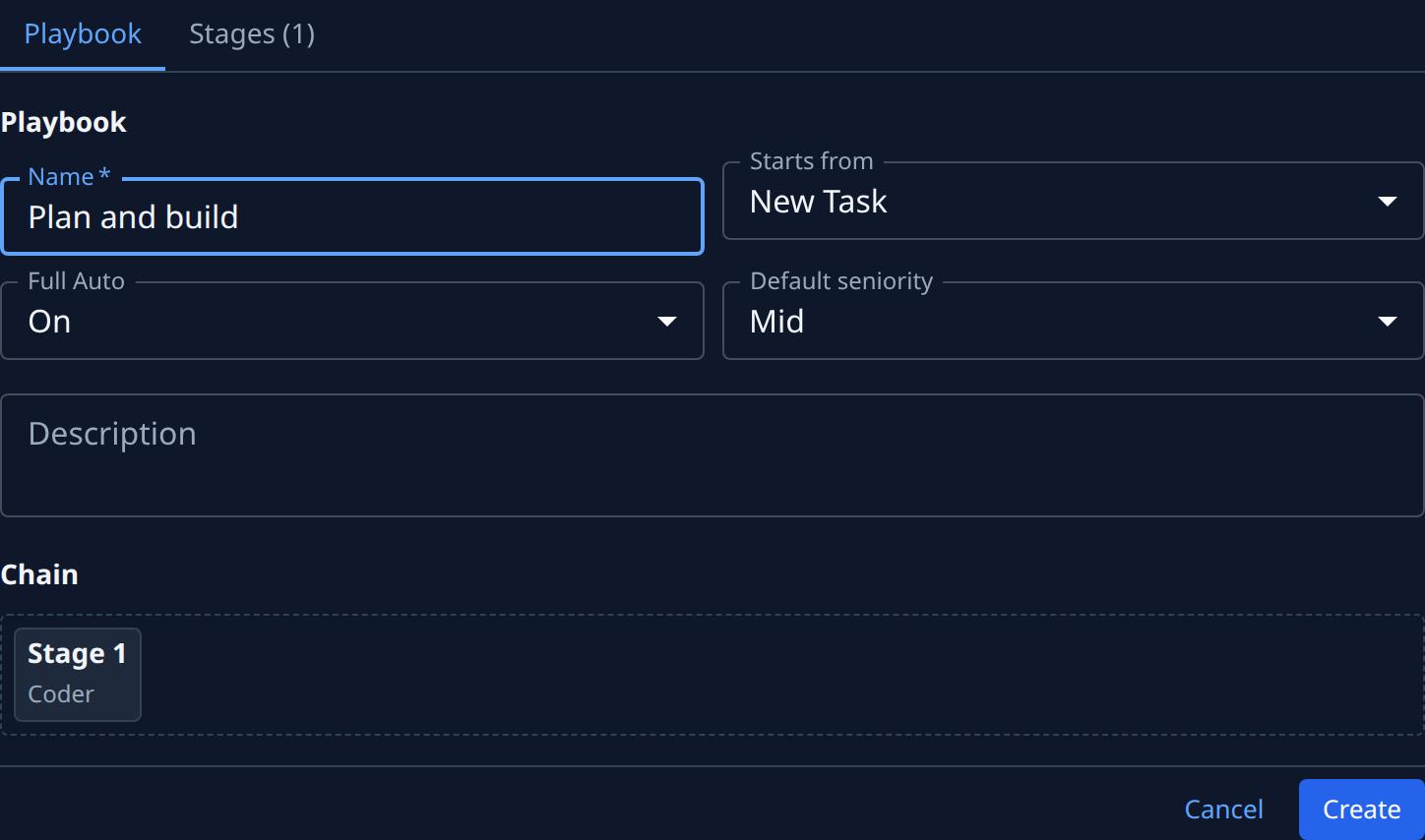
On the Playbook tab, pick Default seniority: Junior, Mid or Senior. Every stage uses it unless it sets its own. A new playbook starts on Mid.
-
Select the Stages tab, then ▸ at the start of a stage to open its card.
-
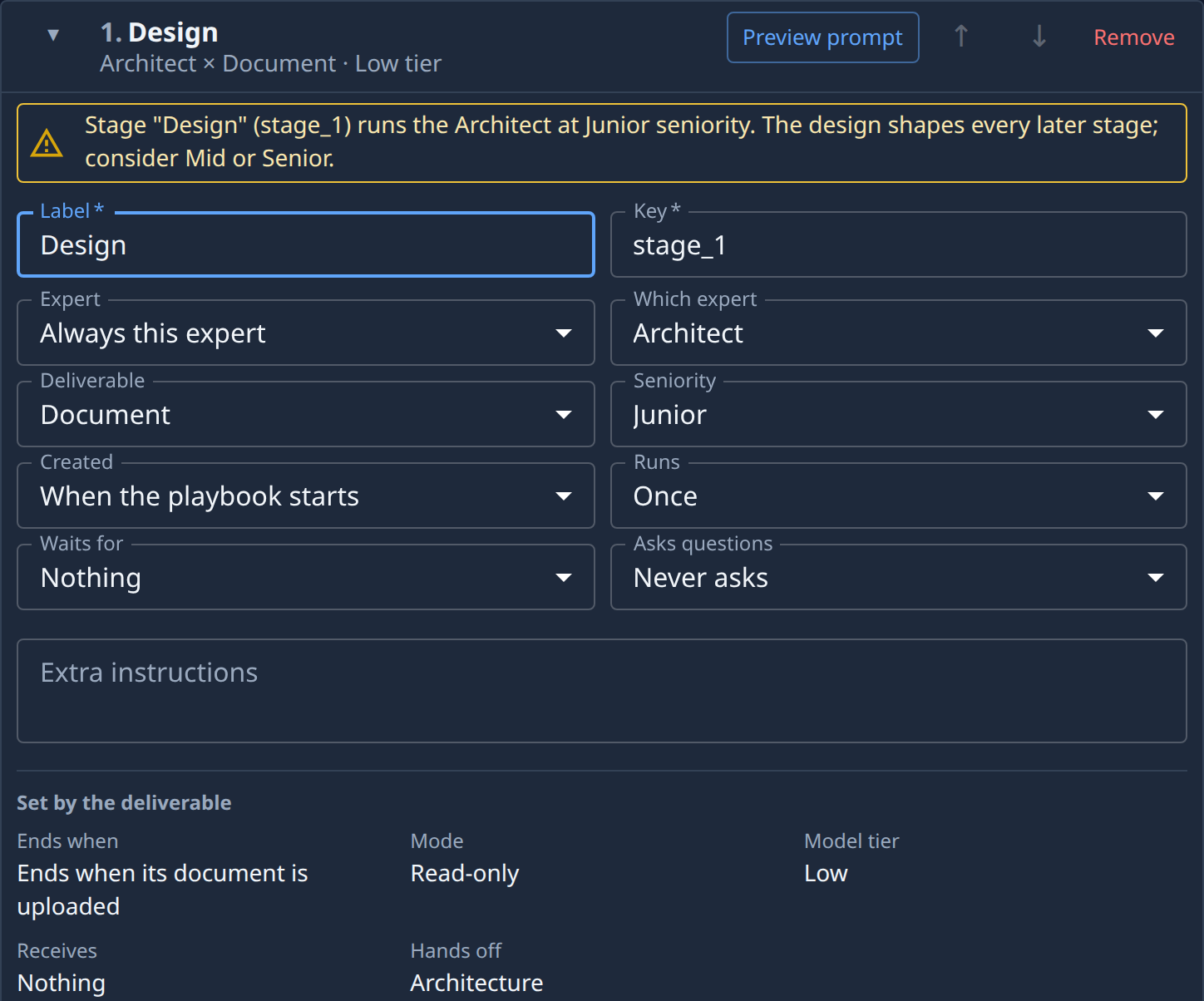
In Seniority, pick Junior, Mid or Senior for this stage alone, or leave Playbook default.
-
Check the tier the stage will run on, worked out from its own seniority and the playbook default: the card's header names it, such as Low tier, and so does Model tier under Set by the deliverable.
-
Read any warning on the card. A Plan stage, or an Architect stage, at Junior gets one, because its output decides what every later stage builds. A warning doesn't stop you saving.
-
Repeat steps 4 to 7 for each stage you want to change, then select Save.
To see the effect before saving, select Preview prompt on the stage's card: the model tier is named at the top.
Related
- Playbooks — every stage field, and the facts set by the deliverable.
- How personas and playbooks work — how stages, personas and playbooks fit together.
- Fix a playbook's errors — find and clear errors and warnings before saving.