Set what a stage waits for
Each stage of a playbook starts when the stages it waits for have finished. By default a new stage waits for every stage above it, so the playbook runs one stage at a time. Change it to let two stages run side by side, for example a security review and a code review of the same fix, each waiting only for the fix.
Who can do this: changing a playbook needs the Owner or Admin role in your organization. Built-in playbooks are read-only; duplicate one first, as in Create a playbook.
-
In the sidebar, select Settings, then Playbooks under Customize.
-
Under Your playbooks, select the playbook's ⋯, then Edit.
-
Select the Stages tab.
-
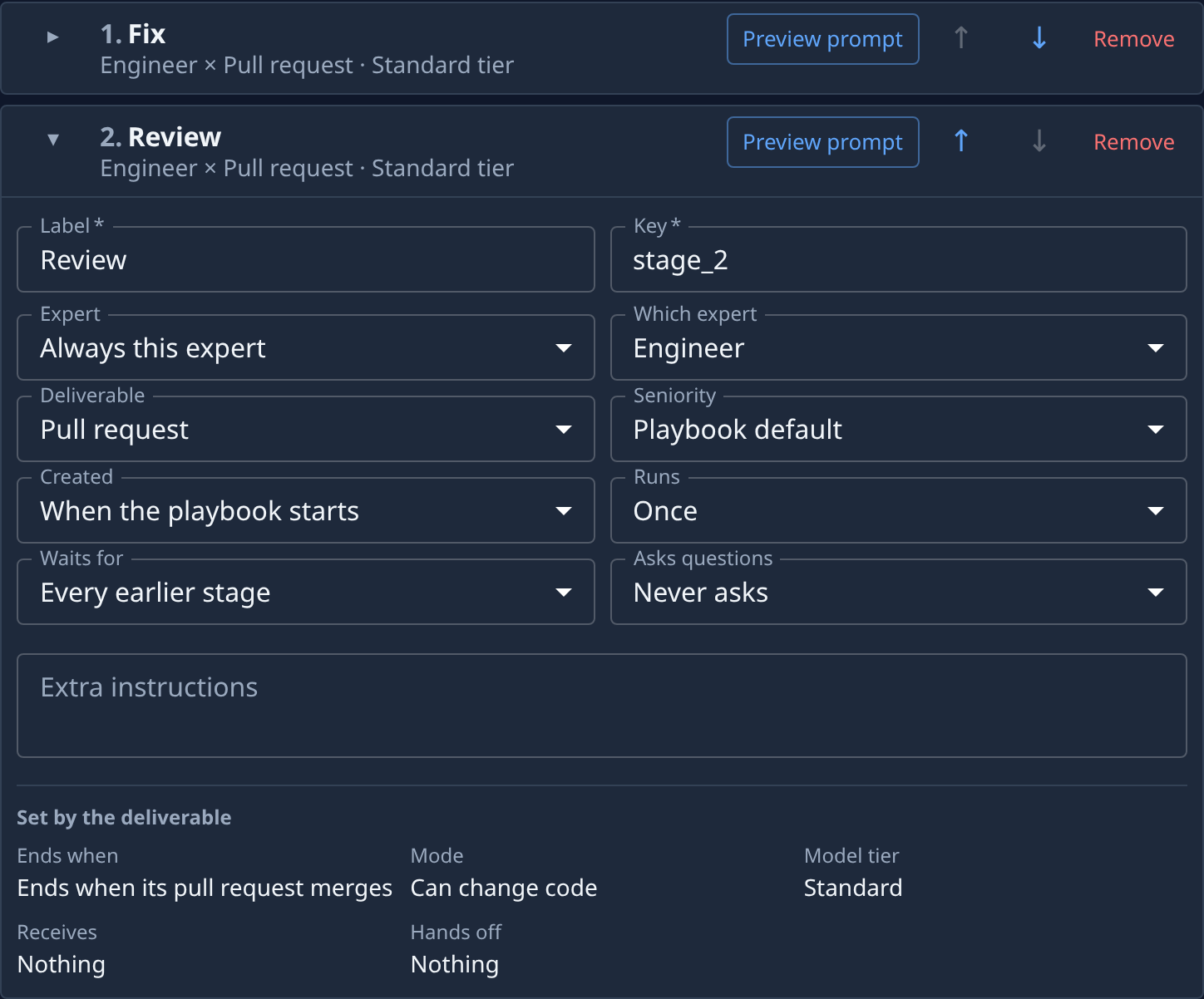
On the stage you want to change, select ▸ to open its card.
-
In Waits for, pick one:
- Nothing — the stage starts as soon as it is created.
- Every earlier stage — it starts after every stage above it finishes.
- The stages chosen — it starts after the stages you tick below finish.
-
If you picked The stages chosen, tick each stage it waits for under Stages it waits for.
-
Check Receives under Set by the deliverable: a stage gets the documents (a PRD or an Architecture) handed off by the stages it waits for, so a stage that stops waiting for the Analyst or Architect also stops receiving its document.
-
Select Save.
To run two stages side by side, set both to wait for the same earlier stage and not for each other. The Chain on the Playbook tab still lists the stages in their order on the Stages tab.
Every stage field is described in Playbooks. How stages and personas fit together is in How personas and playbooks work.