Add release webhooks by hand
Production QA records a release when your code host tells Jaah that a deploy ran. On GitHub, Jaah adds those webhooks to the repository itself. On GitLab, Bitbucket and Azure DevOps, and on GitHub when Jaah may not add them, you add them yourself: Connect releases shows a dialog with the address, secret and events of each webhook. The secrets are shown only in that dialog, so keep it open until every webhook is added.
Who can do this: anyone with permission to edit the project; anyone else sees Maintainers set this up. On Bitbucket only Org Admins connect releases. On the code host, you need the right to add webhooks to the repository, or service hooks to the Azure DevOps project.
Get the webhooks
-
In the sidebar, select Directory, then the Projects tab, and select the project's name.
-
Select the Production QA tab. Use the arrows at the end of the tab strip if it doesn't fit.
-
Under Connect releases, fill in what runs your releases: CI config on GitLab, Pipelines to add on Azure DevOps, Production branch (and optionally Release statuses) on Bitbucket, or Workflows to add on GitHub. Turn on Production QA for a project says what each one takes.
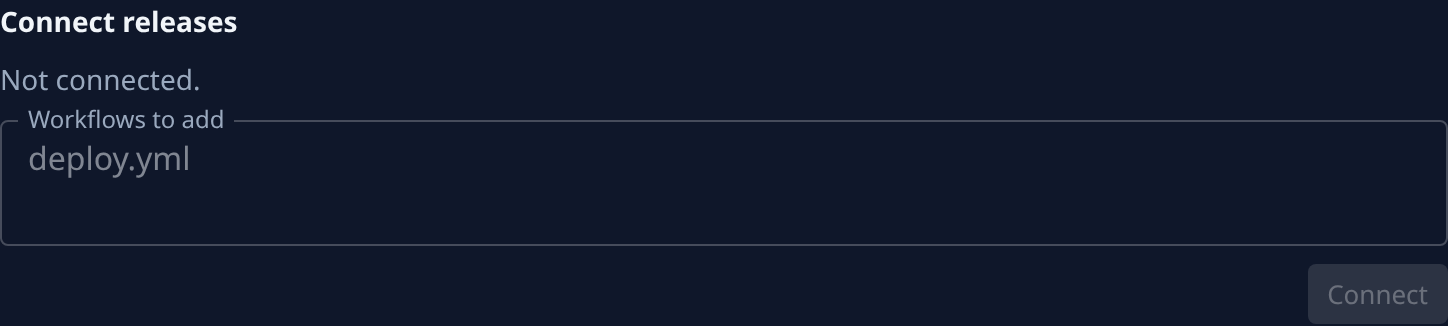
-
Select Connect. On GitHub, if Jaah may not add the webhooks, a warning says why, with Install app and Set up manually. Select Set up manually.
-
A dialog opens, titled for your host, such as Add these webhooks in GitLab. The warning at its top says where the webhooks go on the host, for example Project › Settings › Webhooks › Add new webhook, once per row. Open that page in another browser tab.
Add each webhook on the host
The dialog lists one block per webhook, under its name. Work through them one at a time, in the host's form:
- Select Copy URL and paste it into the host's URL field (Payload URL on GitHub).
- Select Copy secret and paste it into the host's secret field. The dialog names that field: Secret token on GitLab, Secret on GitHub and Bitbucket. Azure DevOps uses a sign-in instead: enter the Username shown and paste the Password.
- Copy any fixed value the block lists, such as Content type
application/jsonon GitHub. - Tick only the events the block lists (Trigger on GitLab, Triggers on Bitbucket, Events on GitHub). On GitHub, choose Let me select individual events first. On Azure DevOps, add one service hook for each event listed.
- Save the webhook on the host, then go on to the next block.
- When every webhook is added, select Done. The secrets are not shown again.
Check it worked
- Under Connect releases, the webhooks are listed, each with its name and what it listens to, in place of Not connected.
- Run a deploy, or wait for the next one. Its run then shows among the project's releases; see Find a release run by environment or status.
Related
- What Production QA does with a release once it is recorded: How Production QA works.
- Switch Production QA on and create its automations: Turn on Production QA for a project.
- When no pull requests show on a release: Find out why a release lists no pull requests.