Record PagerDuty incidents in Jaah
If your team is paged through PagerDuty, Jaah can record each PagerDuty incident on Incidents under one project, with the pull requests it suspects. When PagerDuty resolves the incident, Jaah's copy turns Resolved; when PagerDuty reopens it, it turns Reopened. The connection is an automation whose source is PagerDuty. It only records incidents and files no task by itself.
PagerDuty signs what it sends with a secret of its own. You create the webhook in PagerDuty, then paste its signing secret into Jaah, so Jaah can refuse anything PagerDuty didn't send.
Before you start: Production QA is a plan feature. While your organization doesn't have it, PagerDuty is not offered as a source. You also need to be able to add webhooks in PagerDuty.
Who can do this: automations are for your organization's Owners and Admins.
Connect PagerDuty
-
In the sidebar, select Audit, then the Automations tab, and select New automation.
-
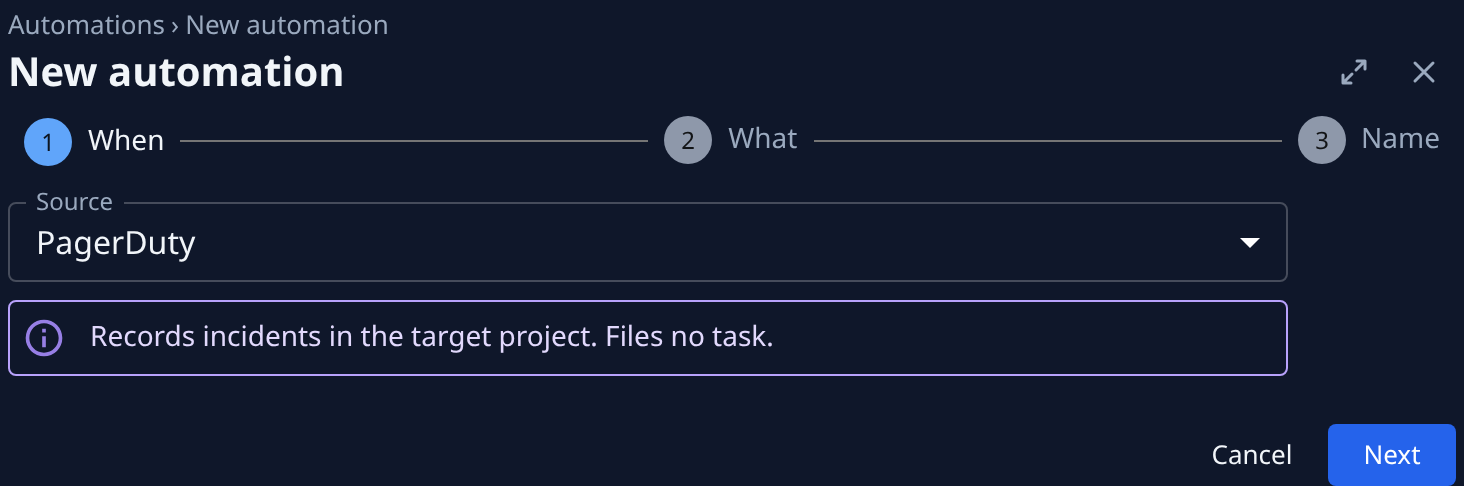
On When, set Source to PagerDuty. A note reads Records incidents in the target project. Files no task. Select Next.
-
On What, under Target, pick the one project the incidents belong to in Records into. Select Next.
-
On Name, enter a Name you'll recognize, such as
PagerDuty: checkout service, and select Create. -
A Store this secret now dialog opens. PagerDuty signs with its own secret, so you won't use this one: select I’ve stored it.
-
On the automation's Setup tab, under Endpoint, select Copy URL beside Webhook URL. Below it, Event subscription lists the three event types Jaah reads:
incident.triggered,incident.resolvedandincident.reopened, each with a Copy button. -
In PagerDuty, open Integrations, then Generic Webhooks (v3), and select New Webhook. Paste the URL as its webhook URL, choose the service or account whose incidents to send, and under its event subscription pick the three event types from step 6. Add the webhook, then copy the signing secret PagerDuty shows.
-
Back on the Setup tab, paste it in PagerDuty signing secret and select Save. Jaah now checks every delivery's signature against it.
Check the first incident
- Wait for the next PagerDuty incident on that service, or trigger a test one.
- Select Incidents in the sidebar. Set Project to the project you picked and Type to Monitor.
- The incident shows as Open, with its title, its severity and when it was last seen. Open it to see the Vendor link back to the PagerDuty incident and, on Suspects, the pull requests Jaah suspects.
The severity comes from the PagerDuty incident's urgency: high urgency is recorded as Critical, low urgency as Warning. Acknowledging an incident in PagerDuty changes nothing in Jaah; only triggering, resolving and reopening do.
Nothing there? Check that the PagerDuty webhook covers the service the incident was on, that it subscribes to the three event types, and that the secret you pasted is the one for that webhook: a delivery whose signature doesn't match is refused. If you replace the secret of the webhook in PagerDuty, paste the new one in PagerDuty signing secret and select Save again.
Related
- Record monitoring alerts as incidents: the same connection for Sentry.
- Triage open incidents: work through what arrives.
- Find the pull request behind an incident: read the suspects Jaah lists.
- Automations: every field on the automation's page.