Triage open incidents
A triage pass goes through every incident that is still open and settles what each one needs next: a pull request to blame, a task to fix it, or nothing because it is already handled. On a wide screen each incident opens in a panel beside the list, so you can move down the list without losing your place. What an incident is, and how Jaah finds its suspects and files its tasks, is in How Production QA works.
Before you start: Incidents is part of Production QA, a plan feature. While your plan does not include it, Incidents is not in the sidebar and the page shows Not on your plan.
Who can do this: anyone who can view the project reads every step. Confirming, dismissing or adding a suspect needs permission to edit the project.
-
In the sidebar, select Incidents.
-
In State, pick Open. Only incidents that are still happening stay in the list.

-
To start with the worst, pick Critical in Severity. Work down through Error and Warning as each level is done.
-
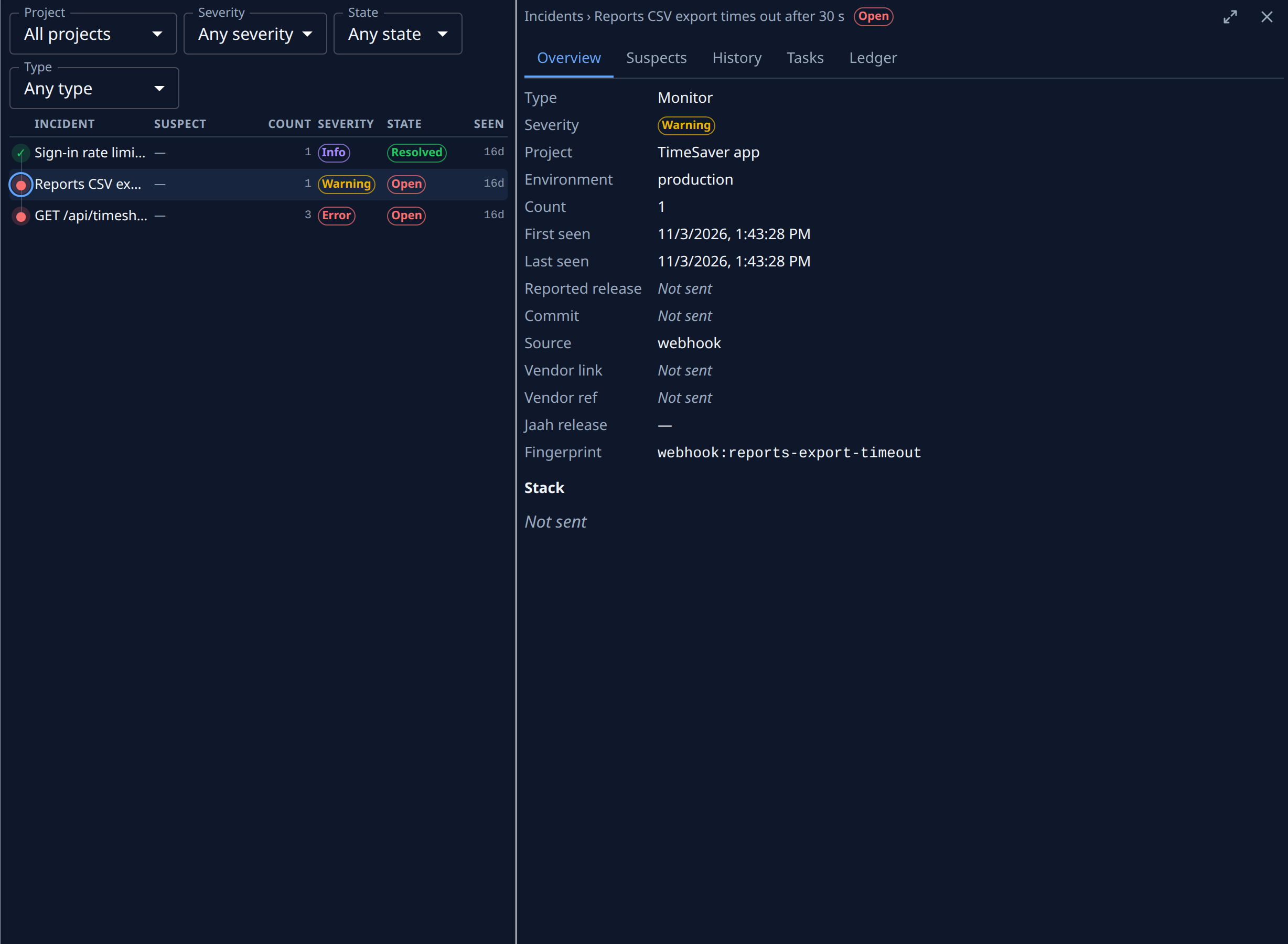
Select the first row. The incident opens in a panel beside the list, on its Overview tab, and its row stays highlighted.
-
Read Count and Last seen to see whether it is still growing. Open the History tab to see each time it happened.
-
Open the Tasks tab. A task listed under Triage, Fix or Revert means work is already under way, and the incident needs nothing more from you. No tasks filed means nobody is on it yet: see Find out why an incident has no task.
-
Open the Suspects tab. Select Confirm on the pull request that caused it, or Dismiss on one that did not. With No suspect, fill in Repository and PR under Add a suspect and select Add if you know the change.
-
Select the next row in the list. The panel switches to that incident. Repeat steps 5 to 7 for each one.
-
When the list is done, select Close pane at the panel's top right. If State set to Open now shows Nothing matches these filters, every open incident at that severity has been handled or has stopped.
A stack trace or a long title reads better at full width: select Maximize pane, then Restore pane to bring the list back. On a phone an incident opens as a full page instead; go back to the list to pick the next one. The list and the panel each refresh every 15 seconds, so a new incident shows up while you work.
Next
- Pin a cause in more detail: Find the pull request behind an incident.
- Wrong suspect confirmed: Clear a pull request wrongly blamed for an incident.
- After the fix ships: Check that a fix resolved an incident.
Related
- Incidents: every filter, column and tab on the Incidents page.
- Find a project's open incidents: the same list narrowed to one project and shared as a link.