Follow a release on the pipeline view
The Pipeline view of the Tasks page shows a project's releases where they land: in the section of the stage they release to, Production by default. Its first row, Next release, holds what is waiting to ship. Once someone releases, a row for the release on its way joins it and shows how far the release has got. When it arrives, it becomes a row named by its version.
Who can do this: anyone who can see the project's tasks. Releasing needs the right to release to that stage: see Release to production.
-
In the sidebar, select Tasks, then the project in the Projects tree. Select the Pipeline tab at the top of the page.
-
Select Production in the stage strip, or scroll down to its section.

-
Read the Next release row, under a blue truck. It shows how many changes wait to ship, the tokens and cost they used, and the age of the oldest one. Hover the age for the date that change merged. Select Next release to list the changes, and again to fold them. Changes that belong to a feature fold under it, and tasks a schedule, a trigger or the system filed fold under Automatic.
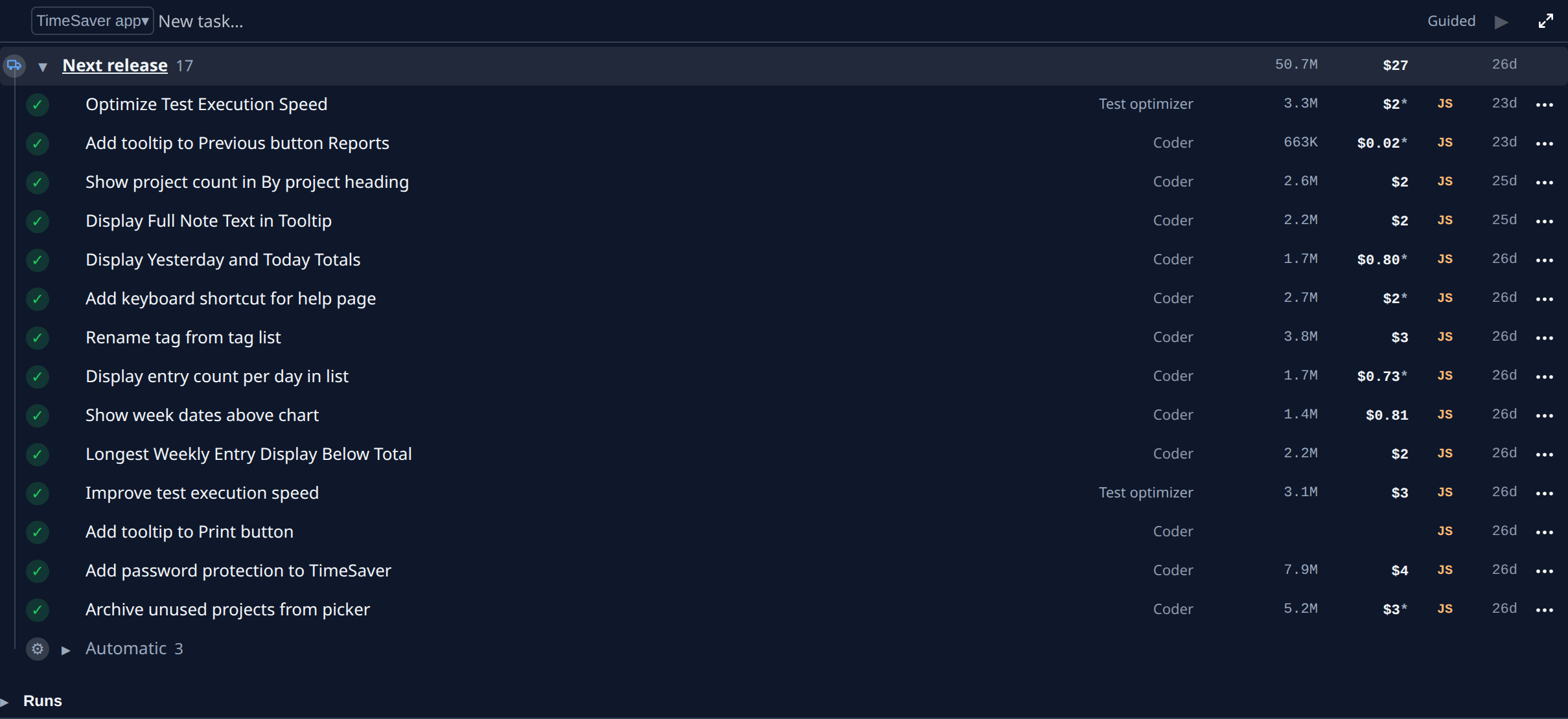
-
When someone releases, a row for that release appears in the section, open, with the changes it carries. Its truck tells you where it stands:
- a purple truck with a turning ring: Releasing, from queued through merging and deploying;
- an amber truck: Waiting for approval;
- a clock: Scheduled for a later time.
Hover the truck for its word.
-
When the release arrives, its row turns into a release that shipped: a green truck, the version in bold (New version until it has one) and the stage it reached in green, such as Production. The newest release stays open; older ones fold.
-
Check the row for a run status beside the count. A release row shows one only while its deploy run is still going, such as Releasing, or when it failed, such as Failed at deploy › build. To read the run, open the row's ⋯ menu and select Open run: see Release runs.
A release that failed before it merged is retried from the Release step: see Retry a failed release.
Plan: Open run and the Runs list at the end of the section need a plan with Production QA. The rows themselves show on every plan.
Related
- How Production QA works: releases, their runs and the incidents they can cause.
- Confirm a pull request reached production: find the release that carried one task.
- Find a release run by environment or status: the Runs list under the releases.
- Task board › Release rows: every item of a release row.