Connect your organization's Gmail
Connect a mailbox once, and the email your automations send goes out from your own address through Google: recipients see your address, and replies land in your inbox. A mailbox connected with a service account can also receive: an automation can start when an email arrives in it.
Who can do this: Org Owners and Org Admins, while your plan includes tenant email. You also need a Google Workspace super admin for step 1.
Before you start
In Google Cloud and the Google Workspace admin console:
- Create a service account and download its JSON key file.
- Give the service account domain-wide delegation for the mailbox, with the
gmail.sendandgmail.readonlyscopes. Only a Workspace super admin can grant it.
Connect the mailbox

- In the sidebar, select Settings, then Integrations, then the Email card.
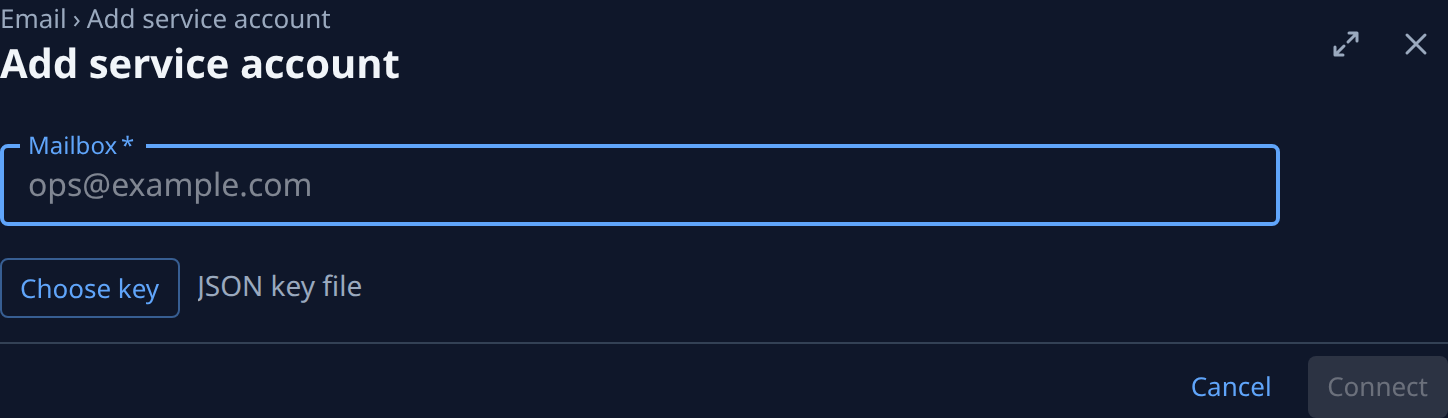
- On the Connections tab, select Add service account. With no mailbox yet, the tab reads No Gmail connected. above it.
- In Mailbox, type the Workspace address to send as, for example
ops@example.com. - Select Choose key and pick the JSON key file. Its name shows beside the button, which now reads Change key.
- Select Connect. It stays greyed out until both are filled. Jaah asks Google whether the key may act as the mailbox before it saves anything.
- If Google refuses, the message says what to grant. Fix the delegation in Google, then select Connect again.
- Once connected, the mailbox's page opens, or the Connections list with its new row. On its page, check Can reads Send, receive.
Connecting the same mailbox again replaces its key. The key stays sealed in Jaah: it is never shown again, never sent to a node and never given to an agent. Jaah itself sends.
When Jaah offers it, Connect with Google beside Add service account connects a mailbox by signing in to Google instead. No key is needed, but the mailbox can only send.
Check it works
The mailbox is a row on Connections, marked Connected. Its page's Sent tab lists every message sent from it. A failed send marks the row Last send failed, with the reason under the address.
To stop using it, open the mailbox and select Disconnect: Jaah stops sending from it at once and deletes its key. The list of sent messages stays.
Related
- Send email from it: Send an email from an automation.
- Every field on the Email card, and addresses that receive mail: Connect Gmail.
- Connect your team chat too: Connect Slack.