Review waivers before they expire
A waiver accepts a failing rule until a date. When that date passes, the gap counts against the repository again, and if the rule blocks changes, the Architectural Guard starts blocking them. Look at your waivers a couple of weeks ahead, so each one is fixed, renewed or dropped on purpose rather than by surprise.
Who can do this: anyone who can view the project's compliance can read its waivers. Revoke shows only to people with permission to edit compliance on that project.
-
In the sidebar, select Compliance. On the Repos tab, select the project's name to open its page.
-
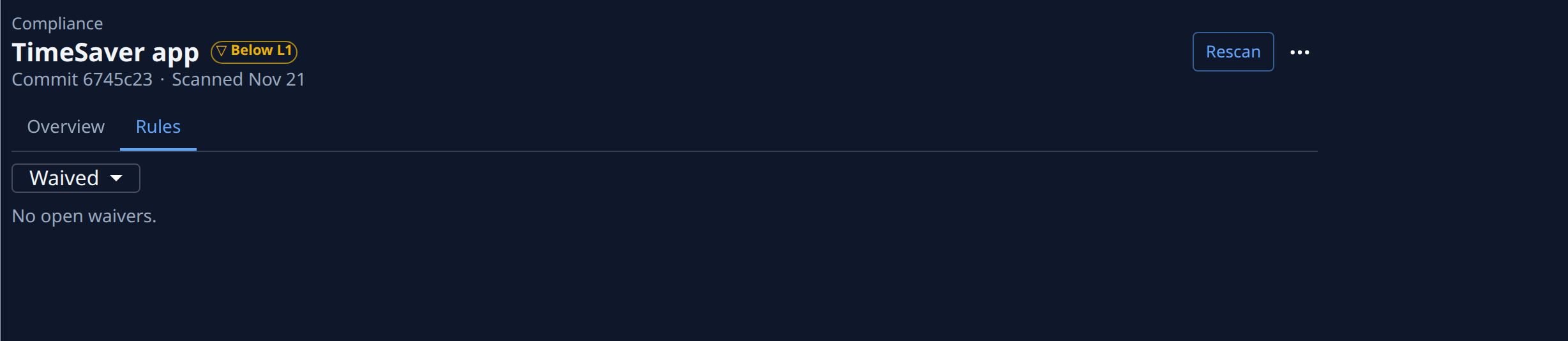
Select the Rules tab, then pick Waived in the filter. When the project has waivers, the filter shows how many, such as Waived (2). With none, the list reads No open waivers.
-
Read each waiver's date, shown after its rule. until and a date means it has more than two weeks to run. expires in and a number of days, in amber, means it lapses within 14 days. expired means the date has passed.
-
Read who owns it under Owner, and where it came from: Filed in Compliance, or Granted from task and a task number when someone allowed it while answering an agent the guard had blocked. Select the task number to read that conversation.
-
Read the reason and the Control line, and check the compensating control is still in place.
-
Decide for each waiver that is about to lapse:
- Fix the gap before the date; see Fix a repository's compliance gaps.
- Still can't fix it: once it lapses, waive the gap again with a new date, owner and reason; see Waive a compliance gap.
- No longer needed: select ⋯ on its row, then Revoke, and Revoke again in Revoke waiver?.
-
To see one rule's waivers across every repository, open the rule's page: on the Repos tab, select the rule's name under Next gap, or open it from your active pack's Rules tab, as in See where a rule fails. Its Active waivers section lists each waiver with its repository, soonest expiry first. It shows only when the rule has waivers.
Related
- How compliance works: where waivers fit among fixes and campaigns.
- Review what the guard blocked: the changes a rule stopped, and the waivers granted from them.
- Repository compliance: every field on a repository's and a rule's page.