Add a second secret for the same service
One secret holds one account on one service. When your tasks need two, such as a production and a staging Jira site, or two Figma teams, add a second secret for the same service and give each a name that says which one it is. Tasks find a secret by its name, so the names are what keep the two apart.
Who can do this: everyone. A secret you add is yours; only Org Owners and Admins can choose another Owner.

- In the sidebar, select Directory, then the Secrets tab.
- Select Add secret. In the gallery, type the service's name in Search integrations. Its card shows the state of the secrets you have for it, with a count when there are several, and its button reads Add another. Select Add another.
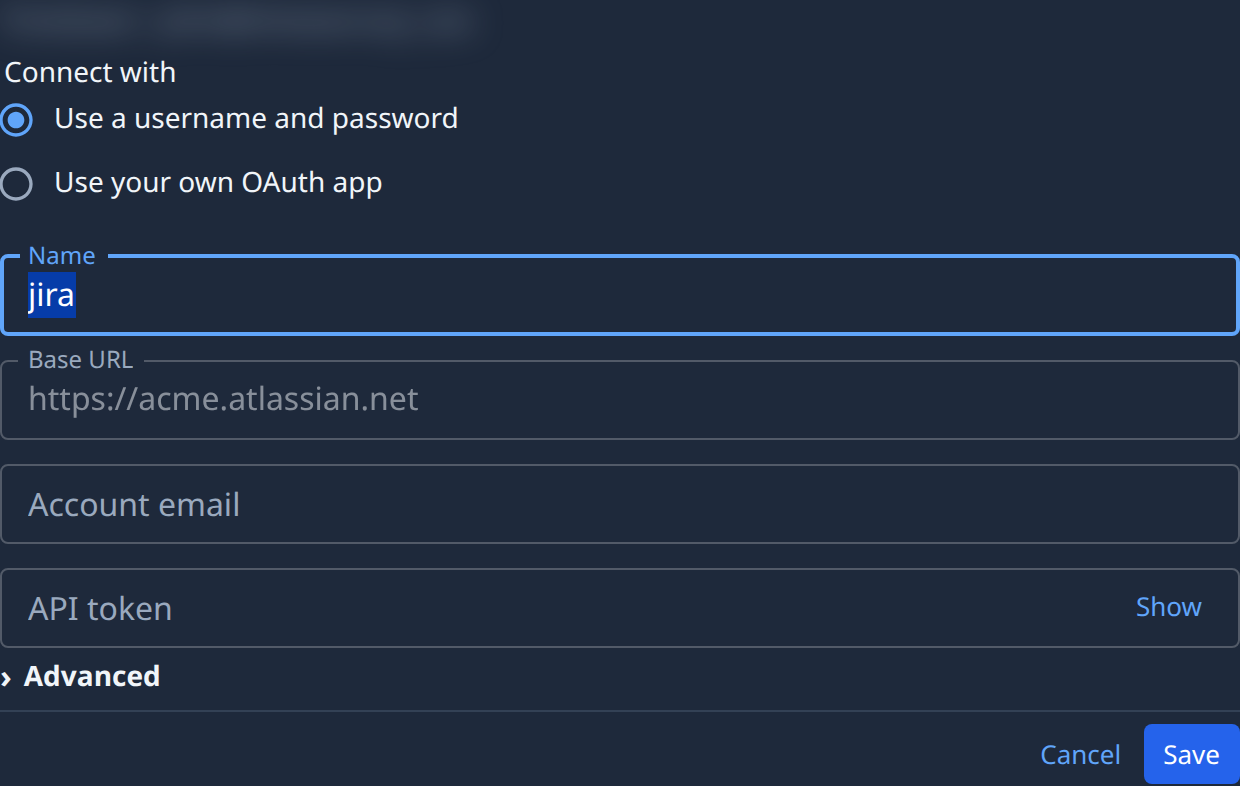
- Under Connect with, choose how this secret signs in. It can differ from the first one: for example, one account by key and the other through the service's sign-in.
- Change the Name so it says which account this is, for example
jira/staging. Slashes file it in a folder. If you leave the starting name and a secret already has it, Save numbers the new one, such asjira-2; a name you typed that is already taken is refused under Name, so pick another. - Fill in the fields for the second account: its own address, such as the other site's Base URL, and its own token or key. A service that signs in shows a button named for it instead, such as Connect Figma; sign in at the service as the second account.
- Optional: open Advanced and add a Description that says what the account is for. Org Owners and Admins can pick the Owner here.
- Select Save, or the button named for the service. The new secret appears in the list, and the service's card counts both.
Tell tasks which one to use
A task that can reach both secrets needs to know which one you mean. Copy the secret's runner path from
⋯ on its row with Copy runner path, and name it in the task's description, for example "File the
bug in the staging Jira with me/jira/staging." See
Tell a task which secret to use.
To let every task on one project use only one of the two, attach that one to the project and leave the other off. See Attach a secret to a project.
Related
- Add a secret — the first secret for a service, field by field.
- Connect a service in one click — the sign-in route, for a service that offers it.
- How secrets work — every way a secret reaches a task.