Tell a task which secret to use
When a task can reach several secrets of the same kind, such as two Jira sites, say which one to use. A
task asks for a secret by its runner path: where the secret lives, then its name, such as org/jira.
Naming the path in the task's description is safe: it carries no value, only where to find it.
Who can do this: anyone, for the secrets they can see. The task can use the secret only if it may receive it; step 3 says how to check.
- In the sidebar, select Directory, then the Secrets tab.
- Find the secret. Type part of its name in the search box, or narrow the list with the filters.
- Check that the task will receive it:
- a Personal secret of yours reaches the tasks you start;
- an Organization secret reaches tasks that Org Owners and Admins start, and tasks on the projects it is attached to;
- any other task needs the secret attached to its project. See Attach a secret to a project.
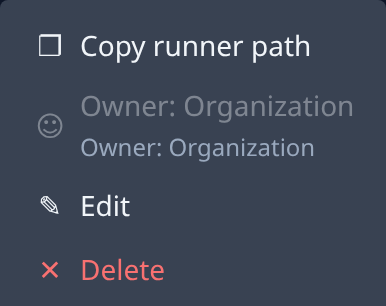
- Select ⋯ at the end of the secret's row, then Copy runner path. It copies the path, such as
org/jirafor an organization secret,projects/<project>/jirafor one that belongs to a project, orme/jirafor your own. - If the menu offers Copy name instead, tasks can't ask for this secret: it is a System secret, which tasks never use, or another member's personal one. Pick another secret, or ask its owner to share it with the organization.
- Open the task, or create one, and paste the path into its description where you say what to do, for
example: "File the bug in Jira with the secret
org/jira." - Start the task. Its runner asks for the secret by that path when it needs it.
Never paste the secret's value into a task: anyone who can view the task could read it.
Related
- How secrets work — every way a secret reaches a task.
- Add a secret — store the connection first, with a name that says what it's for.
- Secrets — every item in a secret's row menu.