Browse secrets by folder
The Secrets tab lists every secret in one flat list. With many secrets, Tree view is easier to
read: it groups them by home, then by folder, and shows how many secrets each group holds. A secret's
folder is part of its name, so team/jira sits in the folder team.
Who can do this: everyone, for the secrets they can see. Dragging a secret needs the right to change it.
Open the tree
- In the sidebar, select Directory, then the Secrets tab.
- Select Tree view, the button after Only mine at the end of the filters. It stays lit while the tree is on, and the console remembers your choice next time.
- Read the top level. Each row is a home: Shared for your organization's shared secrets, system for the ones Jaah itself uses, then one row per project that homes secrets and one per member with personal secrets, named by their email. The number at the right is how many secrets the group holds, shown as 1,000+ past a thousand.
- Select the arrow beside a home to open it. Its folders come first, then the secrets that sit directly in it. A secret shows only the last part of its name: the folders above it spell the rest.
- Open a folder the same way, as deep as the names go. Select the arrow again to close it.
- If a level ends with Load more, select it to list the rest of that level.
- Select a secret's name to open its page beside the tree, as in the flat list.
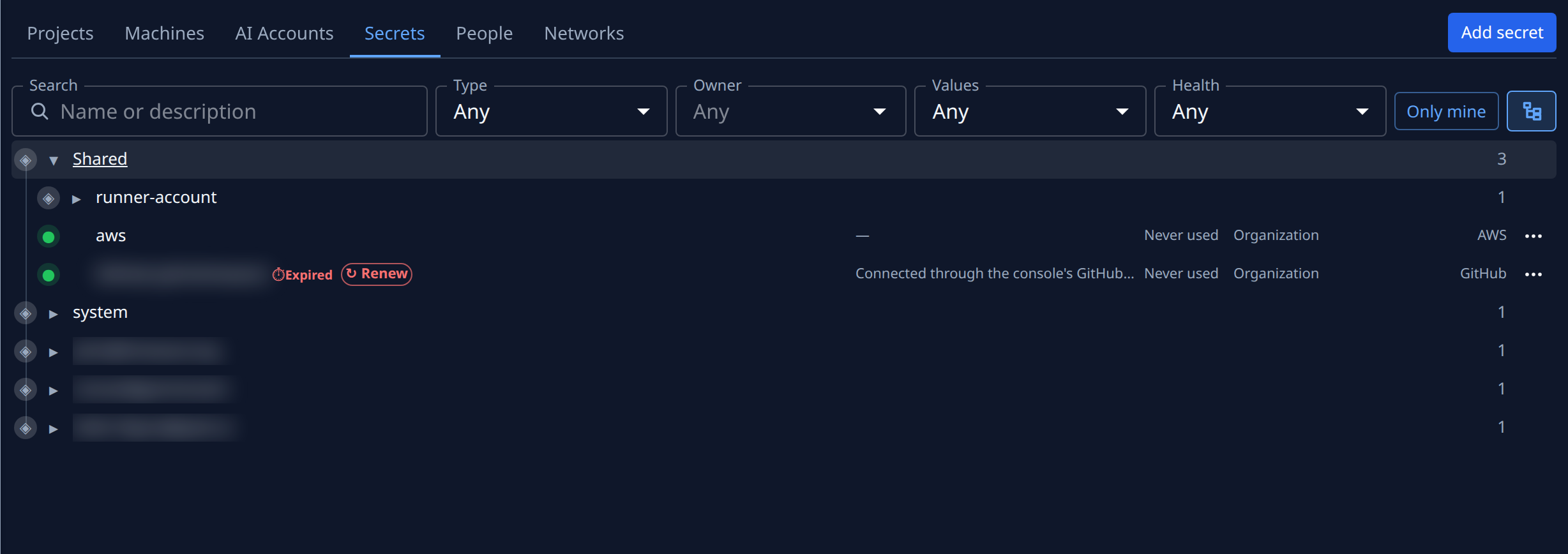
The filters above the list still apply: Search, Type, Owner, Values, Health and Only mine narrow every level, and the counts show only what matches. The folders you opened stay open when you come back.
Drag a secret into a folder
- Open the home that holds the secret, and the folder you want it in.
- Press on the secret's row and drag it. The folders in the same home that can take it are marked as drop targets.
- Drop it on a folder, or on the home's own row to move it to the top of that home.
- Check the tree: the folders open down to the secret's new place, and its name now starts with the new folder.
Dragging renames the secret: a/b/jira dropped on team becomes team/jira. A secret can only move
within its own home, so a personal secret never becomes a shared one this way; to do that, see
Change a secret's owner. The folder a secret already sits in refuses
the drop with Already in this folder. If the move fails, a message above the tree says why, such
as a name already taken in that folder.
Folders themselves can't be dragged. To move many secrets, or a whole folder's worth, switch back to the flat list and follow Move secrets into a folder. Ticks and the bar above the list are only in the flat list.
Related
- How secrets work: homes, owners and names.
- Find secrets that need attention: use the Health filter in either view.
- Secrets: every filter and column on the tab.