Change a secret's owner
A secret's owner decides who can use it: one member (Personal), the whole organization (Organization), or only Jaah itself (System). When a member leaves, or a token someone added for themselves should serve the whole team, move the secret instead of adding it again. Its stored values move with it, so nothing has to be typed in a second time.
Who can do this: Org Owners and Org Admins, on any secret they can see, a member's personal secret included. Other members don't see Owner on a saved secret.
Move the secret
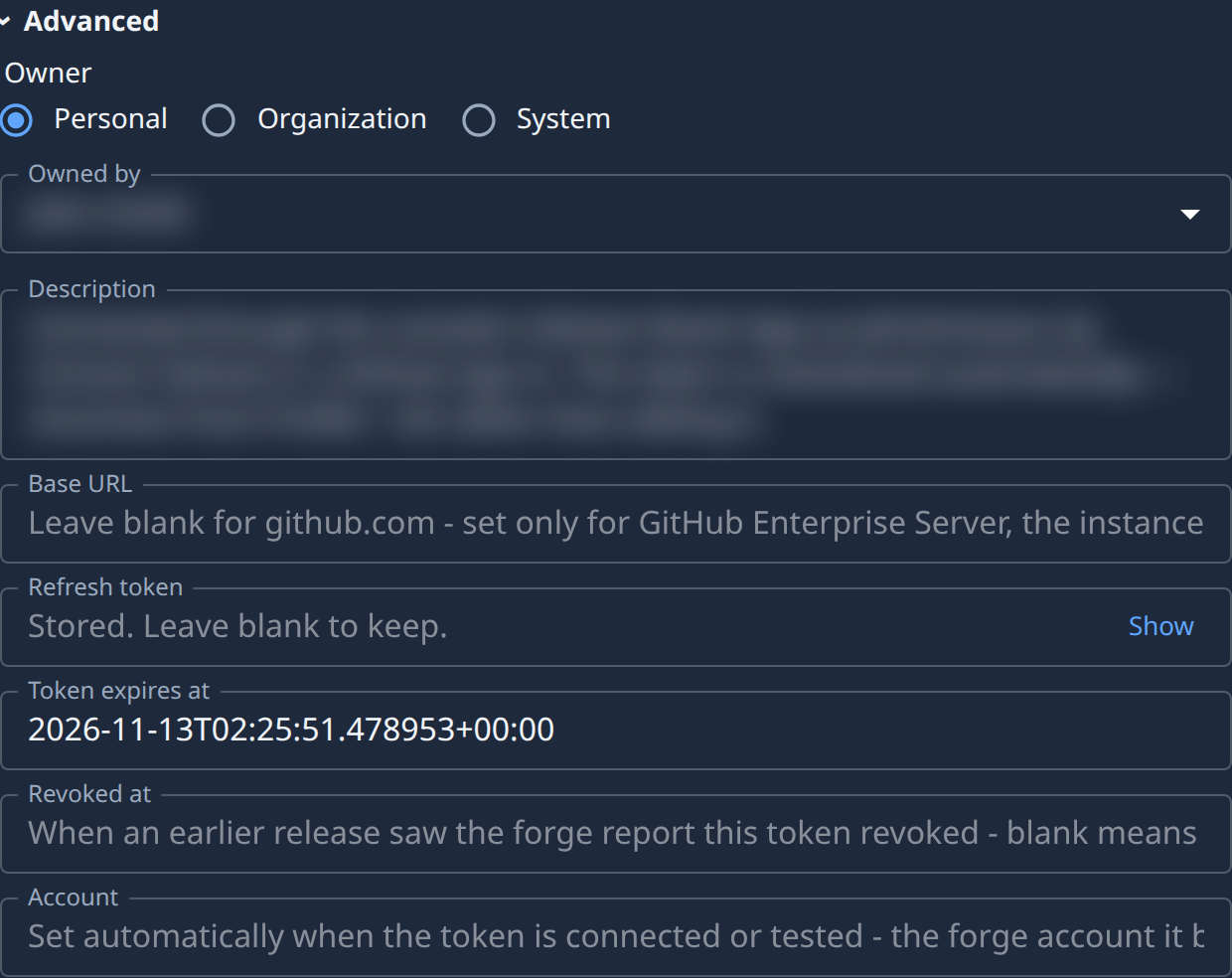
- In the sidebar, select Directory, then the Secrets tab.
- Select the secret's name, or Edit in its ⋯ menu. It opens on the Details tab.
- Open Advanced. Owner shows who owns the secret now.
- Pick the new Owner:
- Personal, then type part of a member's name or email in Owned by and pick them.
- Organization, to share it across the organization.
- System, for a secret only Jaah itself uses, such as a cloud node's key.
- Select Save. Leave every secret field empty: only the owner changes.
- Check the move on the Access tab, whose Owner now names the new owner.
The tab may say Read-only when the secret is another person's. You can still change its Owner and select Save; every other field stays locked.
What moves with it
- Projects. A secret keeps the projects it's attached to, unless you move it to System: a System secret is taken off every project, since tasks never see it.
- Names. Two secrets may share a name once one has moved. Rename one if tasks need to tell them apart.
- A model account's key can't be moved here. Change the account's owner instead, and its key follows: see Change a model account's owner.
- A System secret Jaah uses, such as a cloud node's launch key, can't leave System while Jaah still uses it. Save names what uses it.
Related
- What each owner lets people and tasks do: How secrets work.
- Let a project's tasks use the secret: Attach a secret to a project.
- Every field on the secret's page: Secrets.