Connect a service in one click
Many services in the integrations gallery sign in through Jaah's own app. You sign in at the service, allow access, and Jaah stores the connection as a secret your tasks can use. There is no token to create or paste, and the connection renews itself. The steps use Figma; every service that offers Connect with its name works the same way.
Who can do this: everyone. A secret you connect is yours; only Org Owners and Admins can make it an Organization secret.

- In the sidebar, select Directory, then the Secrets tab.
- Select Add secret. In the gallery, type the service's name in Search integrations, then select Connect on its card. Once you have one connection to it, the card reads Add another.
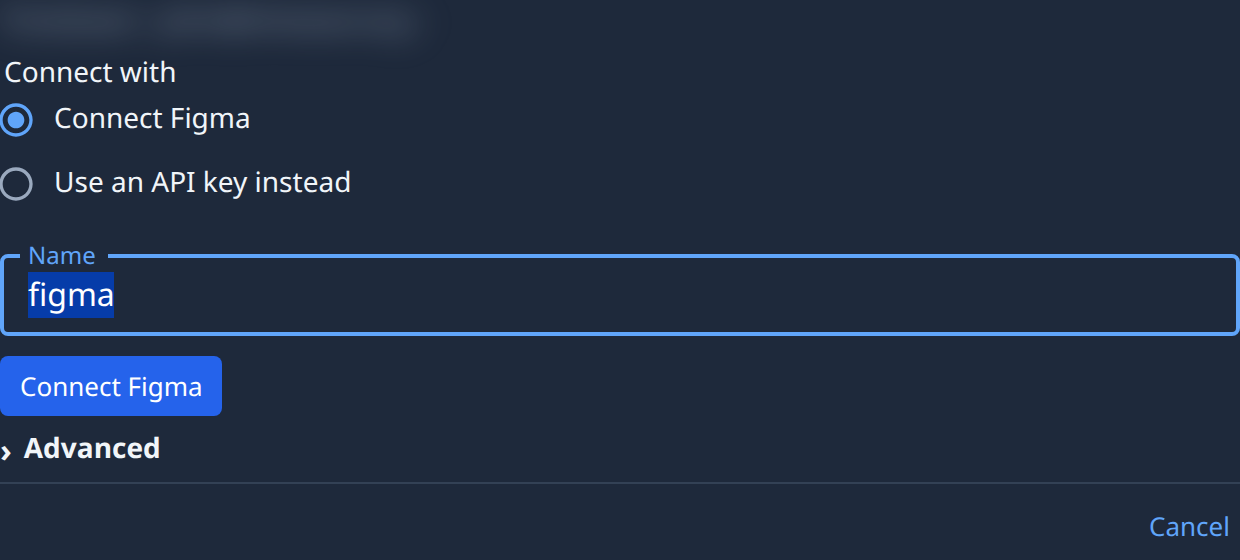
- Under Connect with, choose the first option, named for the service, for example Connect Figma.
- Optional: change the Name. Tasks find the secret by it, so make it say what it is for, for example
figma/design-team. - Optional: open Advanced. Under Permissions, untick what the service should not allow; hover the mark beside Permissions to see the ones always included. Org Owners and Admins can also pick the Owner here.
- Select the button named for the service, for example Connect Figma. It reads Connecting… while Jaah sends you to the service.
- Sign in at the service if it asks, and allow access. Where the service asks you to pick a site or an organization, pick the one your tasks should reach.
- Back in Jaah, the new secret opens and says Connected. It is already tested.
If it didn't connect
Nothing is saved until you allow access. When the round trip fails, the secret's screen says why:
- The authorization was not completed, so nothing was stored. You cancelled or refused at the service. Select the Connect button again.
- The provider named no organisation or site for this sign-in, so nothing was stored. Connect again and pick a site or organization at the service.
- The connect attempt timed out. Connect again. You took too long at the service. Start again.
A card marked Beta has no Jaah app yet, so this one-click choice is missing or greyed as (Not available yet). Paste the service's key with Use an API key instead, sign in through your own OAuth app, or vote for it.
When a service later stops accepting the connection, the secret shows Needs reconnect. See Reconnect a secret a service stopped accepting.
Related
- Attach a secret to a project so every task on a project can use it.
- Add a secret: store a token or key by hand.
- Every choice on a service's screen: Secrets.