Test a secret
Test sends one request to the service with the stored value and tells you whether the service accepted it. Run it after you add or replace a secret, so a task doesn't find out first.
In your organization, Test is on the Connections tab of a custom connector: the REST APIs and MCP servers your organization defined itself. A secret for a catalog service, such as Jira or AWS, has no Test on its own page: Jaah runs that test on its servers, and only Jaah's operators can start it by hand. A catalog secret you connect in one click is tested as it connects. For every secret, its page shows the result of the last test.
Who can do this: anyone who may change the connection. Rows you can't change show no Test.
Test a connection
- In the sidebar, select Directory, then the Secrets tab.
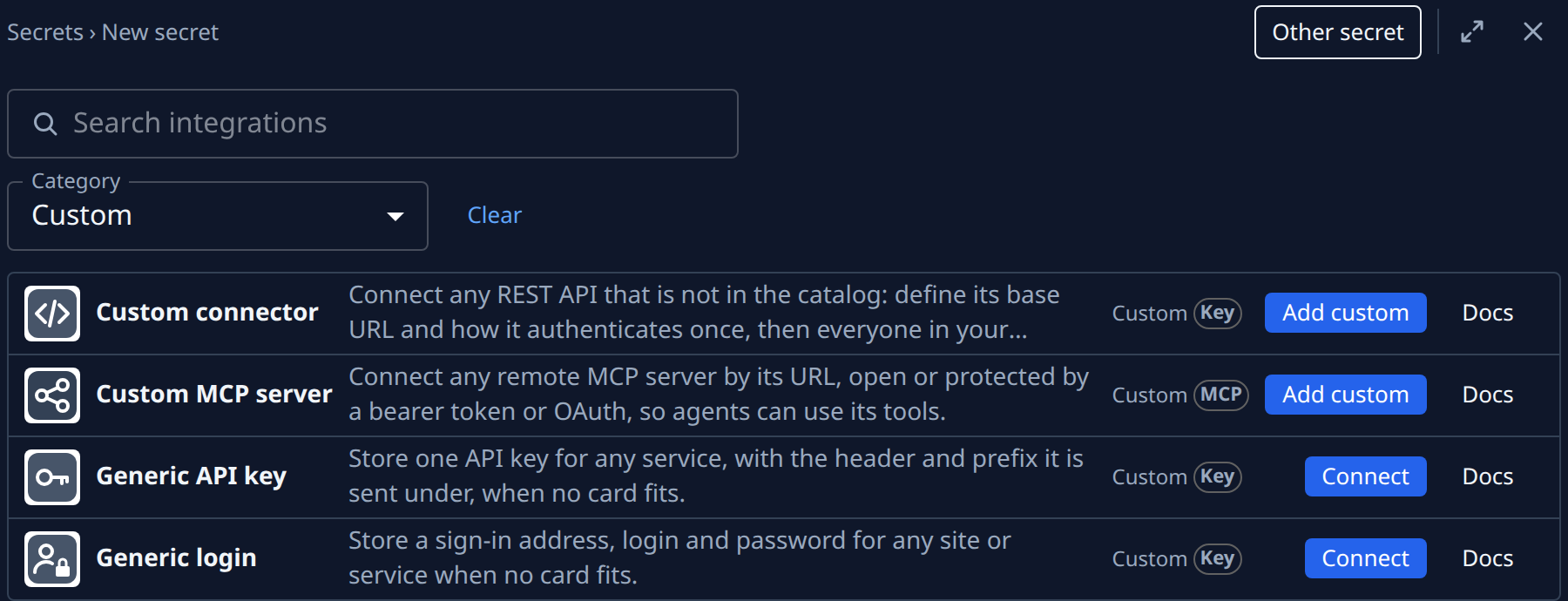
- Select Add secret, then pick Custom under Category. Your organization's connectors are listed here beside Custom connector and Custom MCP server.
- On your connector's card, select Connect, or Add another once it has connections. The connector opens on its Connections tab.
- Find the connection in the list. Its Health reads OK, Test failed, Untested or Needs reconnect.
- Select Test at the end of its row. The button reads Testing… while the request runs.
- Read the message above the list. It starts with the connection's name, then the service's answer: green when the service accepted the value, red when it did not.
- Check the row's Health again. It now shows the result you just got, and the secret's own page shows the same. Select × at its end to close the message.
Read the result
| What you see | What it means | What to do |
|---|---|---|
| A green message, Health OK | The service accepted the value. | Nothing. Tasks can use it. |
| A red message, Health Test failed | The service refused the value, or didn't answer in time. The message says which. | Put in a new value on the secret's page, then test again. See Replace or delete a secret. |
| "This connection was made for another address than the connector's - connect again." | The connector's address changed after this connection was made. | Make the connection again under Connect on the same tab. |
| "Press Connect first: this connection holds no access token yet." | An OAuth2 connection that never finished signing in. | Open the secret and select its Connect button. |
| "Testing runs on Jaah's servers, which can't open NodeVault credentials." | The secret is sealed with NodeVault, so it can't be tested here. | Nothing is wrong with it. A task on one of your nodes still opens it. |
| Test greyed out | The connector's address doesn't start with http:// or https://. | Ask an Org Owner or Admin to fix the address on the Definition tab. |
See the last result of any secret
- On the Secrets tab, select the secret's name. Its page opens beside the list.
- Read the label beside its name: Connected (the last test passed), Test failed, Untested or Needs reconnect.
- Under it, read the last test's message and how long ago it ran.
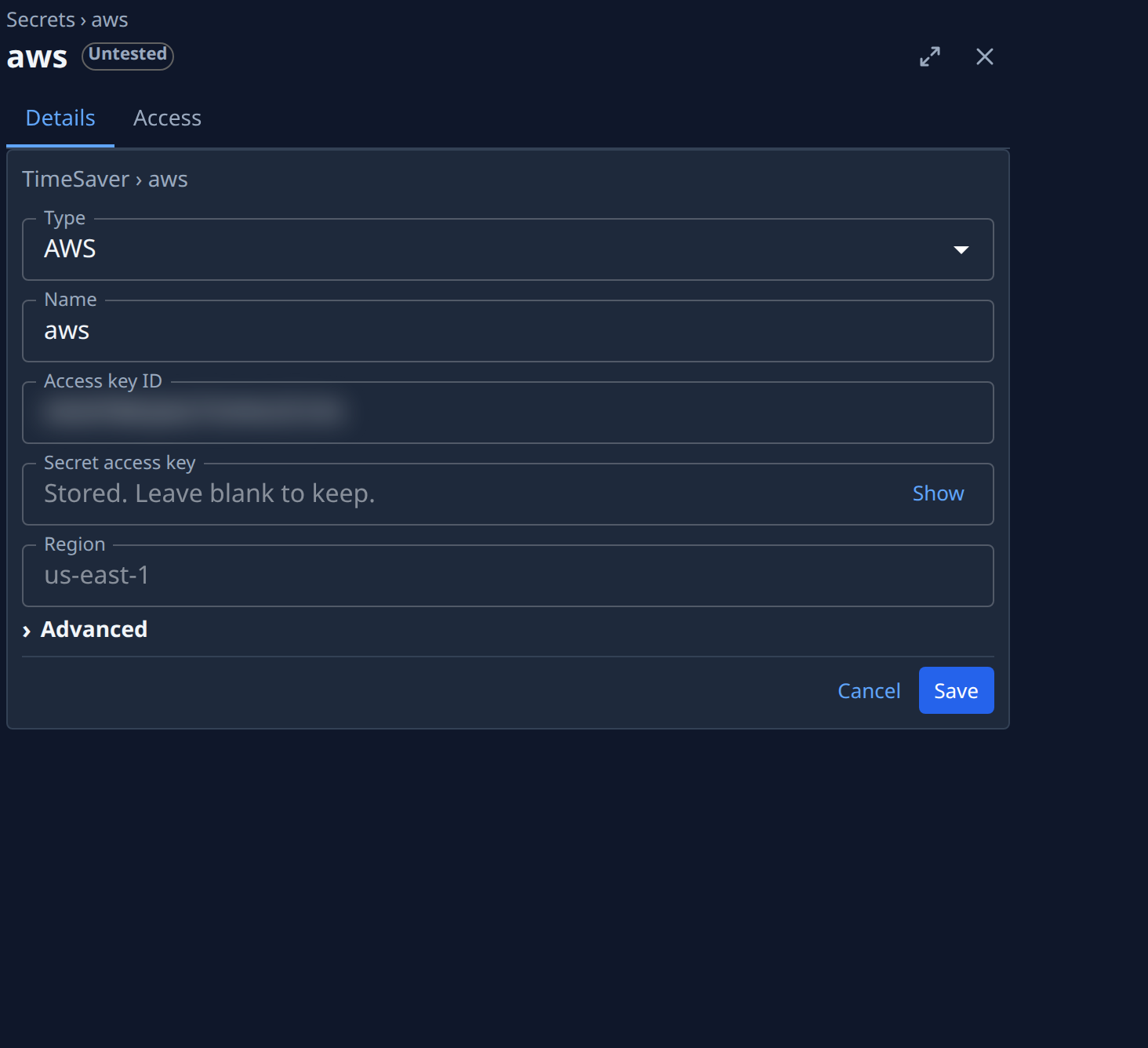
Needs reconnect means the service refused the sign-in for good: select Reconnect there. See Reconnect a secret a service stopped accepting.
Related
- Add a secret: store a new connection, field by field.
- Add a custom API or MCP server: define a connector and its Test path.
- Find secrets that need attention: list failing, expired and unused secrets.
- How secrets work: owners, homes and how tasks receive a secret.