File an epic under a feature
An epic is often the bulk of one part of your product, so it belongs in that part's feature. You file the epic itself, never its subtasks one by one: they always sit where their epic sits. Subtasks that Plan or Finish adds later take the epic's feature when they are created.
Who can do this: filing needs permission to edit the epic. Creating a new feature on the way needs permission to create tasks in its project.
-
Open the epic's page, from its row on the board or its link. Save any change you have made on it first: New feature… isn't offered while the page has unsaved changes.
-
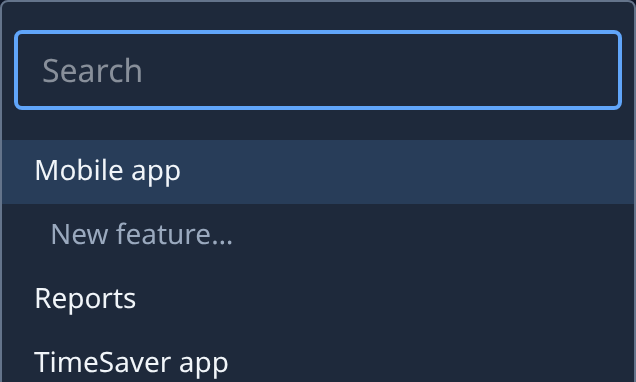
In the breadcrumb, select the first crumb, with its ▾. It names the project, such as Mobile app, or the project and the feature, such as Mobile app / Billing. A list opens with a Search box.
-
Pick the feature under the epic's project. Type part of its name in Search if the list is long; No matches means no project or feature has that name.
-
If the feature doesn't exist yet, select New feature… instead. Type its Name, optionally a Description, and select Create. You return to the epic, filed under the new feature.
-
Check the breadcrumb: it now names the project and the feature. The epic's subtasks moved with it.
-
Open one subtask from the epic's Subtasks tab. Its breadcrumb names the same feature and has no ▾: a subtask can't be filed apart from its epic.

-
Select the feature in the sidebar. The epic shows on the board with the feature's other tasks.
To take the epic out of the feature, open the first crumb again and pick the project itself. Picking another project moves the epic and all its subtasks there, in no feature.
An epic you haven't started yet can go straight into a feature: select the feature in the sidebar, then start the epic from its board, and it is filed there from the start.
Related
- Organize tasks into features: create a feature and file tasks under it.
- File a task under a new feature: every field of the New feature page, step by step.
- Move a task to another project: what changes when a task changes project.
- Feature: each item in the breadcrumb's list.