Move a task to another project
A task runs on its project's repository. If you filed it in the wrong project, move it rather than duplicate it: its description, comments and attachments go with it, and so do its subtasks.
Who can do this: anyone who may edit tasks in both projects. A project you can't move tasks to is still listed, greyed, with no move access beside its name.
-
Open the task's page. If it is running, queued or waiting for your answer, stop it first: see Stop, restart or reset a task. Jaah won't move a task that is still live.
-
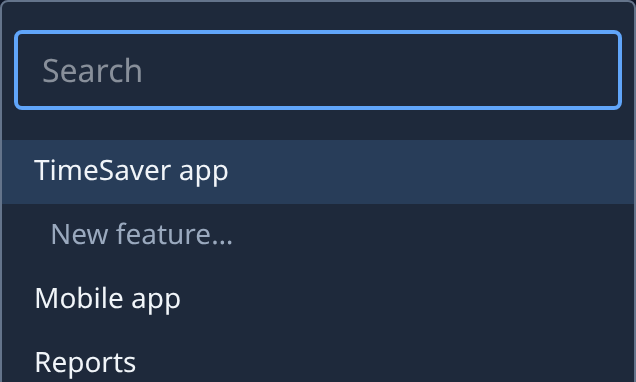
At the top of the page, select the project's name, such as TimeSaver app, before the task's title. A box opens with a Search field and every project you can see. The task's own project comes first, with its features under it.
-
Type part of the project's name in Search to narrow the list. It matches project and feature names.
-
Select the project. The move happens at once: there is nothing to save.
-
To file it under one of that project's features too, select the project's name again and pick the feature. You can also pick a feature of another project straight away: the task moves to that project and into the feature in one step.
-
Check the top of the page. It now names the new project. Changes you had not saved in the description are still there; select Save when you are ready.
A move takes the task out of its old feature, since features belong to one project. A subtask can't leave its parent, so its project name isn't a choice: open the parent and move that, and every subtask moves with it.
If the move is refused
The project name goes back to the old one and a line under it starts with Move refused: and says why:
- stop or reset it before moving the task to another project. The task, or one of its subtasks, is still running, queued or asking. Stop it, then move it.
- set Node to Any first. The task is pinned to a node that doesn't run the new project. Open Advanced on the task's page, set Node to Any, select Save, then move it. See Choose the agent and account a task runs on.
A stopped task keeps its state when it moves. Its next Start begins in the new project, on a fresh copy of that project's code.
Related
- Organize tasks into features: file a task under a feature in its own project.
- Duplicate a task: keep the task where it is and start a copy in another project.
- How tasks work: projects, features and epics.