Switch an automation to a template
An automation can write out its task in full, in its own Body, or file it from a template. When the same brief lives in several automations, or a teammate keeps the template up to date, switch the automation to the template: each run then files the template as it is at that moment, and the brief has one home. What a template carries is in How templates work.
Who can do this: Automations are shown only to Owners and Admins of your organization. The Template list offers the published templates you may start. Pick a template that already does what the automation's brief asks; if none does, create one or adapt an official one first.
-
In the sidebar, select Audit, then the Automations tab, and select the automation. Its page opens on Setup.
-
Scroll to Action. Under Task, the list reads Body, with the brief written out below it. Copy any part of that brief you want to keep: switching drops it when you save.
-
In that list, pick Template. The brief is replaced by a Template list.
-
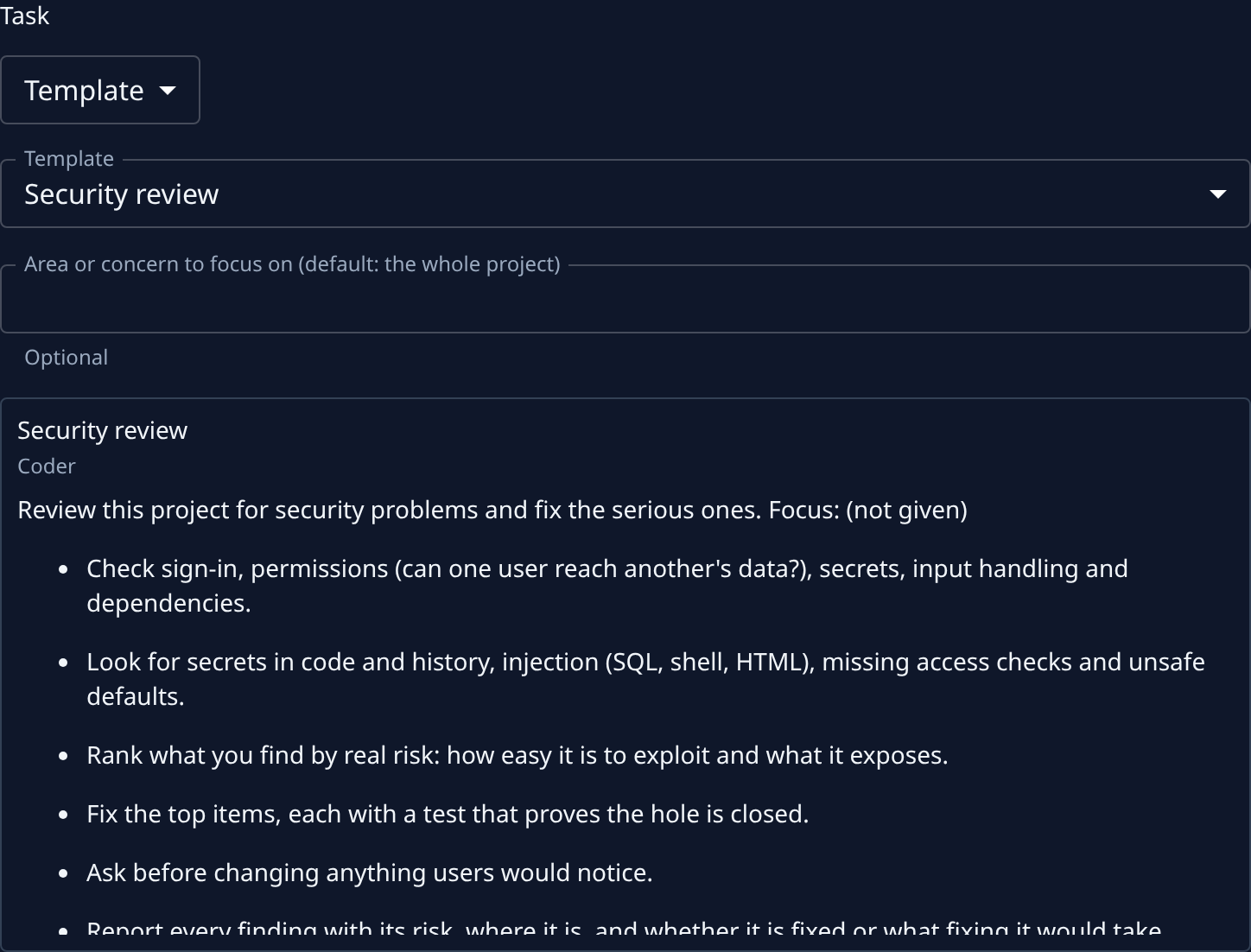
In Template, pick the template, for example Security review. Its inputs show below it, then a preview of the task each run will file: its title, its persona and its brief.
-
Fill in the template's inputs, if it has any. Each run uses these values, and the preview fills them in as you type. A required input must be filled before you can save.
-
For an automation started by an event, a Title field shows above Template. Leave it empty to use the template's own title, or name each task from the event with placeholders; hover Title for the ones this source offers.
-
Select Save at the bottom of the page. Cancel puts the Body back instead.
-
Open the Settings tab to check it. With a template, the template decides the persona, the model and the brief, so only Start, Run as and Priority remain there.
-
To see a task filed from it now, select Run now at the top of the page.
To go back, pick Body in the same list, write the brief again and save. Tasks already filed keep the brief they were filed with either way.
If the template changes later
- Editing the template changes what the next run files.
- Deleting it, or setting it back to Draft, stops the automation until you pick another template: see Fix an automation whose template stopped it.
Related
- Run a template on a schedule: create a new automation from a template.
- Run, pause or change an automation: the other changes you can make on an automation's page.
- Change or delete a template: edit the brief every run files.