Delete a project
Delete a project when its work is over and nobody will run tasks on it again. Deleting it removes the project, every task filed under it, and every slot it has on your nodes. Its repository stays where it is. If you only want the project out of your way, hide it instead: hiding changes nothing for anyone else and can be undone.
Who can do this: Org Owners and Admins. Other members don't see Delete in the menu.
Before you start: deleting can't be undone. A running task is stopped, and anything not yet committed in the project's slots is erased.
Check what goes with it
- In the sidebar, select Directory, then the Projects tab.
- Read the project's row: Running and Queued say how many of its tasks are still at work, and Slots how many of its slots are in use (on a phone, open the project to see them). Point at a count to read it in words.
- If tasks are still running, open the project on the task board and let them finish, or stop them first: see Stop, restart or reset a task.
Delete it
- On the Projects tab, find the project's row and select ⋯ at its end.
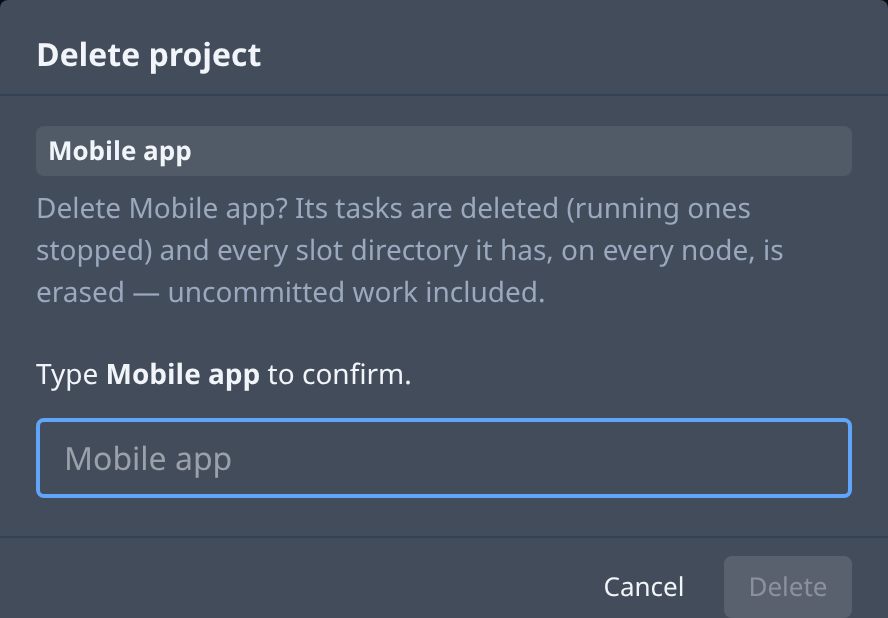
- Select Delete. The Delete project dialog says what goes: the project's tasks, running ones stopped, and every slot folder it has on every node, uncommitted work included.
- Type the project's name in the field under Type … to confirm. Delete stays unavailable until the name matches.
- Select Delete.
- Check the list: the project's row is gone, and its tasks no longer show on the task board.
A project Jaah hosts an app for asks you to type the app's address instead of the name. Its app is deleted too; the repository stays.
Related
- How projects work — what a project holds, and hidden versus deleted.
- Run a project on some nodes only — move the project off some nodes and keep the project.
- Projects — every item in a project's row menu.