See which projects need you
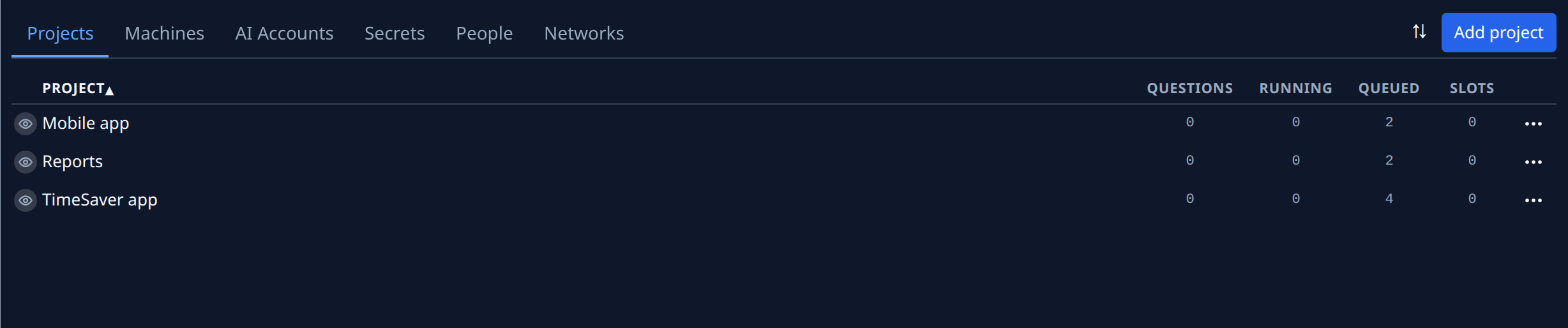
With several projects, the quickest way to see where work is waiting is the Projects list. Each row counts the project's tasks that are asking a question, running or queued, and the slots in use, so you can sort the busiest or most blocked project to the top and go straight to it.
Who can do this: everyone, for the projects they can see. A project you can view but not edit is listed, but its name doesn't open its settings.
-
In the sidebar, select Directory. The Projects tab opens.
-
Read the counts on each row:
- Questions: tasks waiting for an answer before they can go on. A count above zero is shown in amber.
- Running: tasks a runner is working on now.
- Queued: tasks waiting for a free slot.
- Slots: slots the project is using now.
Hover a count for it in words, such as 2 queued. A count you aren't allowed to see reads as unknown.
-
To bring the project that needs you most to the top, select the Questions column header. A count sorts largest first; select the header again to reverse it. Running, Queued and Slots sort the same way, and Project sorts by name. The sort button (⇅) beside Add project does the same, and is the only way in a narrow window, where the headers are gone.
-
To answer the questions, select Tasks in the sidebar, then the project in the sidebar's project list. Its tasks waiting for you are listed first. See Answer a question.
-
To change how the project works, for example to give it more slots, go back to Directory and select the project's name. Its Settings open. See How projects work.
-
To open the project's repository on its host, select ⋯ on its row, then the host's name, such as GitHub.
A project you hid from your board stays on this list, marked with a crossed-out eye. Select the eye to show it again. See Hide a project from your board.
Related
- Projects: every column and control on the list.
- How tasks work: what each task state means.
- Give a project more slots: when Queued keeps growing.