Give someone access to a project
A role on a project decides what a person can do there: a Project Viewer can look, a Project Developer can run tasks, and a Project Maintainer can also change the project's settings. You can grant a role to one person or to a whole group.
Who can do this: granting access needs the permission to manage access on the project. Without it, the Access tab shows who has access but offers no Add button.
Grant a role
- In the sidebar, select Directory, then the Projects tab.
- Select the project's name to open its settings.
- Select the Access tab. The table lists everyone who already has access, and how.
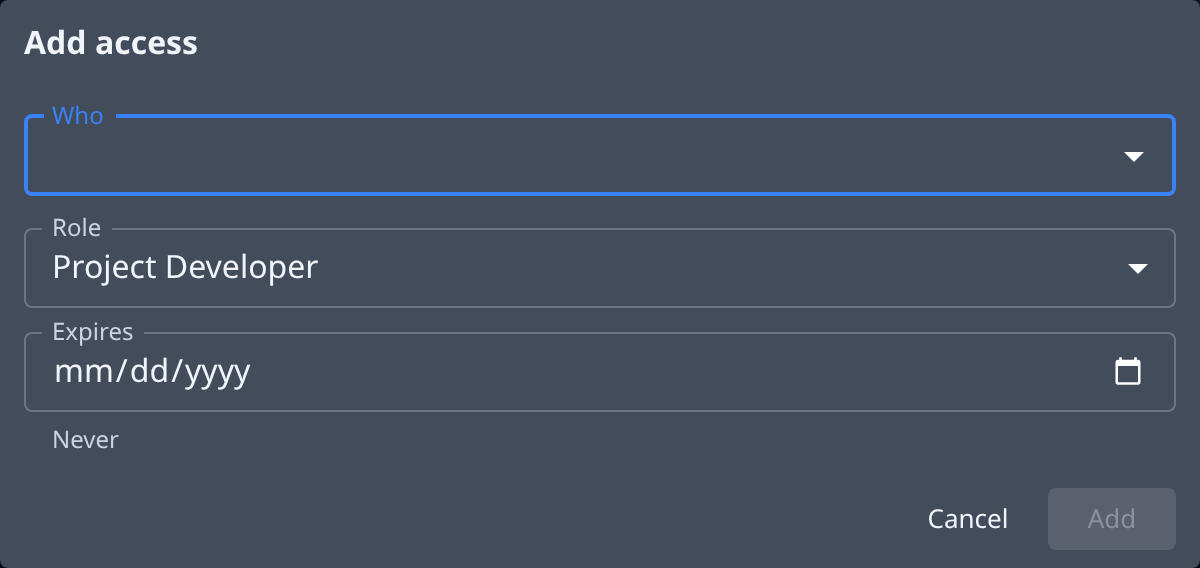
- Select Add.
- In Who, pick one or more people or groups.
- Pick the Role.
- Optional: pick a date in Expires. Left empty, the access never expires.
- Select Add.
The new rows appear in the table with the Source Direct.
Take a grant away
- Open the project's Access tab, as above.
- Type the person's or group's name in Filter to find their row.
- Check the Source column. Only a Direct grant can be removed here.
- Select Remove on the row.
- Confirm.
A role shown as Via a group comes from that group: remove the person from the group, or the group's role, on the Groups tab. A role shown as Inherited from comes from the organization.
Related
- To grant the same access to many people at once, create a group and grant the role to it.
- To bring a new person into your organization first, see Invite a person and grant access.
- The Access tab in full: Projects.
- What each role allows: How projects work.