Release a task that changed no code
Some tasks finish without a pull request: an answer, a piece of research, a design, a "no change needed". Such a task moves through the pipeline like code. When it finishes it lands on Dev (your integration stage), waits there for the next release, and ships in it, so the release lists everything the project delivered, not only its commits. Nothing about it reaches your repository: the release carries no commit for it.
This applies to a top-level task finished on or after November 11, 2026. A subtask ships with its parent, and a hidden task stays out of releases. A pipeline with no Release step has nowhere to move it: there the task is done once it reaches the last stage.
Who can do this: anyone who may release the project, as for any release (Release to production).
-
In the sidebar, select Tasks, then the project, and select the Pipeline tab. The stage strip sits under the tabs.
-
Find the finished task in the Dev section, with the merged tasks. Its row looks like theirs: it waits for a release the same way.
-
Select the Release step between Dev and Production. The list shows every task that waits, the finished one among them, and the row above it counts them.

-
To ship everything, tick nothing. To ship the finished task alone, or with only some others, tick each one that should go. The row then counts only what you ticked; see Ship only some changes in a release.
-
Leave When at Now, or select the clock to pick a time.
-
Select Release N. It sends at once, with no confirmation, and the list turns into the release's progress.
-
Once the release succeeds, the task sits under that release in Production, and in the Done list of the Tasks tab.
See released tasks as one list
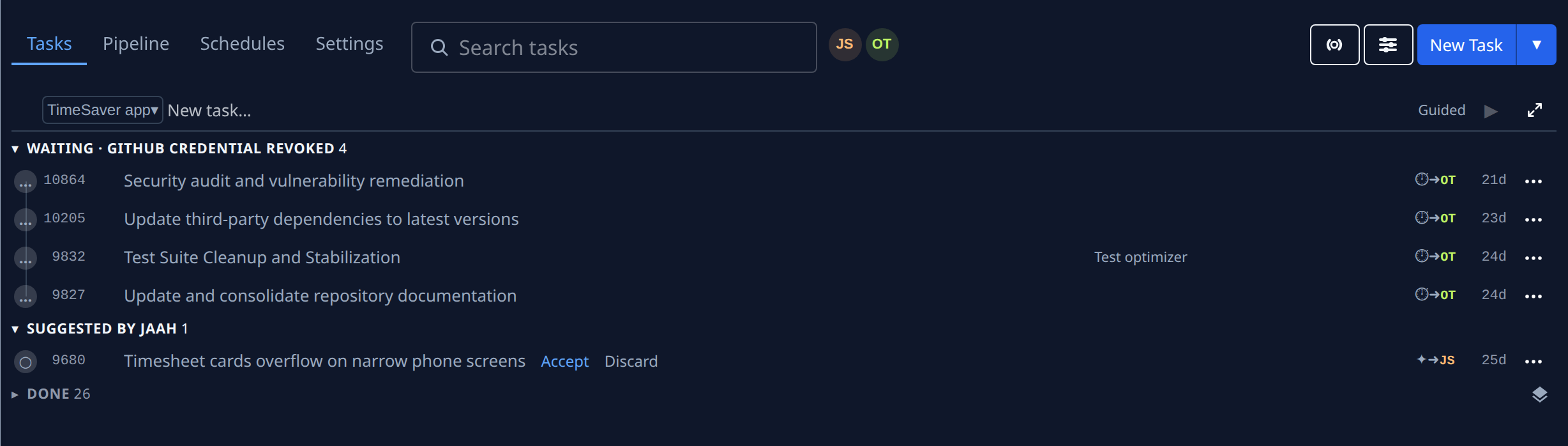
Production's list and the Tasks tab's Done group show each release as a row, with its tasks folded under it. To see the tasks themselves, newest first, select the stack icon at the end of the group's heading (Show as list). Select it again (Group by release) to fold them back. Jaah keeps your choice until you close the browser tab.
Related
- Release to production: schedules, approvals, freezes and failed releases.
- Read a task's result: what a finished task delivered.
- Task board › The Release step: the Release row, figure by figure.