Add an environment variable
A project's environment variables are written into a worktree's settings when a task claims it. Use one for a setting the project's code reads, such as a service address. For a secret, read the value from a credential instead of typing it in, so it is never shown on the project.
Who can do this: anyone who can view the project can add a variable that applies only to them. A variable for everyone needs the permission to edit the project.
Add the variable
-
In the sidebar, select Directory, then the Projects tab.
-
Select the project's name to open its settings.
-
Select the Environment tab. Use the arrows at the end of the tab strip if it doesn't fit.
-
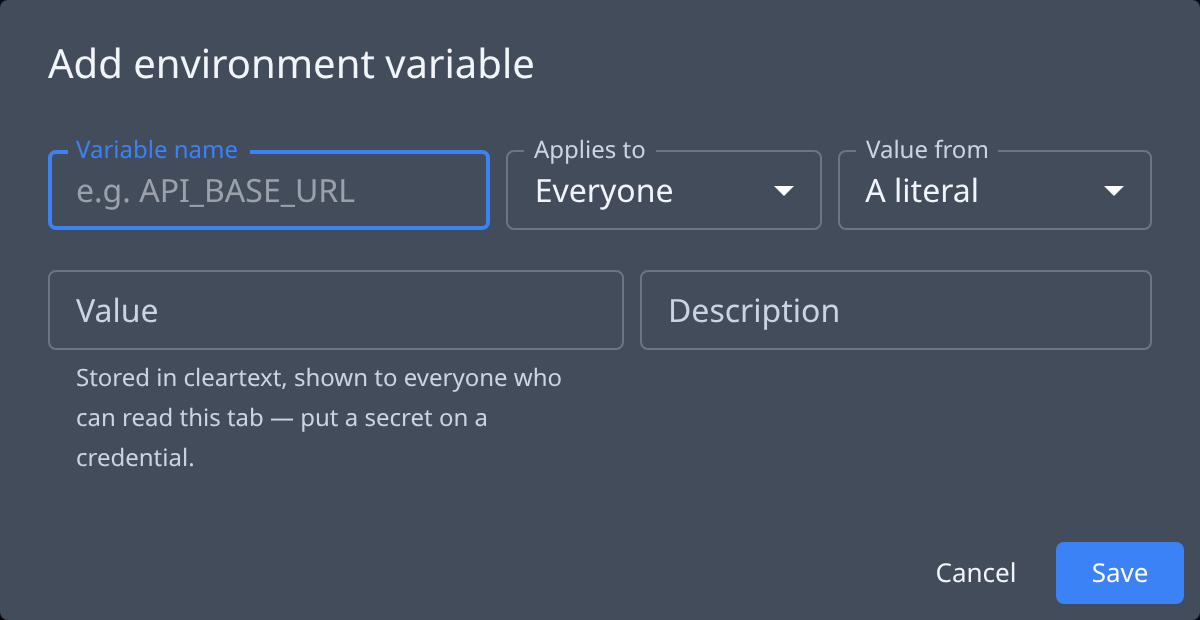
Select Add. The Add environment variable dialog opens.
-
Enter the Variable name.
-
If you can edit the project, pick Everyone or Only me in Applies to. Otherwise the field isn't shown and the variable applies only to you. This can't be changed later.
-
In Value from, pick where the value comes from:
- A literal: type it in Value.
- A credential: pick the Credential, then the Credential field to read from it. Only credentials you may use are listed.
-
Optional: say what the variable is for in Description.
-
Select Save. The variable saves at once; the project's own Save button isn't needed.
Check what your tasks get
Select Show preview on the Environment tab. Under What your slot gets, each line is your own Only me value where you have one, and the project's value otherwise. A line with a warning gets no value and isn't written. Select Hide preview to close it.
To change a variable, open the row's menu and select Edit, change it, then select Save. To remove it, select Delete in the same menu.
Related
- Before a credential can be picked here, it must exist: Add a credential.
- What each field means: Projects.
- How variables and credentials reach a project's tasks: How projects work.