Choose who an automation's tasks run as
A task an automation files has no person who started it, yet its runner still pushes code and calls an agent as someone. Run as on the automation names that member. Left blank, it reads Project default and follows the project's choice. Pick a person here when one automation needs someone else, such as a release schedule that must push as the member allowed to touch release branches.
Who can do this: Requires the org admin role. Automations are shown only to Owners and Admins of your organization.
-
In the sidebar, select Audit, then the Automations tab, and open the automation.
-
Open the Settings tab.
-
Find Run as under Action, below Start. Blank, it shows Project default.
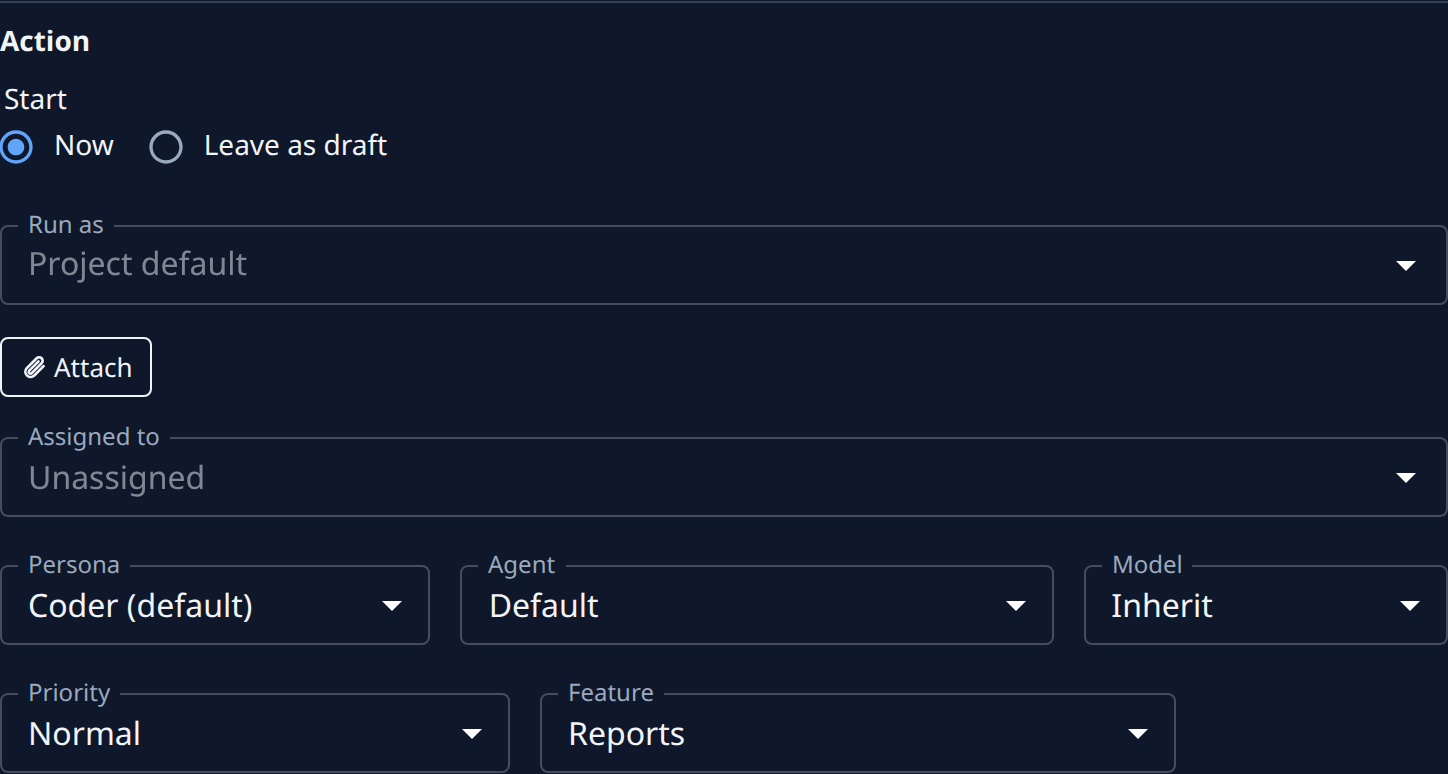
-
Select Run as and type part of a member's name. Only enabled members of your organization are offered; No matching member means nobody's name matches. Pick the person from the list.
-
Select Save at the bottom of the page. The field keeps the person's name.
-
To check it, select Run now at the top right, then open the task it filed. Its work, and any pull request it opens, is done with that member's Git login.
-
To go back to the default, clear Run as so it shows Project default again, then select Save.
Pick someone who has connected Git and can push to the target project's repository: the tasks push with their login. An automation that files from a template shows only Start, Run as and Priority under Action; Run as works the same there.
Related
- Choose who background jobs run as: the project and organization choice that Project default falls back to.
- Run, pause or change an automation: Run now and the other controls at the top of an automation's page.
- Take over an automation whose owner left: when the automation's owner, rather than who its tasks run as, is the problem.
- What each setting on the Settings tab means: Automations.